

Sell Tickets at the Door – Box Office for Event Tickets by Jovvie
v1.0.5bizswoop · 2026年1月27日 上架
Sell tickets at the door with Event Tickets and The Events Calendar. Tap to Pay on your phone or Stripe card readers; free plugin, no monthly fee.
- 正在使用
- 10 以下
- 评分
- 暂无
- 累计下载
- 645
- 最近更新
- 2026年8月19日
贡献者
 bizswoop
截图
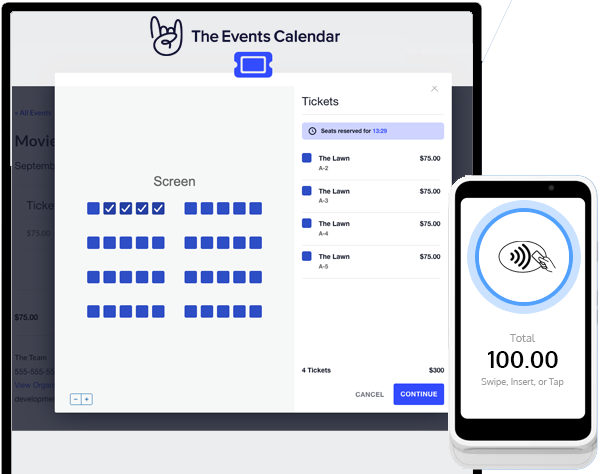
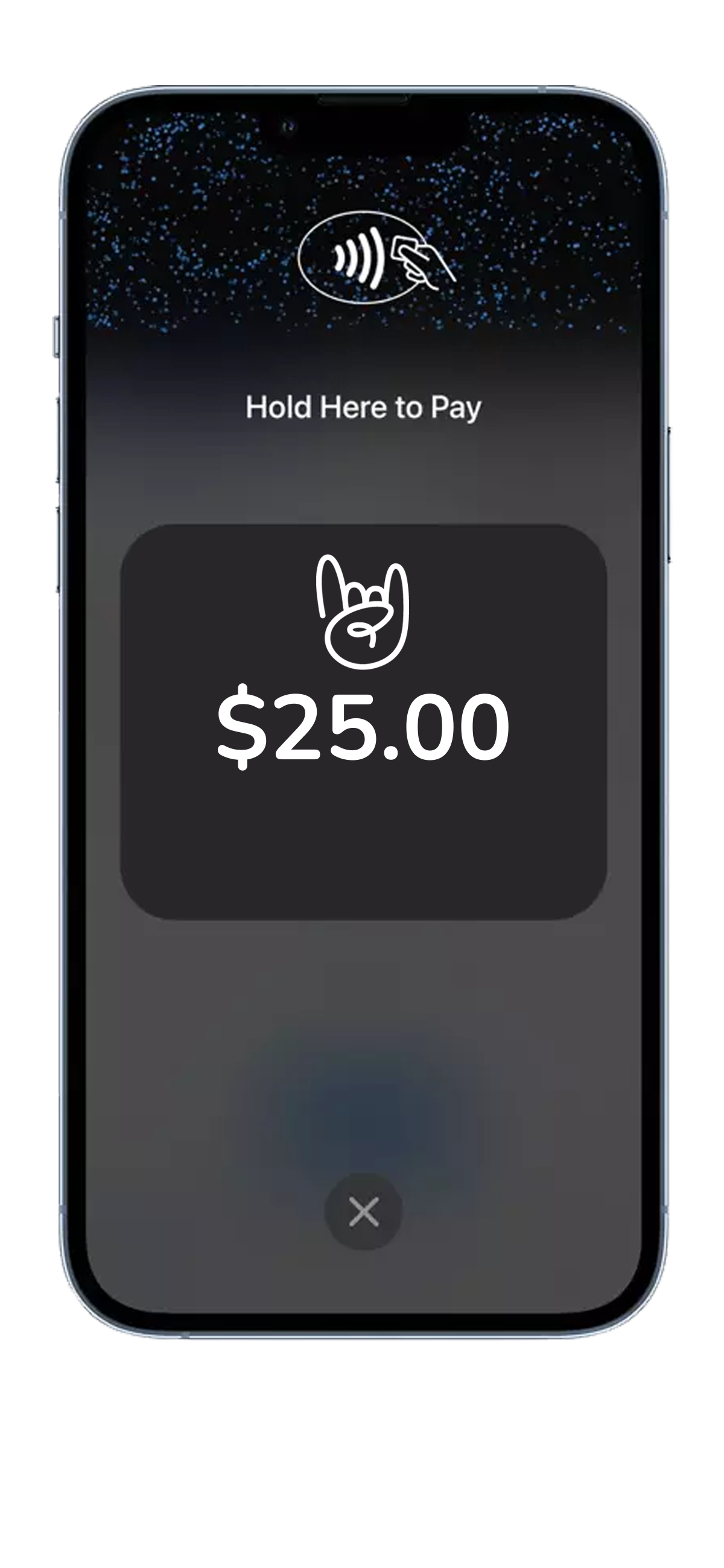

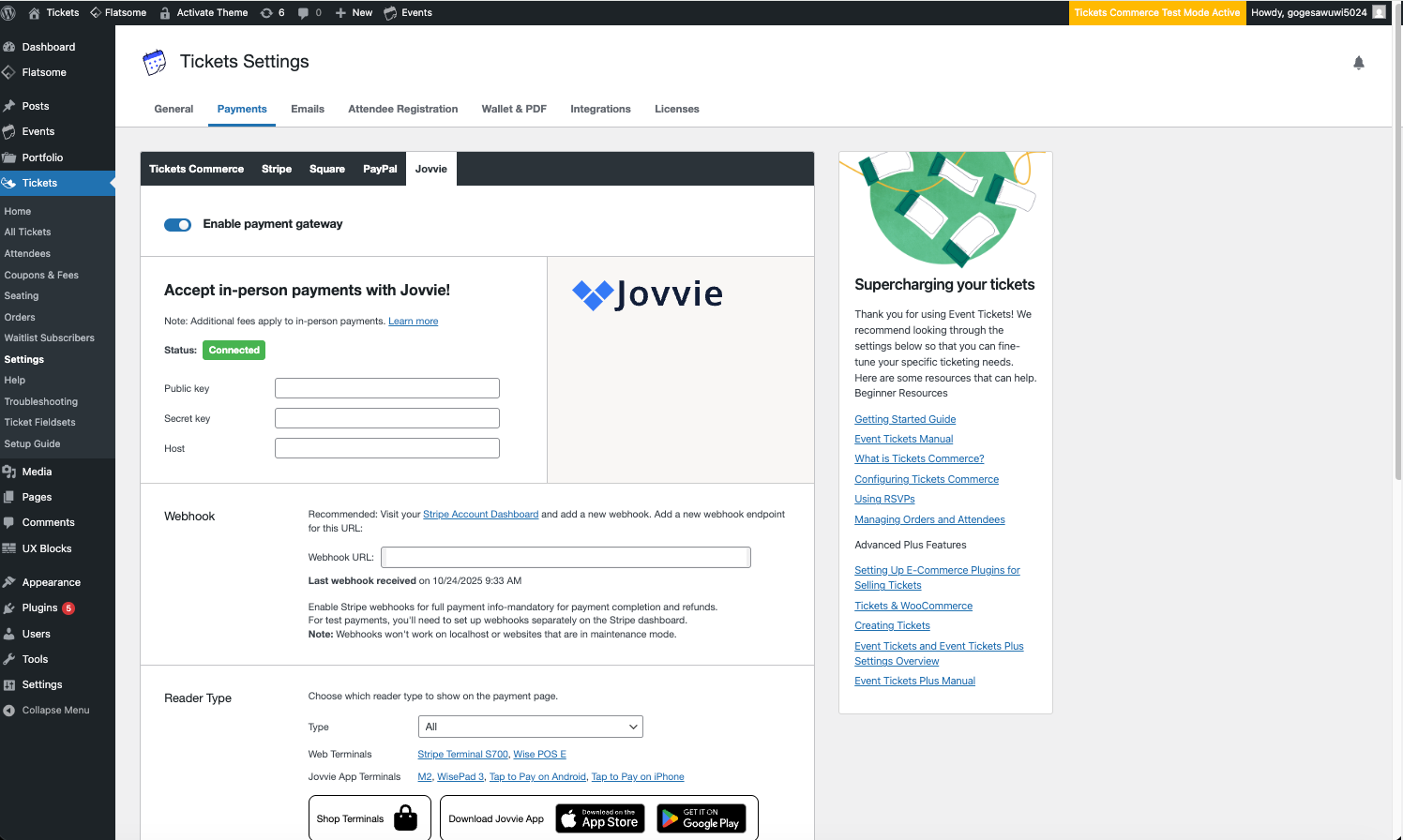
Sell tickets at the door on the same Event Tickets setup that sells them online.
Walk-ups, will-call upgrades, a box office table, a festival gate — take the card right there. Jovvie turns your phone into a card reader with Tap to Pay, connects Stripe Terminal readers, and records every door sale as a normal Event Tickets order. Inventory updates in real time, the attendee shows up on your list, and there is no cash box or separate point-of-sale system to reconcile afterwards.
Built by Jovvie, an official Stripe partner. Free plugin, no monthly fee, no contract — you only pay a small platform fee when you actually take an in-person payment.
Works with Tickets Commerce, the free checkout built into Event Tickets. The Events Calendar is optional; when it is installed, door sales are tied to their event automatically.
Where you’d use it
- Door sales and walk-ups — sell to people who show up without a ticket, in seconds, without leaving the entrance.
- Box office table — a countertop reader or a phone at will-call for same-day sales and upgrades.
- Festivals, fairs, and gates — staff with phones at every entrance, all selling from the same inventory.
- Venues, theaters, and community events — concerts, comedy nights, workshops, fundraisers, school productions.
- Recurring programs — classes and meetups where some attendees pay online and some pay when they arrive.
Three ways to take a payment
- Tap to Pay on iPhone and Android — no hardware to buy. Buyers tap their contactless card, Apple Pay, or Google Pay on your phone using the free Jovvie app.
- Stripe Terminal card readers — chip, swipe, and contactless with the Stripe Reader M2 and BBPOS WisePad 3 (Bluetooth, paired through the Jovvie app) or the Stripe Reader S700 and BBPOS WisePOS E (Wi-Fi/Ethernet, connected from your browser).
- Countertop, self-serve — set an S700 or WisePOS E on the box office table and let buyers tap for themselves.
What you get
- Standard Event Tickets orders — every door sale is a Tickets Commerce order like any online sale, with the same attendee record, ticket delivery, and reporting.
- Live inventory — capacity and stock update the moment a door sale completes, so you never oversell across online and in-person channels.
- Event association — with The Events Calendar installed, orders link to their event automatically.
- Refunds stay in sync — issue a refund in your Stripe dashboard and the Event Tickets order status updates to match.
- Direct to your Stripe account — funds settle to the Stripe account you control. Jovvie never holds your money.
- Secure by design — card data goes straight to Stripe. PCI-compliant, EMV, and NFC.
- Available in 25 countries — Australia, Austria, Belgium, Canada, Czech Republic, Denmark, Finland, France, Germany, Ireland, Italy, Luxembourg, Malaysia, Mexico, Netherlands, New Zealand, Norway, Poland, Portugal, Singapore, Spain, Sweden, Switzerland, United Kingdom, and United States (per Stripe Terminal availability).
What it costs
- Plugin: free
- Jovvie account: free
- Stripe account: free (you can create one during setup)
- Monthly fee, contract, or per-reader charge: none
- Platform fee: a small percentage on in-person payments only — 0.5% to 2% depending on your payment volume — in addition to Stripe’s processing rate
Get started in minutes
- Install and activate Event Tickets (and The Events Calendar, if you use it).
- Install and activate this plugin.
- Go to Tickets Settings Payments, enable Jovvie, and connect your Stripe account.
- Add a Payment Location and register your reader (or install the free Jovvie app for Tap to Pay).
- Take a test sale, then go live at your next event.
Documentation & support
Requirements
- WordPress 6.2 or newer, PHP 7.4 or newer
- Event Tickets with Tickets Commerce as your ticket checkout
- The Events Calendar — optional
- A Stripe account in a supported country
- An internet connection on the device taking the payment
Jovvie beyond Event Tickets
Take the same in-person card payments in the other tools you already run:
- Jovvie Point of Sale POS for WooCommerce – A full point of sale for your WooCommerce store: registers, receipts, inventory, and in-person payments.
- Tap To Donate for Give by Jovvie – Tap to Pay and Stripe Terminal donations at events and fundraisers.
- Jovvie Payments Gateway for Gravity Forms – Take card payments on Gravity Forms submissions.