
SteadyPost
v1.6.0steadydevs · 2026年10月24日 上架
Create and update posts in bulk from a CSV or Excel spreadsheet. Optionally import from Google Sheets, with post content from Google Docs.
- 正在使用
- 10 以下
- 评分
- 暂无
- 累计下载
- 279
- 最近更新
- 2026年11月7日
贡献者
 steadydevs
截图
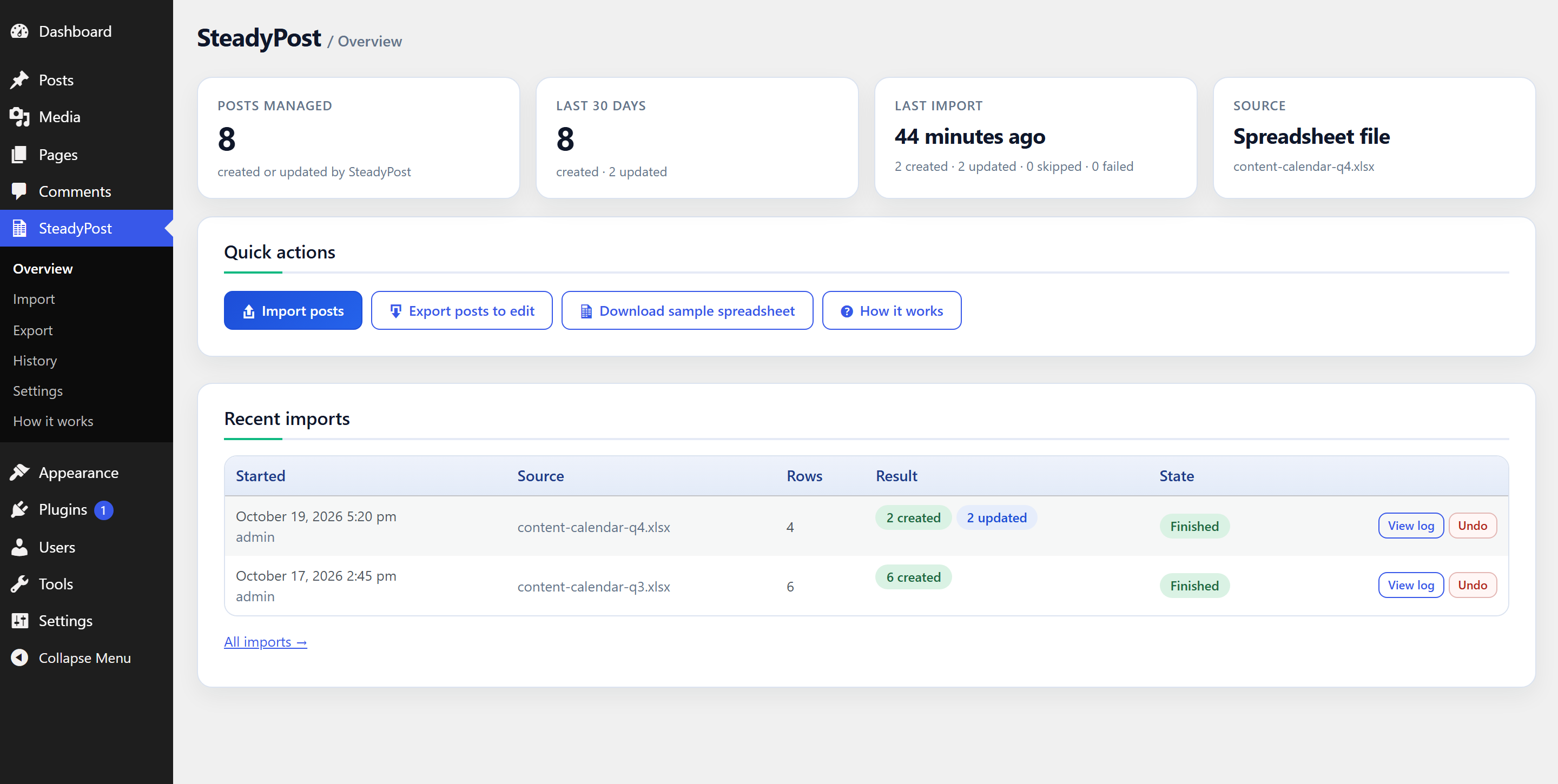
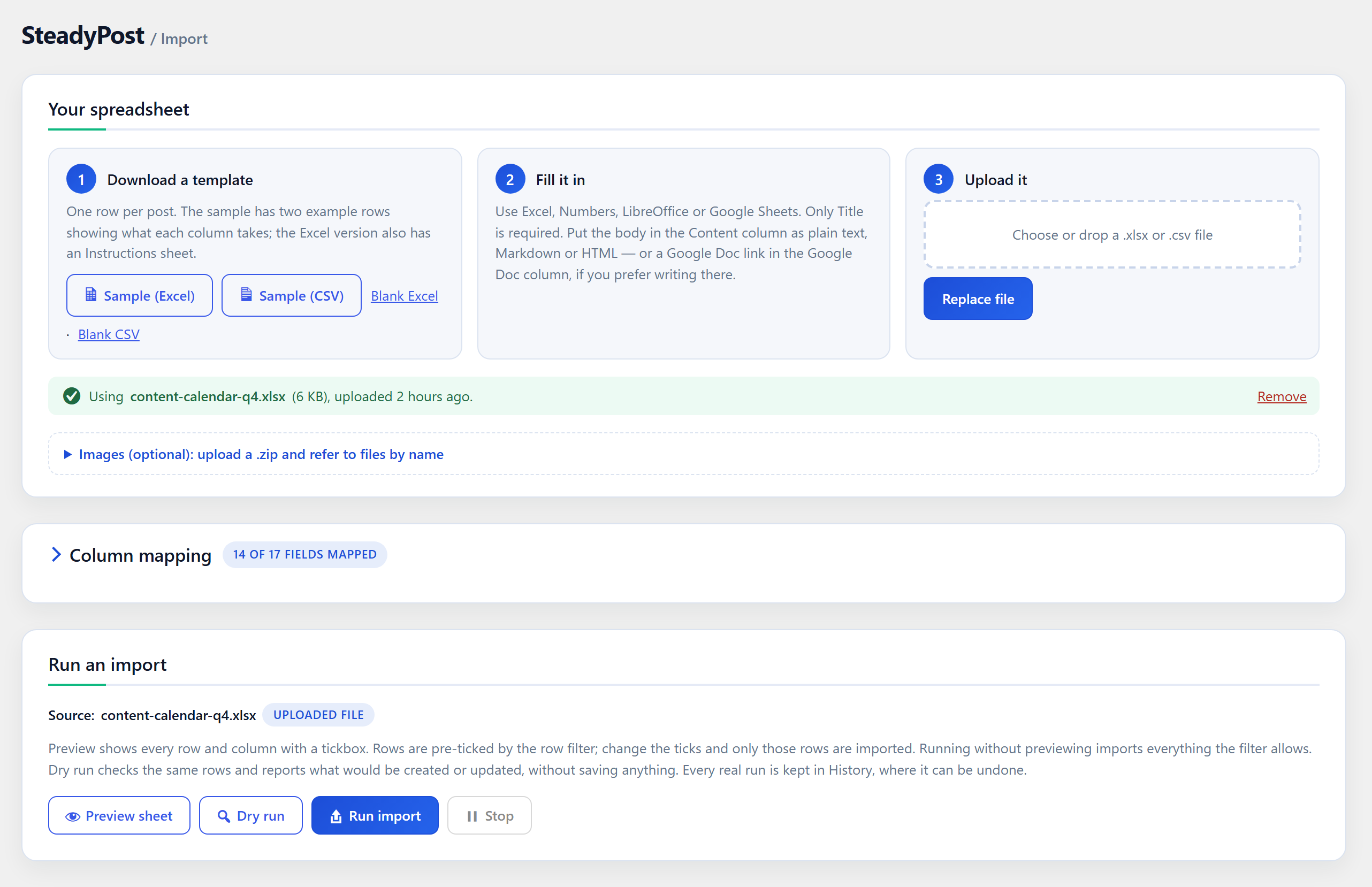
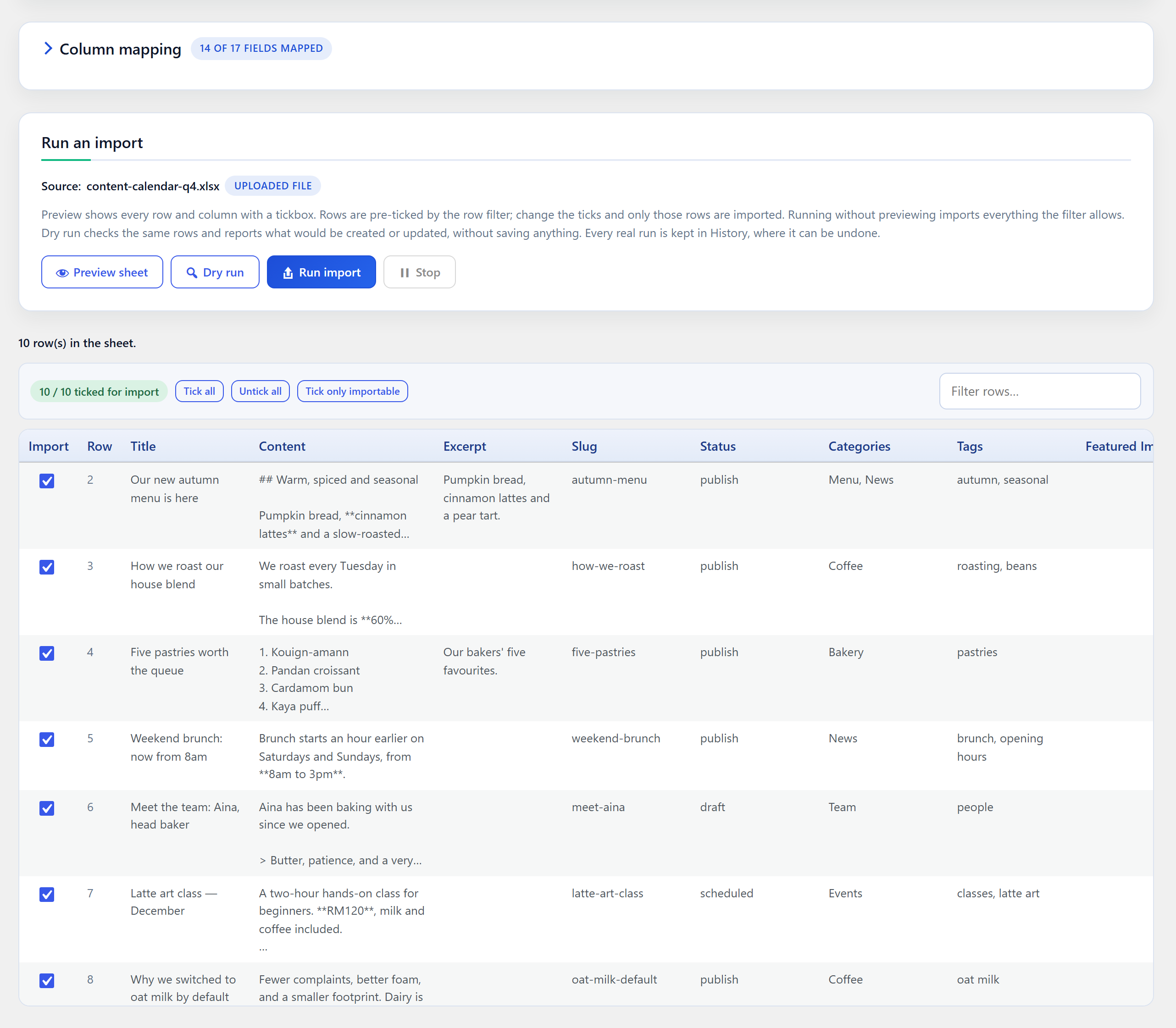
SteadyPost turns a spreadsheet into WordPress posts and pages. Each row is a post; each column is a field — title, content, excerpt, slug, status, categories, tags, featured image, publish date, author, parent page, page order, page template, comments, sticky, and SEO title, description and keywords.
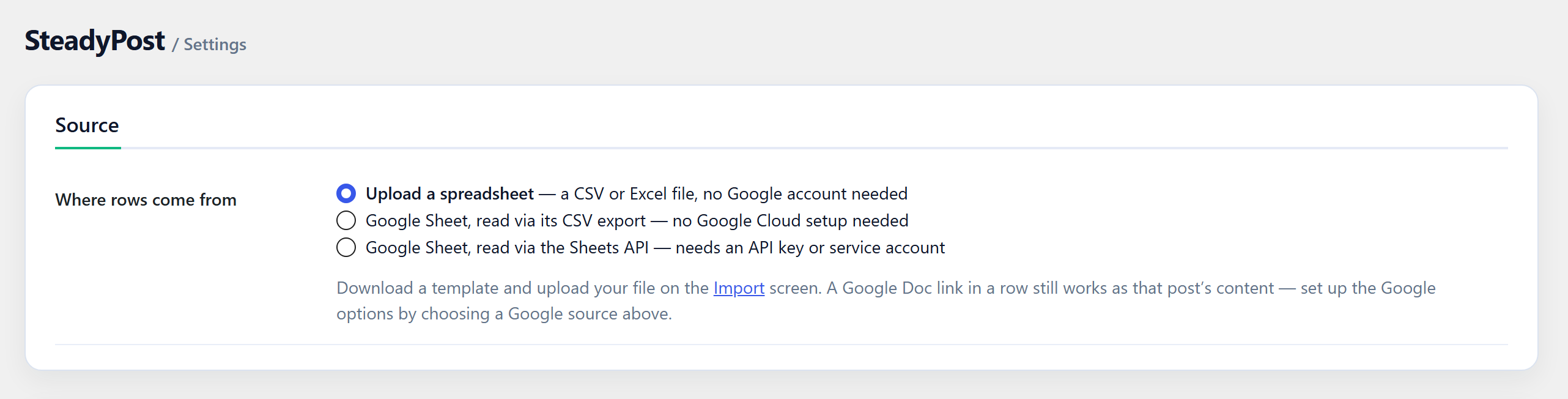
It works on its own. Download a sample or blank template (Excel or CSV), fill it in with any spreadsheet app, and upload it back. No account or external service is needed.
Importing
- Templates — Excel templates come with a frozen header row, a Status dropdown and an Instructions sheet. Columns for your site’s own custom fields and custom taxonomies are included automatically.
- Automatic column mapping — template columns map themselves. Any other spreadsheet can be mapped field by field, right on the Import screen.
- Content as plain text, Markdown or HTML — detected per row. Block-editor markup is kept exactly as it is.
- Images by filename — upload a zip of images and refer to
hero.jpgin a row, or reuse an image already in your media library. Each image is added to the library once. - Preview and pick rows — see every row and column before importing, tick exactly the rows you want, or let a “ready” column decide.
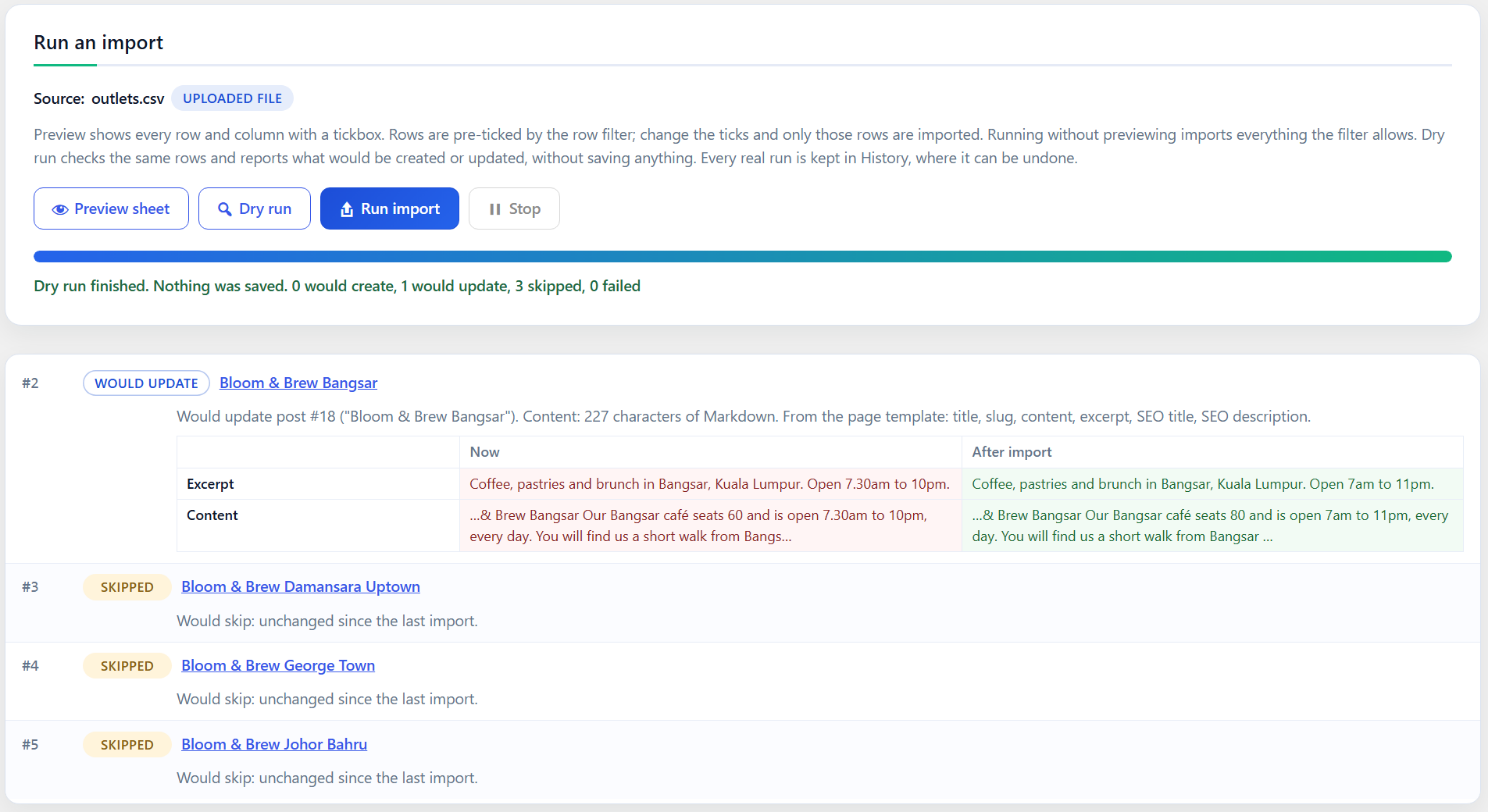
- Dry run with before and after — find out what would be created or updated without saving anything. For each post that would be updated, see every field that would change: what it says now, and what it will say after the import. New categories and missing authors or images are flagged too.
- Safe re-imports — running the same sheet again updates the posts it created instead of duplicating them, and skips the rows that haven’t changed since last time, so re-importing a big sheet is fast. A post someone has edited in WordPress since is always updated.
- Pages in a tree — a Parent column files each page under another, by its title, slug, path or ID, so one sheet can build
/locations/selangor/petaling-jaya/. Page order, page template, comments and sticky posts can be set from columns too. - Deleted rows — choose what happens to a post when its row is deleted from the sheet: nothing, back to draft, or into the Trash. The dry run lists these posts first, and undo puts them back.
- Results file — after each import, download a CSV listing every row with the post it became, its status and its link, to check the work or hand the links on.
Page templates
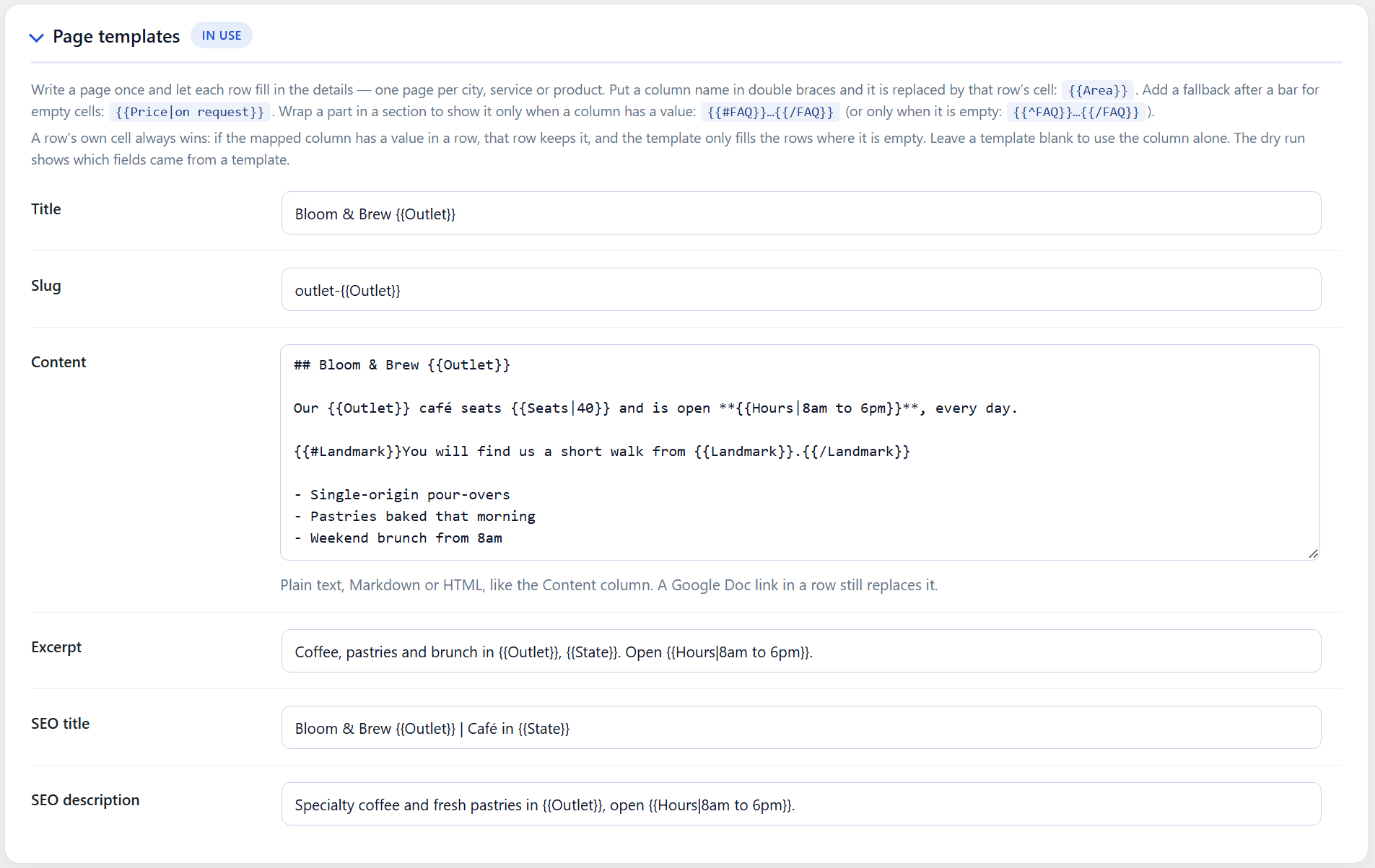
Write a page once and let each row fill in the details: one page per city, branch, service or product, from a sheet with just a few columns.
- Put a column name in double braces —
Plumber in {{Area}}— in the title, slug, content, excerpt, parent page or SEO title and description template. - Give empty cells a fallback:
From {{Price|RM80}}. - Show a part only when a column has a value:
{{#Landmark}}Five minutes from {{Landmark}}.{{/Landmark}}. - A row’s own cell always wins, so a few pages can have hand-written copy while the rest use the template.
Editing in bulk
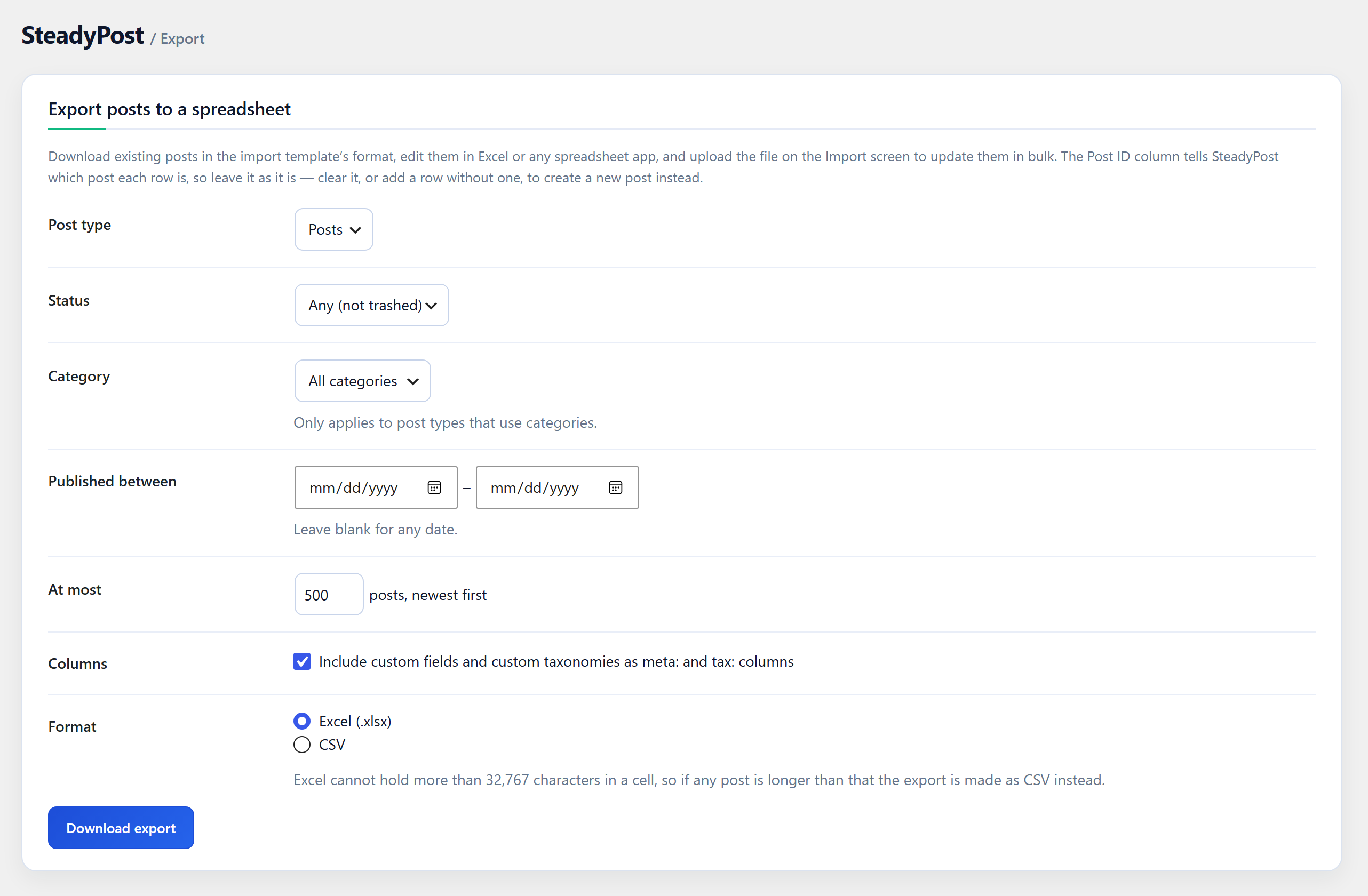
- Export existing posts — any post type, filtered by status, category and date — to Excel or CSV, edit them, and upload the file to update them all at once. This works for posts SteadyPost did not create, too.
WP-CLI
wp steadypost import— import from the source set in Settings, orwp steadypost import pages.xlsxfrom a file. Add--dry-runto see what would change,--rows=2,5to pick rows,--forceto re-import unchanged rows,--missing=draftto choose what happens to deleted rows,--results=results.csvto save the results, and--format=jsonfor scripts.wp steadypost history— recent imports.wp steadypost undo <run-id>— undo one.
Imports from WP-CLI use the same settings as the Import screen and show up in History.
History and undo
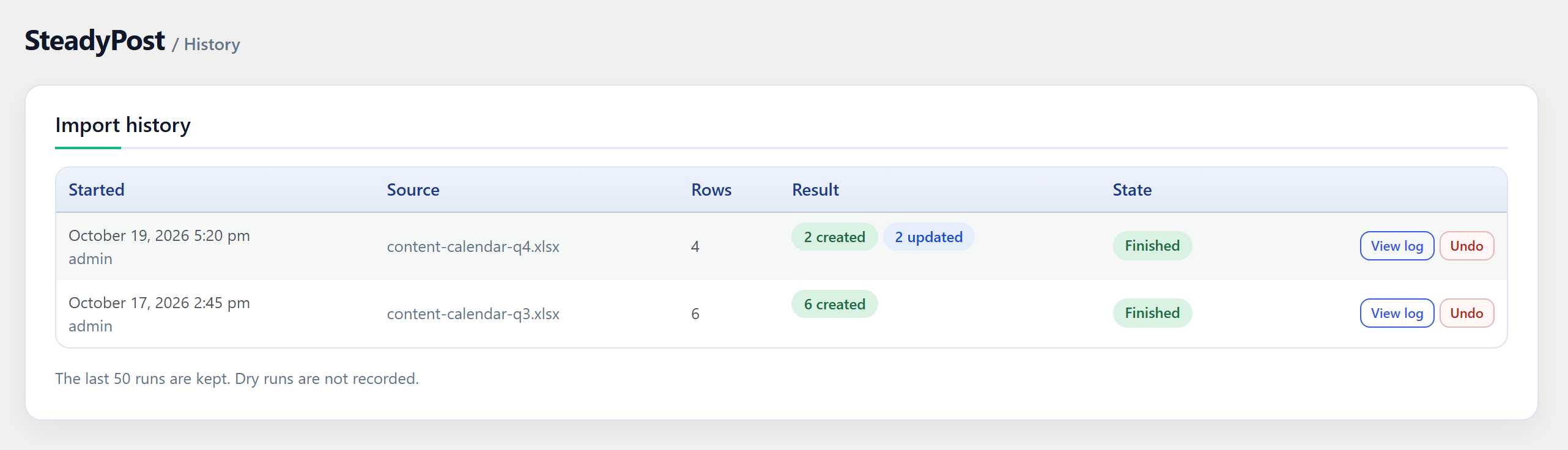
- Every import is recorded with its full row-by-row log.
- Undo a run: the posts it created go to the Trash, the posts it updated are restored to the revision saved just before the import changed them, and posts it drafted or trashed for a deleted row get their earlier status back.
- Download the results of any run as a CSV.
WooCommerce products
With WooCommerce active, a sheet can create and update simple products: SKU, regular and sale price, stock quantity or stock status, weight and gallery images, with Categories and Tags going to product categories and tags. A row whose SKU matches a product updates that product, even one SteadyPost didn’t create, so a supplier’s price list can update a store. Prices can be typed as “RM 1,299.50” or “49,90”. An empty cell leaves a value as it is; “none” ends a sale or turns stock tracking off. The dry run shows each product field before and after, and flags SKUs already used by another product. Variable, grouped and external products keep their prices and stock.
SEO plugins
SEO columns are written to whichever SEO plugin is active: Yoast SEO, Rank Math or SEOPress, as well as Mikado/Qode theme SEO fields or meta keys you name yourself.
Optional: Google Sheets and Google Docs
Instead of uploading a file, SteadyPost can read rows straight from a Google Sheet — anonymously for link-shared files, or as a Google service account for privately shared ones — and re-import it on a schedule. Any row can point at a Google Doc to use as the post body, with its headings, formatting, links, tables and images. See External services below.
Privacy
SteadyPost adds no tracking and sends no data anywhere unless you use the optional Google features. Uploaded spreadsheets are stored in a private folder in wp-content/uploads that is blocked from the web, and replaced each time you upload a new one.
External services
SteadyPost connects to Google only when you choose to. If you import from an uploaded CSV or Excel file and leave the Google Doc column empty, it makes no outside requests at all. Requests to images on other sites are made only for image URLs you put in your spreadsheet.
Google Sheets — used when Settings Source is set to a Google Sheet. When you open the Settings screen, preview, run an import or a scheduled sync runs, SteadyPost requests the sheet’s contents. It sends the spreadsheet ID from the URL you entered, your Sheets API key if you set one, and your site’s address in the User-Agent header.
https://docs.google.com/spreadsheets/d/{id}/export— CSV and XLSX exports of the sheet.https://sheets.googleapis.com/v4/spreadsheets/{id}— the Google Sheets API, in Sheets API mode.
Google Docs and Google Drive — used when a row links a Google Doc as its content, or names a Google Drive image. During the import of that row, SteadyPost downloads the document as HTML, or the image file. It sends the document or file ID from the link.
https://docs.google.com/document/d/{id}/exporthttps://drive.google.com/uc
Google OAuth — used only if you connect a Google service account to read privately shared files. To get an access token, SteadyPost sends https://oauth2.googleapis.com/token a request signed with the service account’s private key. It contains the service account’s email address and the read-only access it asks for. The key itself is never sent. Tokens are requested when a Google file is read and when the Settings screen checks the connection.
These services are provided by Google: Google Terms of Service, Google Privacy Policy, Google APIs Terms of Service.