
Simple Menu Order Column
v2.1.4chillcode · 2024年4月19日 上架
Expose menu order column on your dashboard listings.
- 正在使用
- 200+
- 评分
- 5.0 / 5
- 累计下载
- 4,585
- 最近更新
- 2026年9月28日
1 条评价需要 WordPress 6.0+已测试到 7.1.5PHP 7.4+
贡献者
 chillcode
截图


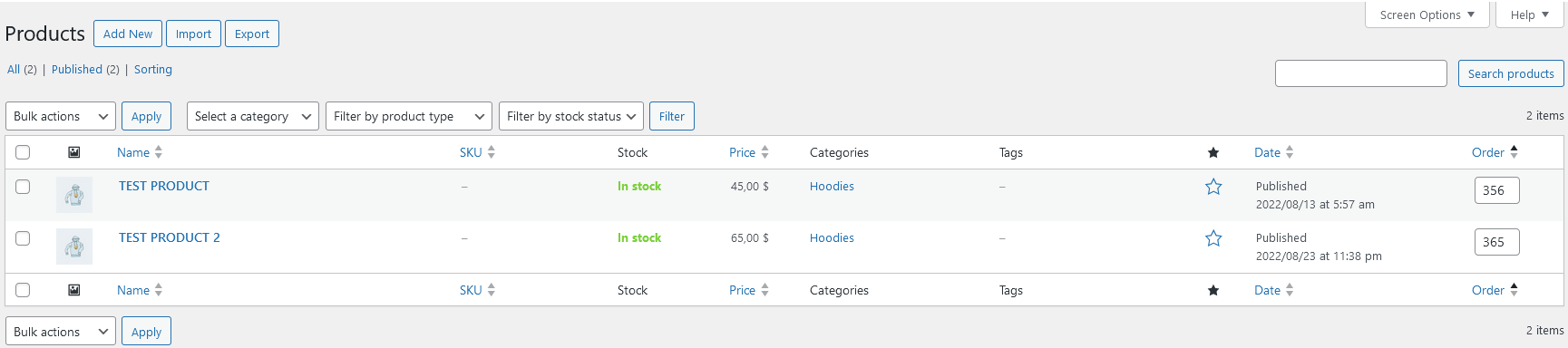

Every WP_Post (page, attachment, post, woo product) has a menu_order column and this plugin allows you to modify it directly on your dashboard listings.
Features
- Change menu order on WP_Post types like pages, attachments, posts & woo products.
Prerequisites
Pricing
Free
Configuration
Once installed you will see an input box on every listing item.
- To disable confirm prompt after menu order is updated visit Wordpres Settings->Writing and untick the option Enable confirmation on input exit
- To disable tab to next on position update visit WordPress Settings->Writing and untick the option Enable Go to next field on update
- To disable or enable post types visit WordPress Settings->Writing and add or remove valid post types separated using commas in WP_Post types allowed input text box.
Usage
- Access WordPress Admin: Log in to your WordPress admin dashboard. This is usually accessed by adding “/wp-admin” to the end of your website’s URL and entering your credentials.
- Navigate to Posts, Media, Pages or Products: After logging in, navigate to any listing page based on WP_Post, such as Posts, Media, Pages, or Products (if you’ve installed WooCommerce). You can find these sections in the left-hand menu of the WordPress admin dashboard.
- Reordering items: Each list item will have a new input box with a menu_order value *. Simply change the value and press Enter to reorder the items. Negative values are also acceptable. For example, -1 will be sorted before 1 or 0.
- If Order column is not present Manage screen options and enable Order Column.