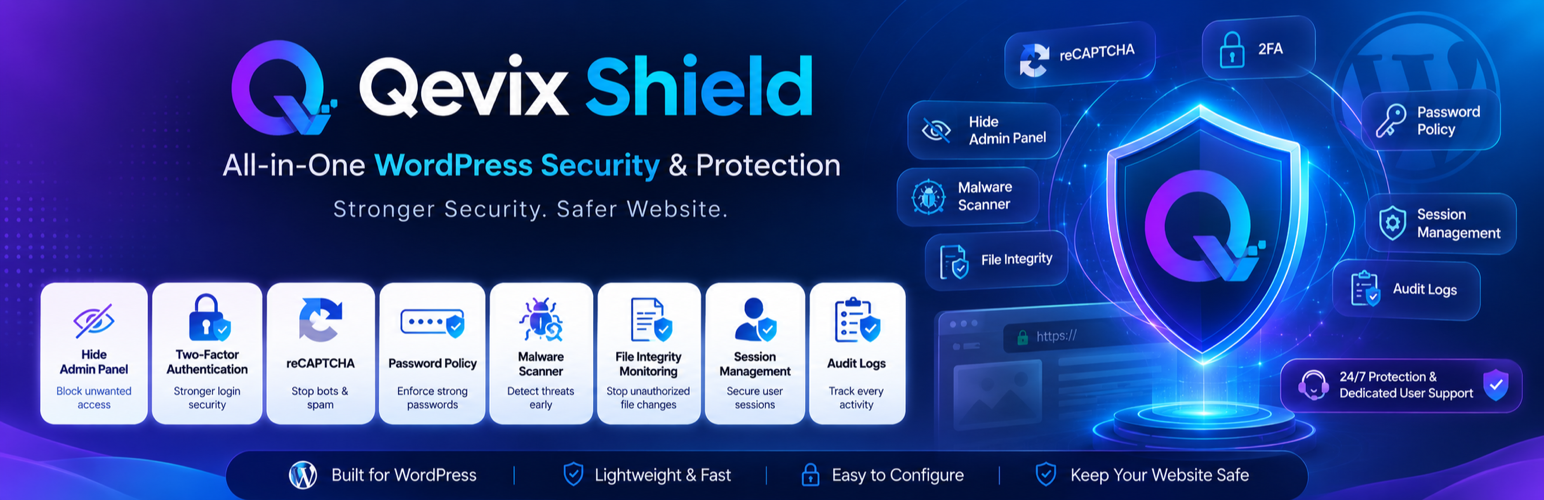

Qevix Shield – 2FA, Hide Login, Firewall, File Security & Malware Scanner
v2.0.0qevixlabs · 2026年7月31日 上架
WordPress security: login protection, 2FA, reCAPTCHA, malware scanning, firewall and an activity log. Every protection is off until you turn it on.
- 正在使用
- 10 以下
- 评分
- 5.0 / 5
- 累计下载
- 701
- 最近更新
- 2026年11月16日
贡献者
 qevixlabs
截图


Qevix Shield protects the parts of a WordPress site that attackers commonly target first: the login page, XML-RPC, files, and URLs that can reveal information about your site.
It can help stop brute-force attacks, add two-factor authentication and reCAPTCHA, scan files for malware, protect sensitive files, and record blocked activity in a searchable log. Important events can also be sent to administrators by email.
Qevix Shield is safe to activate. Activation does not change how your site works. All security protections are off until you enable them, so you can turn them on one at a time and check the result. The activity log starts automatically, but it only records activity and does not change your site.
Why Qevix Shield
- Safe to activate. All security protections are off by default. Turn them on one at a time so you can see exactly what each protection does.
- Easy recovery. A safe mode in
wp-config.phpcan temporarily disable Qevix Shield if you ever lock yourself out. reCAPTCHA keys must pass a test before reCAPTCHA can be enabled. 2FA includes recovery codes and an admin reset. Login lockouts are temporary. - One plugin for your security needs. Includes Hide Login, brute-force protection, 2FA, reCAPTCHA, password rules, XML-RPC protection, malware scanning, file and server protection, firewall, and activity logging.
- See what is happening. Logins, blocked requests, and admin actions appear in a searchable activity log. You can export the log to CSV. Important events can be grouped into one email instead of sending many separate emails.
- Designed to be lightweight. With all protections enabled, response times are intended to remain close to the site without the plugin. Visitors do not have to wait for an external security service.
- Works with other plugins. Qevix Shield does not modify or replace other plugins’ code. WooCommerce, membership plugins, and front-end login pages can continue to work, including when Hide Login is enabled.
- Everything included. Every feature on this page is free. There is no paid version, account, license key, trial, or locked setting.
Login Protection
- Hide Login: Move the WordPress login page from
/wp-login.phpto a custom login URL. This is off by default. - Choose what blocked visitors see: a 404 page, your homepage, or a custom redirect.
- A honeypot field helps block simple bots without affecting normal visitors.
- Limit failed login attempts and temporarily block an IP address after too many failed attempts.
- Add trusted IP addresses or CIDR ranges so they are not rate-limited or blocked.
- Permanently block IP addresses, filter user agents, and automatically block IPs that keep getting locked out. Recent administrator IPs are never auto-blocked.
Two-Factor Authentication (2FA)
- Use one-time codes from popular authenticator apps such as Google Authenticator, Authy, 1Password, and similar apps.
- Set up 2FA separately for each user by scanning a QR code and confirming a code.
- Get recovery codes when setting up 2FA. You can download them and use them if you lose your phone. An administrator can also reset 2FA.
- Require 2FA for the user roles you choose. Users who are required to use 2FA will be guided through setup before they can continue.
- Protect XML-RPC logins for 2FA users by requiring the 2FA code or blocking XML-RPC password logins. Application passwords are not affected.
- Trusted devices: let users skip the code on a browser they trust for a number of days.
- Emailed backup code: if the authenticator app is unavailable, a one-time code can be sent to the account’s email address.
reCAPTCHA
- Add Google reCAPTCHA to login, registration, and lost-password forms.
- Choose between reCAPTCHA v2 (the “I’m not a robot” checkbox) and invisible reCAPTCHA v3.
- Protect WooCommerce My Account and checkout forms too.
- Developers can add the same protection to other plugin forms using a hook.
- reCAPTCHA v3 lets you set a score threshold. You can also enable an email fallback so a genuine user who gets a low score can receive a one-time sign-in link.
- Test your reCAPTCHA keys before enabling the protection. This helps prevent incorrect keys from breaking login.
- If Google is temporarily unavailable, reCAPTCHA fails open so an outage does not lock users out.
Password Security
- Set a minimum password length.
- Require uppercase letters, lowercase letters, numbers, and symbols.
- Prevent users from using their username or email address as their password.
- Block nearly 10,000 common passwords.
- Optionally check new passwords against the Have I Been Pwned database. Only the first five characters of the password’s SHA-1 hash leave your site.
- Set password expiry with a warning period, prevent password reuse, and force a password reset for chosen users at their next login.
XML-RPC Protection
- Disable all XML-RPC methods or disable pingbacks only.
- Record every XML-RPC request, including the method and whether it was allowed or blocked.
- Finer rules: allow authenticated requests only, allow only the methods you list, or allow only trusted IP addresses.
Malware Scanner
- Scan WordPress core files, plugins, themes, and uploads. Choose which areas to scan.
- Compare WordPress core files and plugins from WordPress.org with their official checksums to detect modified files.
- Use a malware pattern scanner to check files that cannot be verified with checksums, including themes, uploads, premium plugins, and modified files.
- Extra web-shell and backdoor signatures, plus checks for suspicious cron jobs and administrator accounts.
- An optional database scan looks for injected scripts and hidden iframes in posts and settings. It only reports.
- Quarantine or delete a flagged file yourself, restore it from quarantine, or dismiss a result you have reviewed.
- Run scans automatically every day or week.
- The scanner never changes or deletes a file on its own. Only you can quarantine or delete, one file at a time.
File & Server Security
- Block direct access to sensitive files such as
.env,.git,wp-config.php, and other protected files. - Block access to backup files and database dumps such as
.sql,.bak,.tar.gz, and.wpress. - Add your own filenames or
*.extensionpatterns to block. - Disable directory listing and PHP execution inside the uploads folder.
- Qevix Shield can add the required Apache
.htaccessrules and show the equivalent nginx rules for manual setup. - Hide the WordPress version, REST API discovery links, and identifying server headers.
- Block author and user enumeration.
- A lightweight firewall helps block common SQL injection, XSS, file inclusion, and command injection attempts, as well as known scanner user agents.
Sessions, Activity Log & Dashboard
- Users can see and end their own active login sessions.
- Administrators can see every user’s sessions, revoke any of them, log a user out everywhere, and set an idle timeout.
- Resetting a password logs out the other sessions for that account.
- The activity log records logins, admin actions, and blocked requests, including who, what, when, and where.
- Search, filter, and export the activity log to CSV.
- Choose how long activity records are kept.
- Important events can be emailed to administrators as grouped summaries.
- Send grouped alerts by SMS or WhatsApp (Twilio or the WhatsApp Cloud API) and to Slack, Discord, or any webhook, filtered by severity and event type.
- A WordPress dashboard widget shows threats blocked during the last 24 hours and suggests the next protection to enable.
- Give selected WordPress roles permission to manage Qevix Shield or view it in read-only mode without giving them full administrator settings access.
- WP-CLI commands:
wp qevix-shield scan(exits with an error on a critical finding, so it can stop a deploy),wp qevix-shield 2fa reset <user>andwp qevix-shield status.
Learn More
Every setting has its own screen with a “?” tip explaining the option.
For a full walkthrough, including screenshots, feature comparisons, and common questions, see the plugin’s home page: Qevix Shield on qevixlabs.com.
External services
Qevix Shield does not contact external services by default. The optional features below use external services only after you turn them on.
Google reCAPTCHA — Used only when you enable reCAPTCHA and enter your own Google keys. The protected login page loads Google’s reCAPTCHA script. Each protected attempt sends the reCAPTCHA token, your secret key, and the visitor’s IP address to Google’s verification service (https://www.google.com/recaptcha/api/siteverify).
The “Test keys” button also contacts Google.
Provided by Google: terms, privacy policy.
WordPress.org checksums API — Used when you run a malware scan. Qevix Shield gets official checksums to identify genuine files and modified files.
For WordPress core, it uses WordPress’s get_core_checksums() function, which contacts api.wordpress.org and sends your WordPress version and locale.
For plugins, it gets public checksum information from WordPress.org. Only the plugin slug and version are included in the request. Results are cached for seven days. Plugins without a checksum manifest, such as premium or custom plugins, are scanned normally.
Provided by WordPress.org: privacy policy.
Built-in email alerts use your site’s own email configuration. No third-party email service is required.
Have I Been Pwned (Pwned Passwords) — Used only when you turn on the breached-password check under Password Security. When a user sets a new password, Qevix Shield sends the first five characters of the password’s SHA-1 hash to https://api.pwnedpasswords.com/range/. The password itself and the full hash never leave your site. If the service cannot be reached, the password is accepted.
Provided by Have I Been Pwned: terms and privacy.
Twilio — Used only when you choose Twilio as the SMS alert gateway and enter your own account details. Alert text and the recipient phone numbers are sent to https://api.twilio.com/.
Provided by Twilio: terms, privacy policy.
WhatsApp Cloud API (Meta) — Used only when you choose WhatsApp as the alert gateway and enter your own access token. Alert text and the recipient phone numbers are sent to https://graph.facebook.com/.
Provided by Meta: terms, privacy policy.
Webhooks (Slack, Discord, or your own URL) — Used only when you enter a webhook URL. Alert summaries (your site address, event type, severity, time, user name, and IP address) are sent to the URL you enter. Slack and Discord apply their own terms: Slack, Discord.
Audit logs, lockout records, 2FA secrets, and settings remain in your site’s own database.