

Nextial Order Archive – Archive Old Orders for WooCommerce
v0.3.1nextial · 2026年10月31日 上架
Archive old orders automatically and keep the WooCommerce Orders screen fast, with or without HPOS. Search archived orders and restore in one click.
- 正在使用
- 10 以下
- 评分
- 暂无
- 累计下载
- 773
- 最近更新
- 2026年11月24日
贡献者
 nextial
截图

Before you install, you need: WooCommerce 8.2 or newer with compatibility mode off (WooCommerce Settings Advanced Features), so orders live in one place only. Both order storages work: High-Performance Order Storage (HPOS) and the classic storage in wp_posts / wp_postmeta (since 0.2.0). Make a database backup before the first run.
Stores with years of orders get a slow Orders screen, slow searches and heavy database queries. On shops without HPOS it is worse: every order adds dozens of rows to wp_postmeta, the table the whole site reads. Nextial Order Archive moves old, finished orders out of the live WooCommerce order tables into archive tables, so WooCommerce works on the orders that matter today.
- Works without HPOS too: on the classic storage the orders, their meta, items and notes leave wp_posts and wp_postmeta. In our test shop with 18,600 orders, archiving 15,593 of them took wp_postmeta from 647,958 to 98,111 rows; restoring brought every order back identical.
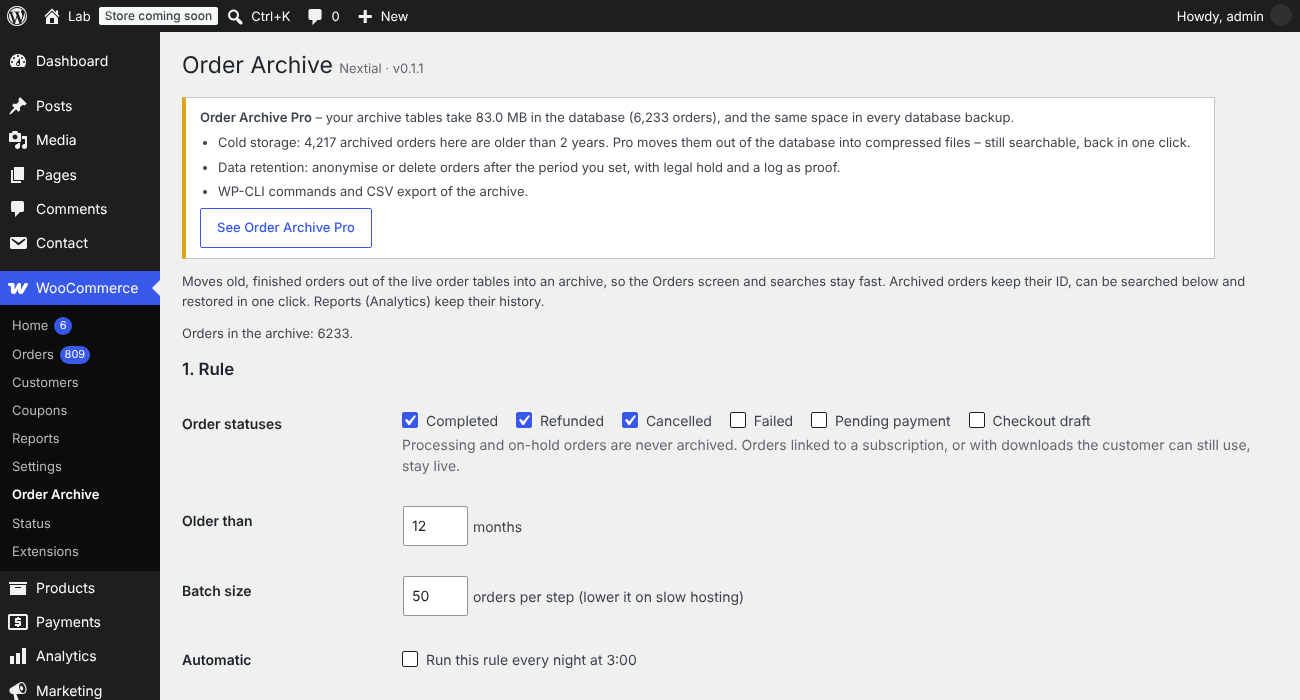
- Rules: choose the statuses (completed, refunded, cancelled, failed…) and the age, for example “completed orders older than 12 months”.
- Preview first: see how many orders match, and which ones stay live, before anything moves.
- Background batches: Action Scheduler moves small batches one after another, so the store never slows down. Stop at any time.
- Automatic: optionally run the rule every night.
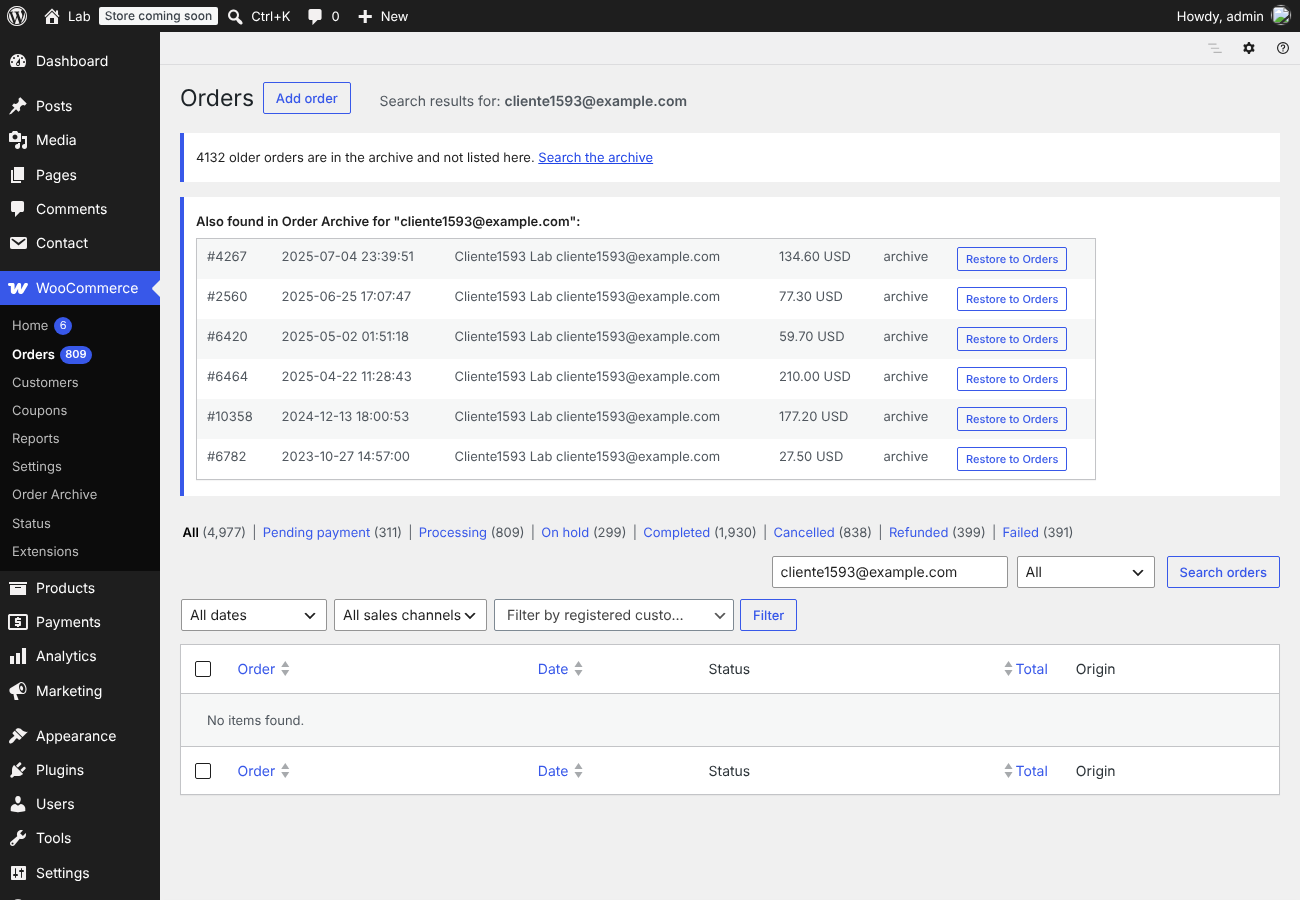
- Search the archive by order number, e-mail or customer name – also from the normal WooCommerce Orders search: archived matches appear above the list with a “Restore to Orders” button that brings the order back and opens it. Staff never need to know where an order is.
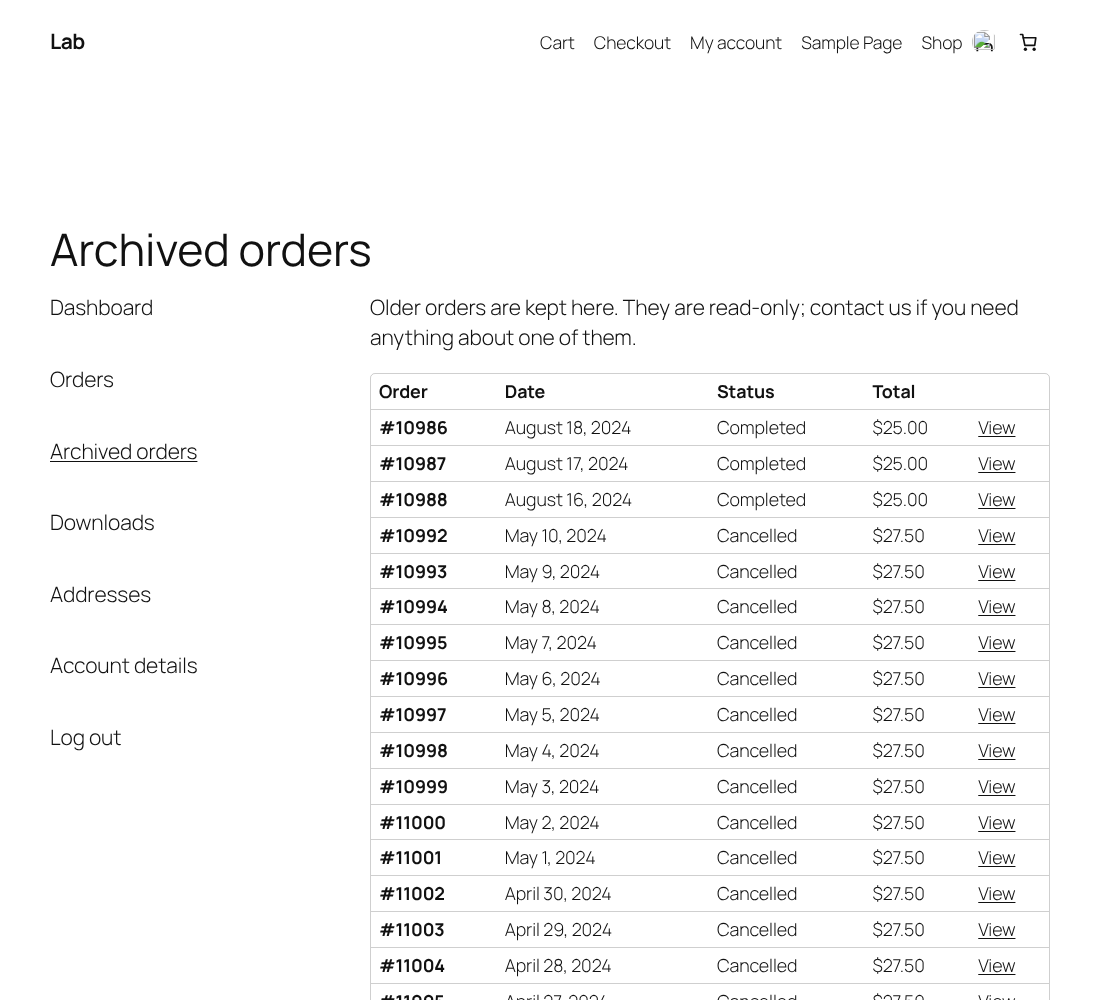
- Customers still see their old orders: an “Archived orders” tab in My Account lists them, read-only, with items, totals, refunds and addresses. Only the customer’s own orders, and only if they have any. You can switch it off.
- Restore in one click, or in bulk: tick the orders you want back, or restore every order matching your search (or the whole archive) in background batches. Orders come back with the same ID, items, notes and refunds, and a restored order is never archived again automatically.
- Reports keep their history: WooCommerce Analytics tables are not touched.
- Privacy requests include archived orders: the WordPress tools under Tools Export/Erase Personal Data find archived orders too, with the same rules WooCommerce uses for live ones.
Safe by design
- Every batch runs inside one database transaction: rows are copied, every row count is checked, and only then are the live rows removed. Any difference rolls the batch back and nothing is moved.
- An order moves with everything that belongs to it: addresses, operational data, meta, line items and their meta, order notes and child refunds.
- With HPOS, order IDs stay reserved (the placeholder posts are kept), so a restored order gets its own ID back and no new order can take it. On the classic storage WordPress does not reuse IDs; if an ID were ever taken, that order is skipped on restore and nothing is overwritten.
- Orders linked to WooCommerce Subscriptions and orders with downloads the customer can still use are never archived. Processing and on-hold orders are never archived.
- Compatibility mode (sync between HPOS and the posts tables) must be off, so orders live in one place only. The plugin checks this and does nothing otherwise.
- If you switch between HPOS and the classic storage, restore the archive first: the plugin refuses to mix the two.
- Uninstalling the plugin never deletes the archive.
What to know
- Archived orders are not shown in WooCommerce Orders, and in My Account they appear only in the “Archived orders” tab (not under Orders). Guest orders (no customer account) are not shown to customers. Restore an order to show it everywhere again.
- Other plugins that keep their own data about orders (for example invoices or shipping labels) keep it; they will not find the order while it is archived.
- Make a database backup before the first run.