
Large Image Finder – Find, Optimize & Clean Up Large Images
v1.3.0Bokhtyer Abid · 2026年10月24日 上架
Media cleaner: find unused image, large and duplicate images, fix missing alt text, see where images are used, and free up disk space safely.
- 正在使用
- 10+
- 评分
- 5.0 / 5
- 累计下载
- 402
- 最近更新
- 2026年11月14日
贡献者
 Bokhtyer Abid
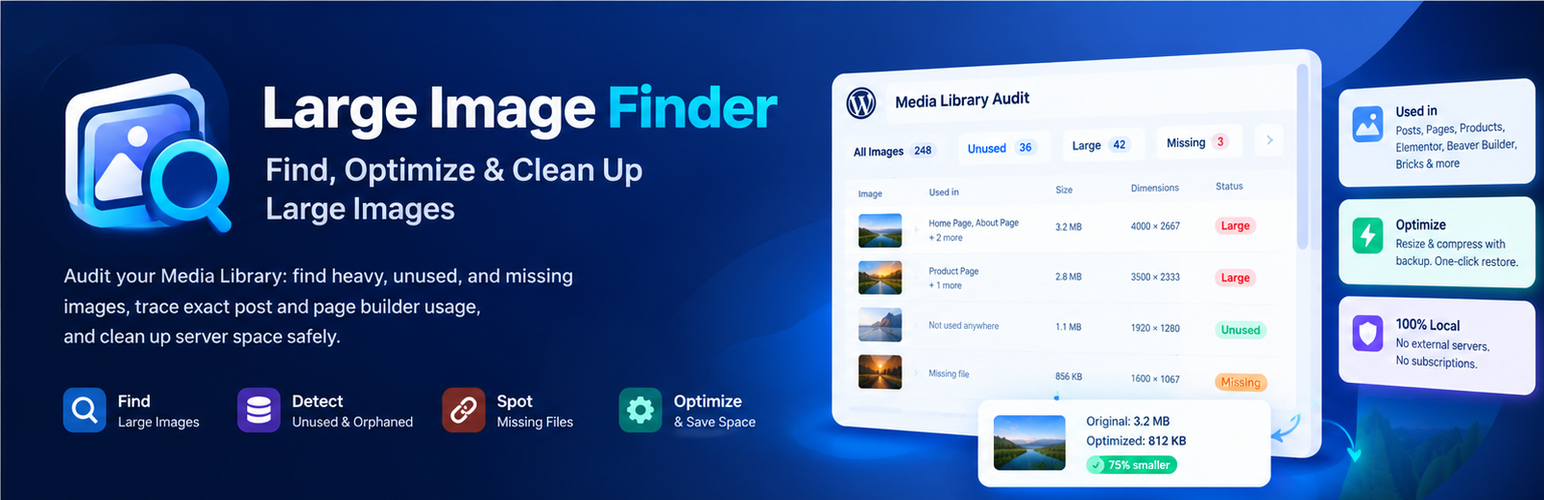
Large Image Finder is a specialized Media Library audit and usage intelligence tool for WordPress. It provides site owners and developers with a complete, transparent overview of media storage: pinpointing oversized files, mapping exactly where every image is embedded across content and page builders, identifying unused orphaned media, and detecting broken attachments.
Unlike generic image compressors that simply batch-process files without context, Large Image Finder solves the underlying media management problem: understanding which images are actually needed, where they live, and which files can be safely optimized or removed to reclaim gigabytes of disk space and boost Core Web Vitals (LCP).
How Large Image Finder is Different
- Deep Media Usage Mapping: See every place an image is used (posts, pages, WooCommerce product galleries, Elementor, Beaver Builder, Bricks, site logo, icon, and widgets) before touching it.
- Unused & Orphaned Media Audit: Detect images not linked to any content so you can safely clean up disk space.
- Broken File Detection: Find database attachment records whose physical media files were deleted or lost.
- Image Audit: See how much space your images use, the largest images, unused image storage, format and dimension breakdowns, WebP/AVIF detection and duplicate images, all read from your last scan.
- Duplicate Image Finder: Find identical files, even when the file names differ, and delete unused copies safely. One copy of every image is always kept.
- Missing Alt Text Finder: List every image without alt text and fix them one by one or all at once, right from one screen.
- 100% Local & Private: No third-party APIs, no monthly subscriptions, and no external servers. Everything runs locally on your own server.
- Safe On-Demand Optimization with Rollback: Resize and compress on request using WordPress’s built-in image tools, with original files backed up for instant one-click restoration.
Deep Media Usage Tracking
- The Used in column shows the exact count of places where an image is used and links directly to each post, page, or product edit screen.
- Detects featured images, in-content images, upload parent posts, WooCommerce product gallery images, custom logos, site icons, header images, and widgets.
- Full compatibility with modern page builders including Elementor, Beaver Builder, and Bricks.
- Sort the report by usage count to prioritize high-visibility media first.
Find Unused & Orphaned Images
- The Unused images tab lists media not referenced anywhere in known content, allowing you to identify clutter without risking broken layouts.
- Review unused media safely and delete unnecessary files permanently with built-in confirmation guards.
Audit Oversized & Heavy Media
- Set your own audit threshold: 500 KB (default), 1 MB, 2 MB, or custom KB value. Toggle thresholds instantly without re-scanning.
- View every oversized image with thumbnail preview, exact dimensions (width × height), file size, format, and attachment ID.
- Review disk usage of generated thumbnail sizes and full-size originals.
- Actionable hints: flags overly wide images (e.g. “4,000 px wide — resize to 2,560 px”) and heavy formats.
Detect Missing & Broken Media Files
- The Missing files tab flags Media Library database records whose physical files are missing from the server.
Local On-Server Optimization (With Backup)
- On-demand optimization right from the report for single images or bulk selections.
- Resizes images wider than your Max width (default 2,560 px) and recompresses them using your configured Quality settings.
- Uses the native WordPress image engine (Imagick or GD) — completely free and unlimited.
- Replaces files in-place with identical names and URLs so existing posts and pages automatically serve smaller files without rewriting content.
- Originals are safely backed up to
wp-content/uploads/large-image-finder-backups/and can be restored at any time. Optionally enable “Delete original after optimizing” if backups are not needed.
Audit storage, formats and duplicates
The Image Audit tab (Media Large Image Finder Image Audit) turns your last scan into numbers you can act on. It has its own Run new scan button and never changes anything by itself.
- Storage: total image storage (originals plus generated sizes), how much of it is unused, and how much space the plugin’s optimizer has saved.
- Largest images: every image from the biggest down, with file size, total size including generated sizes, dimensions and whether it is in use.
- Before / after optimization: each optimized or compressed image with its size before and after, and the total saved.
- Image formats: number of images and storage per format, the share of WebP and AVIF, and whether your server can create WebP and AVIF. Warns about formats that browsers or WordPress handle poorly, such as BMP, TIFF, HEIC or PSD.
- Image dimensions: how many images fall into each size range (under 500 px up to 3,000 px and larger).
- Duplicate images: groups of identical files, including copies uploaded under different names, with thumbnail, View and Edit links and the space the extra copies take. You can delete unused copies. Images that are in use cannot be deleted here, and at least one copy of every image always stays.
- Long tables are paginated.
Duplicates are found by comparing a checksum of each file, which is calculated during the scan. Images scanned before version 1.3.0 are included after you run a new scan. Files larger than 64 MB are not checked.
Fix missing alt text
Alt text describes an image for people who use screen readers and helps search engines understand it. The Image Alt Text tab (Media Large Image Finder Image Alt Text) helps you add it quickly:
- A separate Scan for missing alt text button. It does not need the large-image scan and is fast, even on big libraries.
- See how many images have no alt text and your overall alt text coverage.
- Missing tab: images with no alt text. Type the text in the field and click Update, or fill in several fields and click Save all.
- Needs review tab: images whose alt text probably is not helpful, because it is too short, longer than 125 characters, looks like a file name (for example
IMG_1234.jpg), or is the same on several images. - Suggestions built from the title or file name (for example
team-photo-scaled.jpgbecomes “Team photo”). Names that mean nothing, such as camera names or random codes, get no suggestion. Suggestions are only filled in when you ask for it and are never saved without your click. - No title tab: images with an empty title in the Media Library. Fill all of them from their file names with one click; titles that already exist are never changed.
- A character counter with a warning when the text gets too long.
- Search by file name or title.
- An Alt text column in Media Library that shows which images are missing alt text or need a review.
- A Check image alt text box on the main screen.
Alt text is saved in the standard WordPress field, so it works with every theme and plugin. Nothing is sent to an external service.
See where each image is used
- The Used in column shows how many places use the image and links to each post, page or product.
- Detects featured images, images inside post and page content, the post an image was uploaded to, WooCommerce product galleries, the site logo, the site icon, the header image and widgets.
- Reads page builder layouts from Elementor, Beaver Builder and Bricks.
- Sort by usage to fix the most visible images first.
Find unused images
- The Unused images view lists images that are not used anywhere the plugin can check, so you can clean up your Media Library and save disk space.
- Nothing is deleted automatically. You stay in control.
Find missing image files
- Lists Media Library items whose file no longer exists on the server (broken images).
Fast and safe on large Media Libraries
- Scans in small batches with a progress bar, so even libraries with tens of thousands of images do not time out.
- Interrupted scans can be resumed.
- Safe when the scan is started from two browser tabs.
- After the first scan, the report updates itself when images are uploaded, edited or deleted, and when posts are saved.
Search, filter, export
- Search by file name.
- Filter by format (JPEG, PNG, WebP, GIF…), minimum file size, minimum width and minimum height.
- Sort by file size, file name, width, usage or ID. Show 20 or 50 images per page.
- Export the report — or only selected images — to a CSV file for Excel or Google Sheets. Exports are protected against spreadsheet formula injection.
- Step through selected images in the built-in WordPress image editor, one after another, to scale them down yourself.
Everywhere in your admin
- A File size column and an Alt text column in Media Library. File size is highlighted when an image is over your threshold, and Alt text shows missing or doubtful alt text.
- A Dashboard widget with the number of large, unused and missing images.
- An upload warning when someone uploads an image larger than your threshold. The upload itself is never blocked.
- A scan history, so you can watch the number of large images go down.
Free, private and lightweight
- 100% free. No API key, no account, no upsell.
- No external requests. Your data never leaves your site.
- Adds no scripts, styles or database queries to your front-end pages.
- Multisite compatible.
- Translation ready.