
Gravity Forms Email Blacklist
v2.6.2CrossPeak · 2014年4月3日 上架
Add-on for Gravity Forms to create a Blacklisting of specific emails or domains for the Email input field to throw a validation error or mark as spam.
- 正在使用
- 1 万+
- 评分
- 4.3 / 5
- 累计下载
- 11 万
- 最近更新
- 2026年5月30日
 CrossPeak
 Hall
 TimBHowe
截图
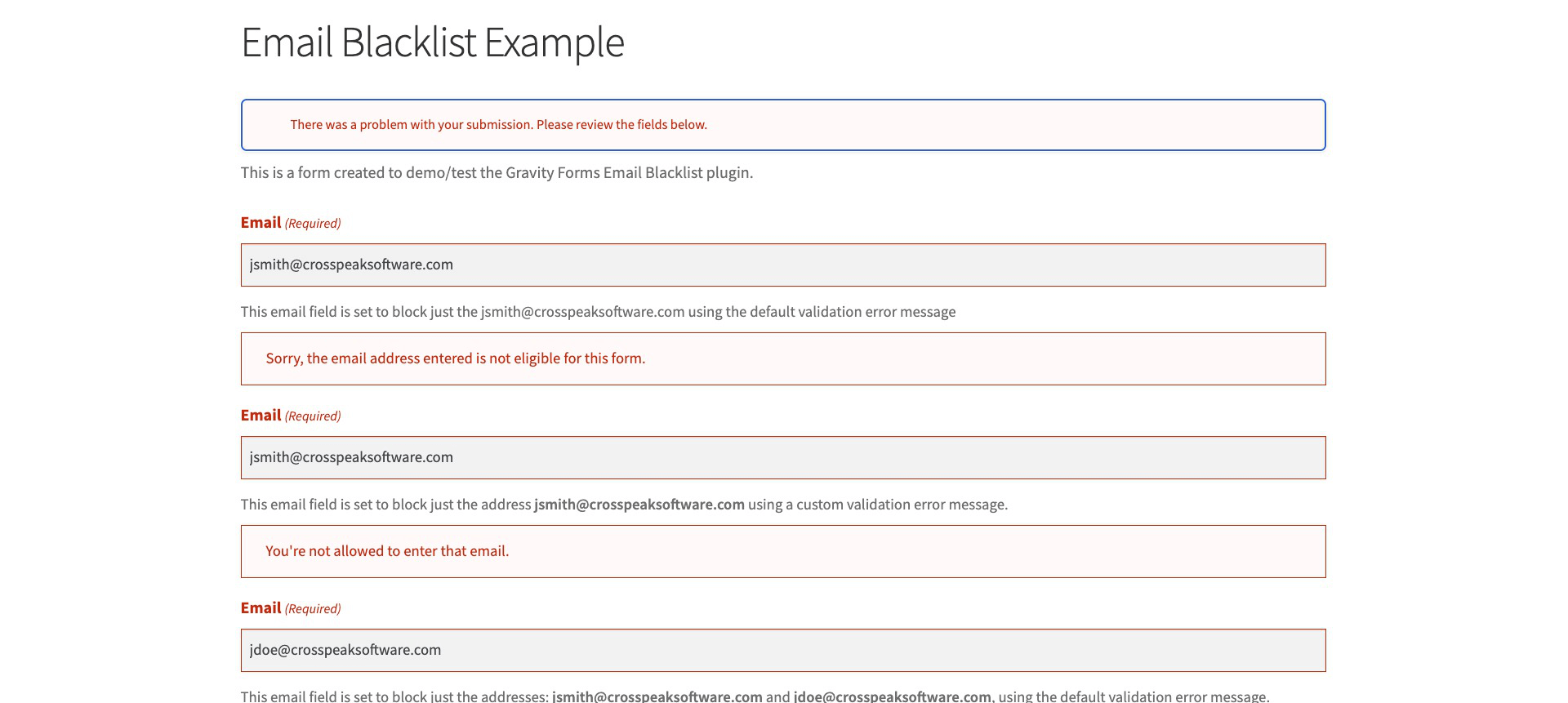
The Email Blacklist Add-on for Gravity Forms was built to help block submissions from users with generic or competitors email addresses. Prevent the user from processing the form and stop non-qualified leads from being collected.
This plugin allows site admins to create a list of domains that if used in an email field on a Gravity Form it will cause a validation error and block the submission. A default email blacklist and validation message can be created to use across all email fields. These default settings can be overridden on a per email field basis.
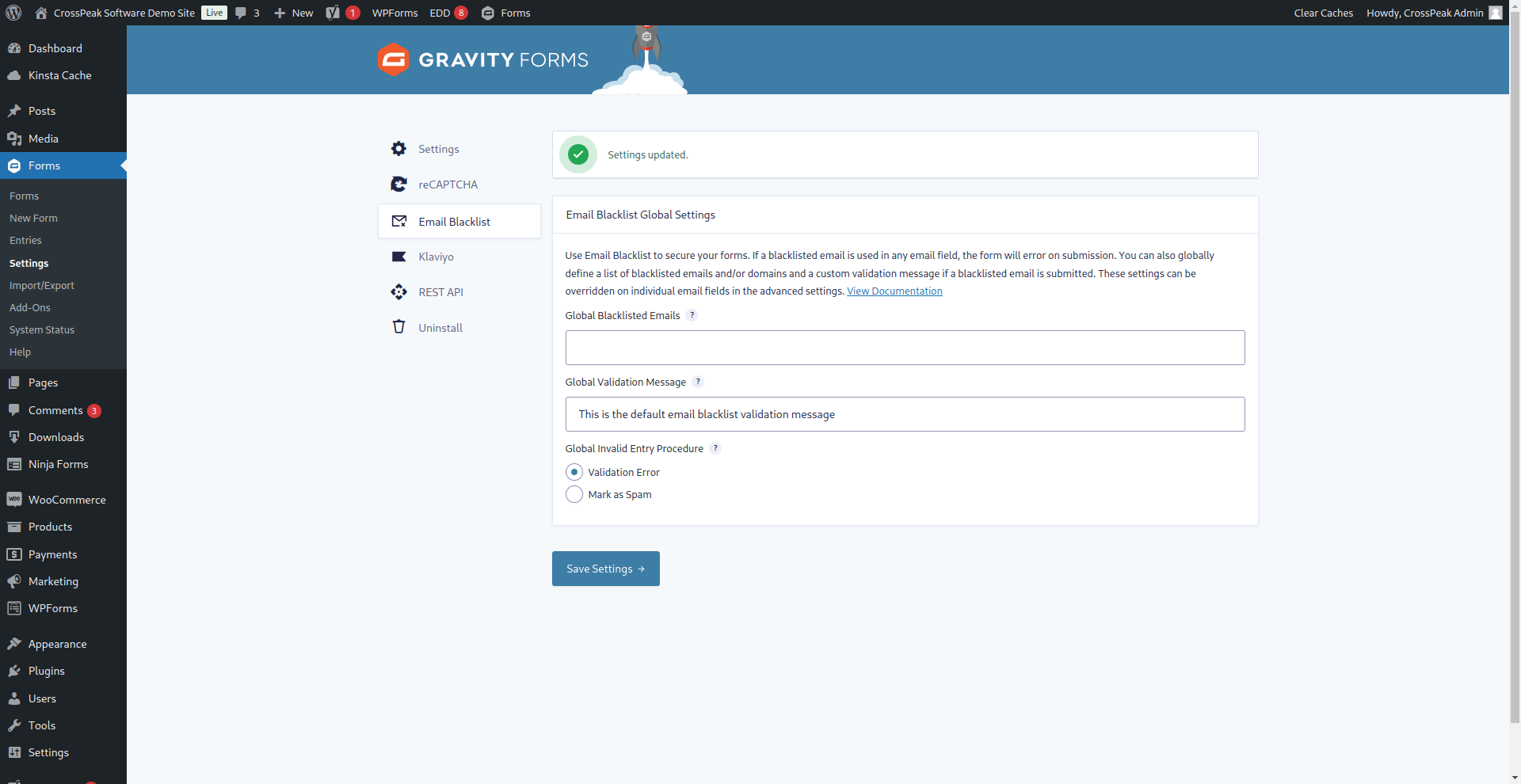
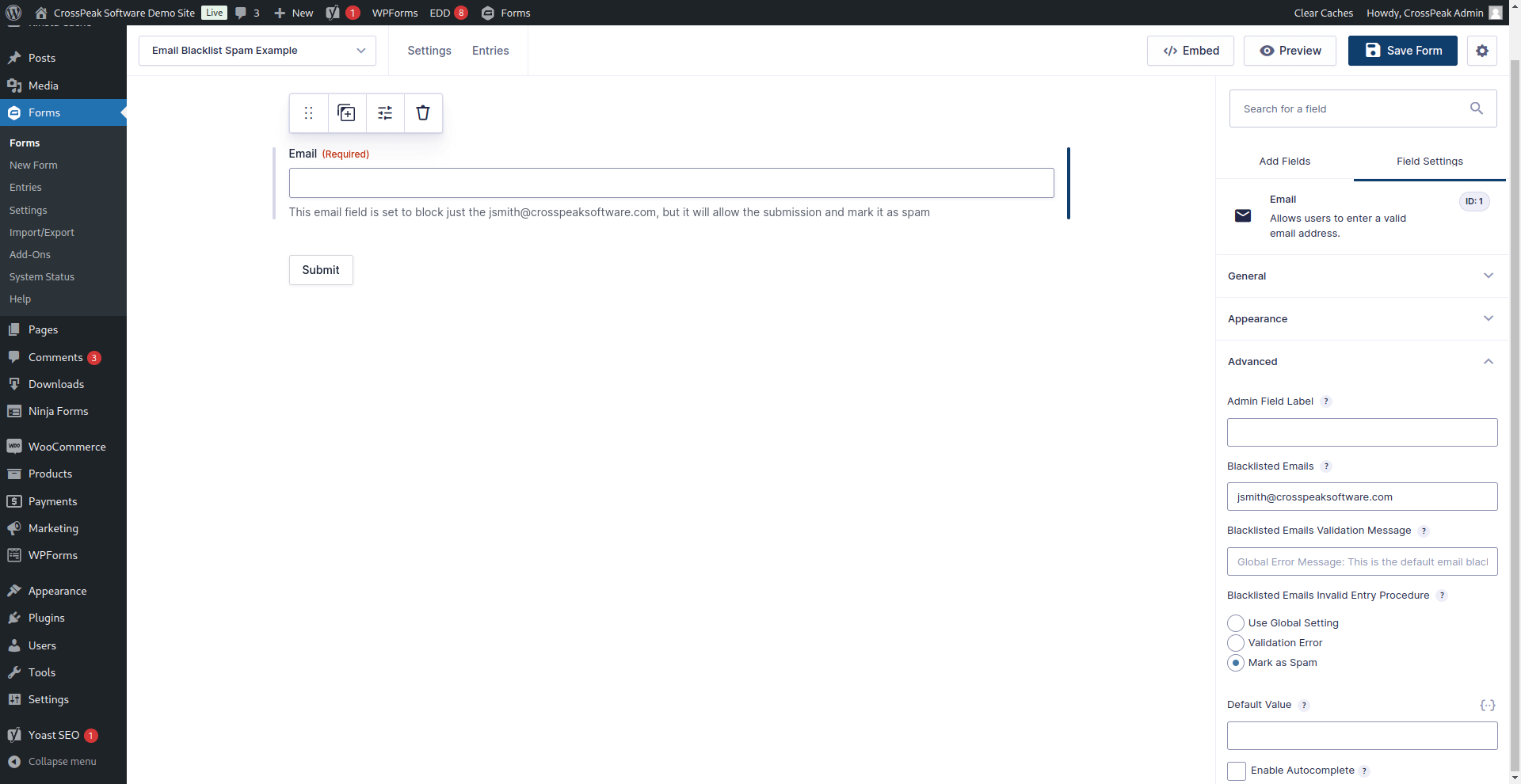
Global settings can be added on ‘Forms’ > ‘Settings’ > ‘Email Blacklist’. To add settings to an individual email field, select the field and navigate to the ‘Advanced Settings’ tab.
This plugin works by blocking either individual email addresses (ex. jsmith@gmail.com), email address domains (ex. gmail.com), and/or email address top-level domains (ex. *.com).
Feel free to contribute on github.
Instructions
Global Blacklist Settings
Once set up, these settings will be used on all email input fields across all the Gravity Forms used on the site. They can be overridden by the individual email blacklist settings below.
- Once Logged into your site navigate to ‘Forms’ > ‘Settings’ > ‘Email Blacklist’
- In the ‘Global Blacklisted Emails’ input enter a comma separated list of blacklisted domains (ie. hotmail.com), email addresses (ie. user@aol.com), and/or include the wildcard notation to block top-level domains (ie. *.com). This setting can be overridden on individual email fields in the advanced settings.
- In the ‘Global Validation Message’ input enter a default error message if a blacklisted email is submitted. This setting can be overridden on individual email fields in the advanced settings.
- Select the ‘Global Invalid Entry Procedure’ to determine how the blacklisted submissions should be handled, with validation error or collected and marked as spam.
- Click the ‘Update Settings’ button to save the settings.
Individual Email Input Blacklist Settings
Once set up these settings will be used on this form only and in place of the global blacklist settings above.
- Once Logged into your site navigate to the Gravity Form you would like to update.
- Add or update an existing email input field on the form.
- Go to the ‘Advanced Settings’ tab for the ‘Blacklisted Emails’ input.
- In the ‘Blacklisted Emails’ input enter a comma separated list of blacklisted domains (ie. hotmail.com), email addresses (ie. user@aol.com), and/or include the wildcard notation to block top-level domains (ie. *.com). This will override the globally defined blacklisted emails setting. Enter ‘none’ to bypass the global setting and allow all email addresses.
- In the ‘Blacklisted Emails Validation Message’ input enter an error message if a blacklisted email is submitted. This will override the globally defined error message.
- Select the ‘Invalid Entry Procedure’ to determine how the blacklisted submissions should be handled, with validation error or collected and marked as spam.
- Click the ‘Save Form’ button to save the settings.