
Email Health Check & Log for WooCommerce – SPF, DKIM, DMARC & Alerts
v1.11.0Ahmed Saeed · 2025年8月19日 上架
Email log, SPF/DKIM/DMARC checks and failure alerts. Find out why WooCommerce order emails go to spam or never arrive.
- 正在使用
- 10 以下
- 评分
- 5.0 / 5
- 累计下载
- 1,195
- 最近更新
- 2026年11月19日
贡献者
 Ahmed Saeed
截图
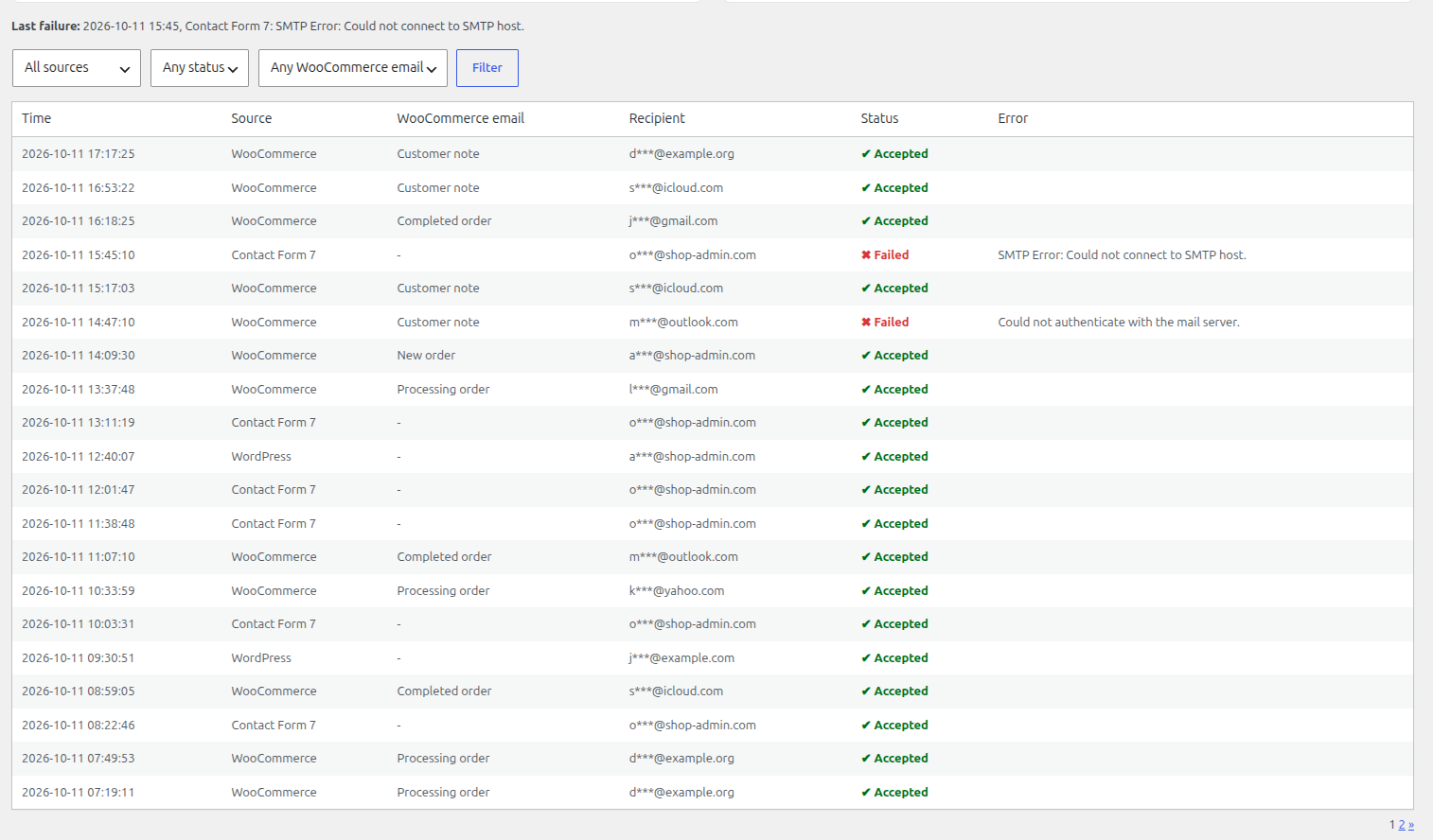
WooCommerce emails not sending, or going to spam? Find out why, and fix it.
Email Health Check looks at how your WordPress or WooCommerce site sends email and tells you what is wrong in plain language: SPF, DKIM and DMARC problems, mail sent through plain PHP mail, a blacklisted server IP, missing reverse DNS, order emails that are switched off or stuck behind unpaid orders, and more. It also keeps an email log of what your site sends. It is free, needs no account, and sends no email content or personal data to any service. The only outside lookups involving your server are DNS queries: a server IP blacklist check and a reverse DNS (PTR) check of its IP address, which run only when your site sends mail directly from your server, and, when a “How to fix this” panel is shown, a reverse DNS lookup of your server’s IP address and a name server lookup of your sending domain, to name your host and DNS provider (see External services).
What it does not do
- It is not an SMTP plugin and does not send your email for you. It works next to whichever plugin or mail service you already use.
- No account, no upsell banners or nags, no tracking and no analytics. It makes no HTTP requests of its own and sends nothing to the plugin’s authors; the only outside lookups are the DNS queries described under External services. The only prompt it ever shows is one dismissible request for a review, on its own screens, to administrators only, and only after a test email went through or a report came back with at least one passing check and no failures or warnings, at least a day after install.
- Only plain text links, and only two kinds: one small link, “Follow the Pro plan”, to a waiting list page for a possible future Pro version (in the footer of its own screen and on its row in the Plugins list), and a plain text link to a guide on outboxhealth.com in the “How to fix this” panel of a failing SPF, DKIM or DMARC check. The plugin never requests anything for them and sends nothing; they can be hidden with the
ecehc_show_pro_linkandecehc_show_guide_linksfilters. Nothing in this free plugin is removed or locked. - Nothing bundled: no third-party libraries, fonts or scripts, only the plugin’s own code.
What data it touches
- The checks read your site’s own settings and look up the public DNS records of your sending domain through your server’s own DNS resolver. The lookups that involve your server are the IP blacklist check and the reverse DNS (PTR) check of its IP address, which run only when your site sends mail directly from your server, and, whichever SMTP plugin you use, the host and DNS provider lookups that run only when a “How to fix this” panel is shown (see External services).
- The email log keeps the time, source, status, WooCommerce email type, the order number for WooCommerce order emails, the recipient’s domain, a partly hidden address such as j***@example.com and an error message with addresses hidden. Never the subject or the message. It is kept for 7 days by default (choose 1, 3 or 7), can be turned off or cleared, and is removed when you uninstall the plugin.
- A stored flag records, as a timestamp in one option, that a report once came back with at least one passing check and no failures or warnings. It is used only to decide when to show the review request and is never sent anywhere.
- A test email goes only to the address you type (or the site admin address if you leave it blank).
- Nothing is sent to the plugin’s authors.
Diagnose
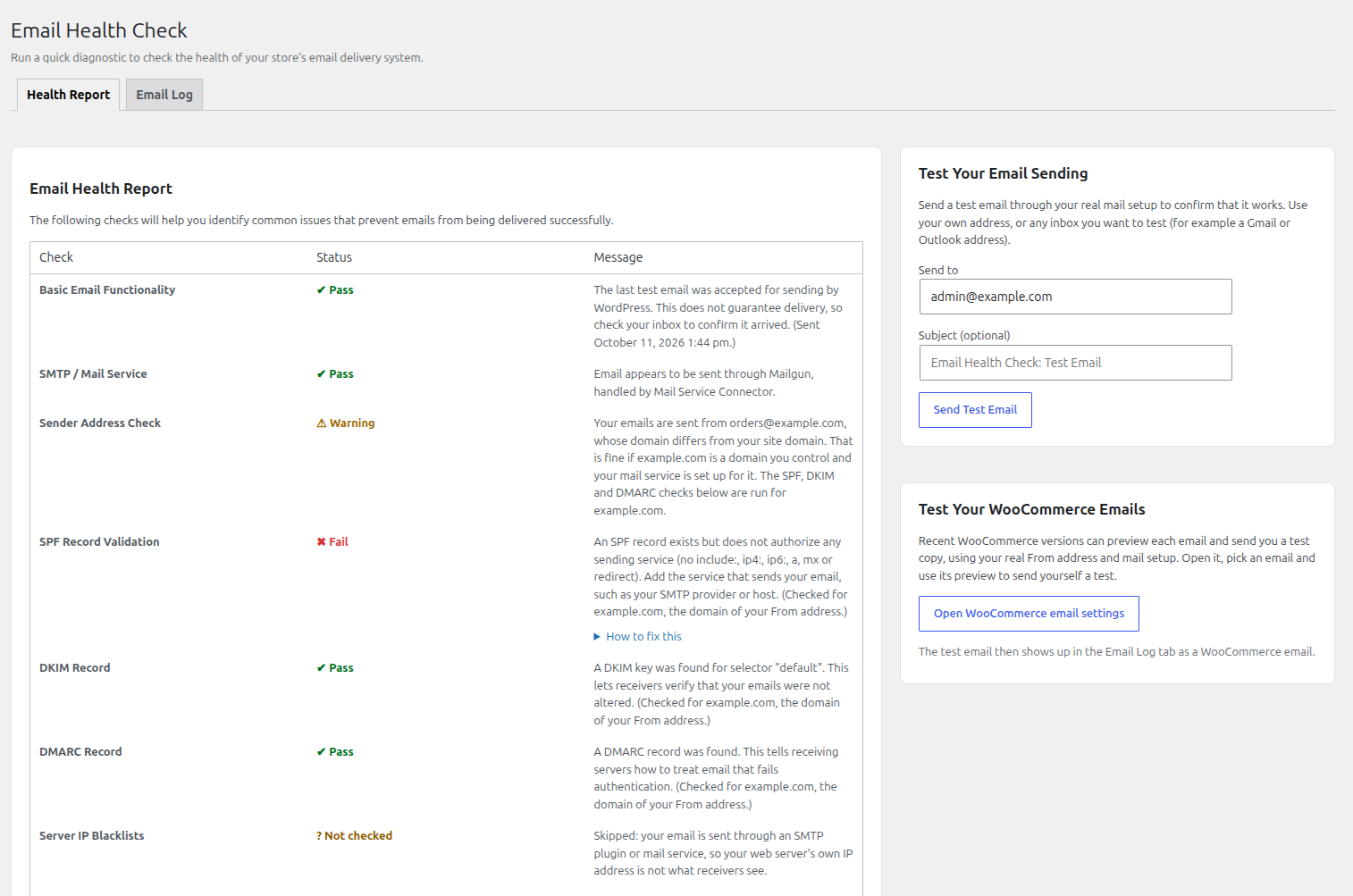
- Email Health Report: one page with a Pass, Warning or Fail status for each check. The page opens at once and the checks (including the DNS lookups) run in the background, so slow DNS never holds it up.
- Getting-started checklist: a short checklist for new installs (send a test email, fix the top failing check, look at the Email Log) that ticks itself off and can be hidden.
- “Fix this first” summary: the top of the report names the one check to fix first (failures before warnings, never a “Not checked” result) with a plain-language next step and a link to its “How to fix this” panel. When every check passes it says so. When the report loads in the background, the summary is also announced to screen readers.
- Sending test: send a test email to your own address or to any inbox you want to try (for example Gmail or Outlook), with an optional subject. The result shows right away, with the error if it failed.
- Copy support report: a plain-text summary of your setup (versions, domains, check results, the detected mail provider, recent email counts and, if the blacklist check ran, your server IP address) to paste into a support ticket, with no passwords, message contents or full email addresses. Review it before posting it publicly.
- SMTP / mail service: warns when mail goes out through plain PHP mail, and names the plugin that handles your outgoing email when it finds one.
- Sender address, SPF, DKIM and DMARC: checked for the domain you actually send from, since that is what receivers verify.
- Server IP blacklists: when you send straight from your server (no SMTP service), your IP is looked up on the free DroneBL and PSBL lists.
- Reverse DNS (PTR): when you send straight from your server, its IP address needs a reverse DNS record that resolves back to the same address, which Gmail and Yahoo expect. Your server’s own DNS resolver is asked for it; only your host can change it.
- WooCommerce email setup: flags turned-off key emails, a missing new-order recipient, an invalid From address and outdated theme overrides of WooCommerce email templates. It only reads your settings.
- “WooCommerce emails not arriving?” panel (WooCommerce): combines the results below and the last 7 days of the Email Log into the most likely cause and one next step: a broken WooCommerce email setting, recent failed WooCommerce emails, turned-off emails, unpaid orders, no mail service, a From address problem, missing DNS records or a blacklisted server. It says “most likely” because the checks cannot see inside a mailbox. It makes no requests of its own and stores nothing.
- Unpaid orders (WooCommerce): warns when many orders are stuck in “Pending payment” or “Failed”. WooCommerce sends no order emails for those, so the real problem may be your payment gateway. Only order counts are read.
Email log and failure alerts
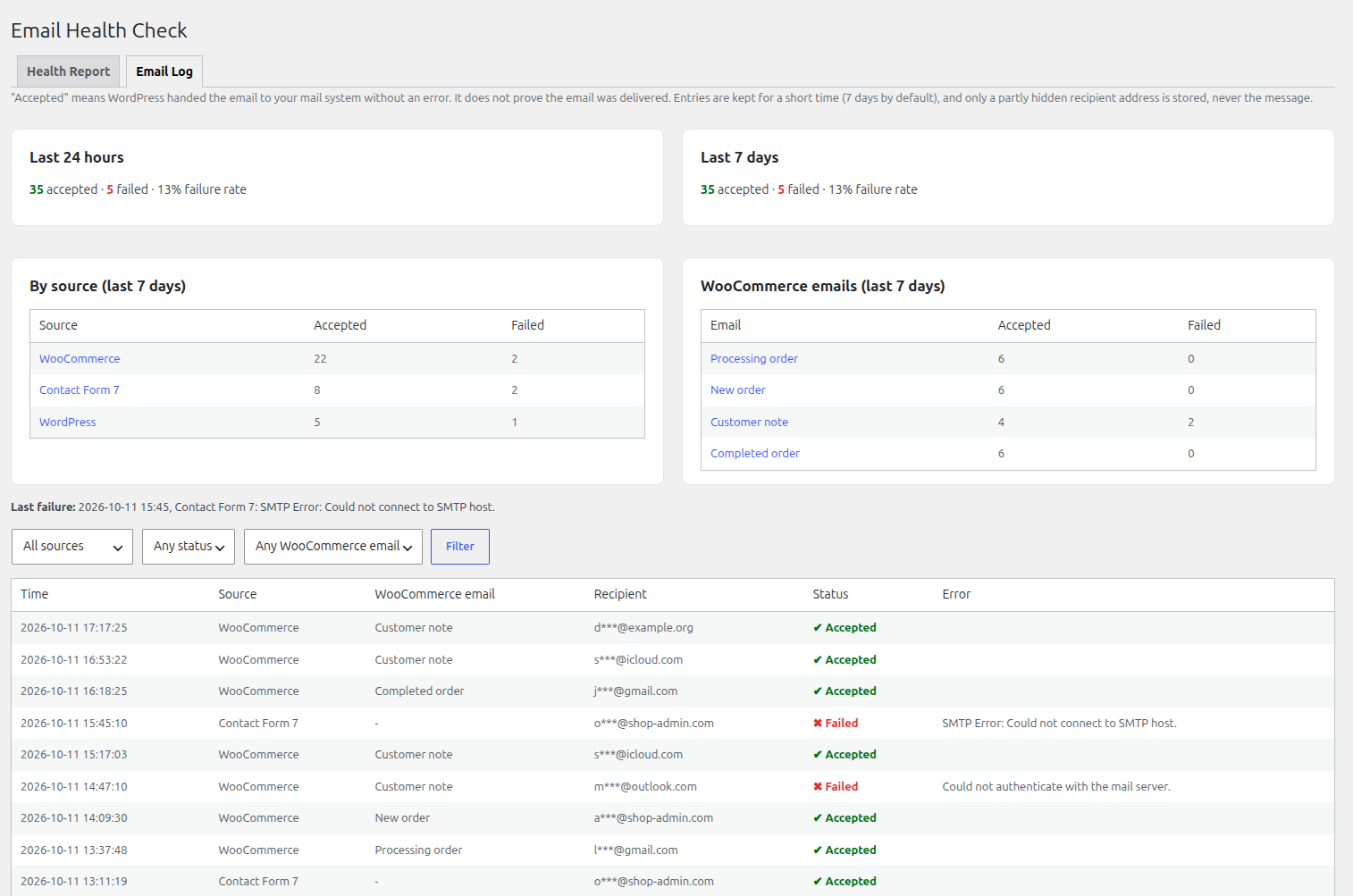
- Email Log and statistics: every email your site sends (WooCommerce, other plugins and WordPress itself) with its source, WooCommerce email type, status and error. Filter by source, status and WooCommerce email type, and see accepted and failed counts for the last 24 hours and 7 days. Only a partly hidden recipient address is stored, never the message. You can shorten the retention, turn logging off or clear the log.
- Emails for this order (WooCommerce): a read-only panel on the order screen (classic and High-Performance Order Storage) that lists the emails logged for that order, newest first, with time, email type, partly hidden recipient, status and error. Shown only to administrators while the email log is on. Only emails sent after the panel was added are listed, and only for as long as the log keeps them. It makes no requests and stores only the order number in the existing log.
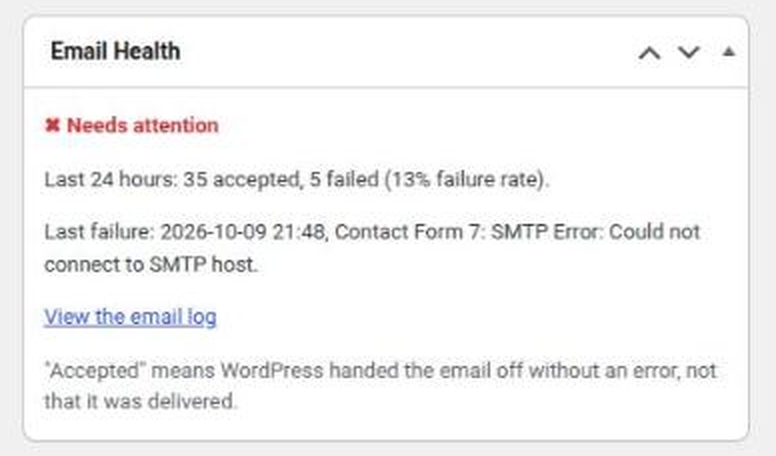
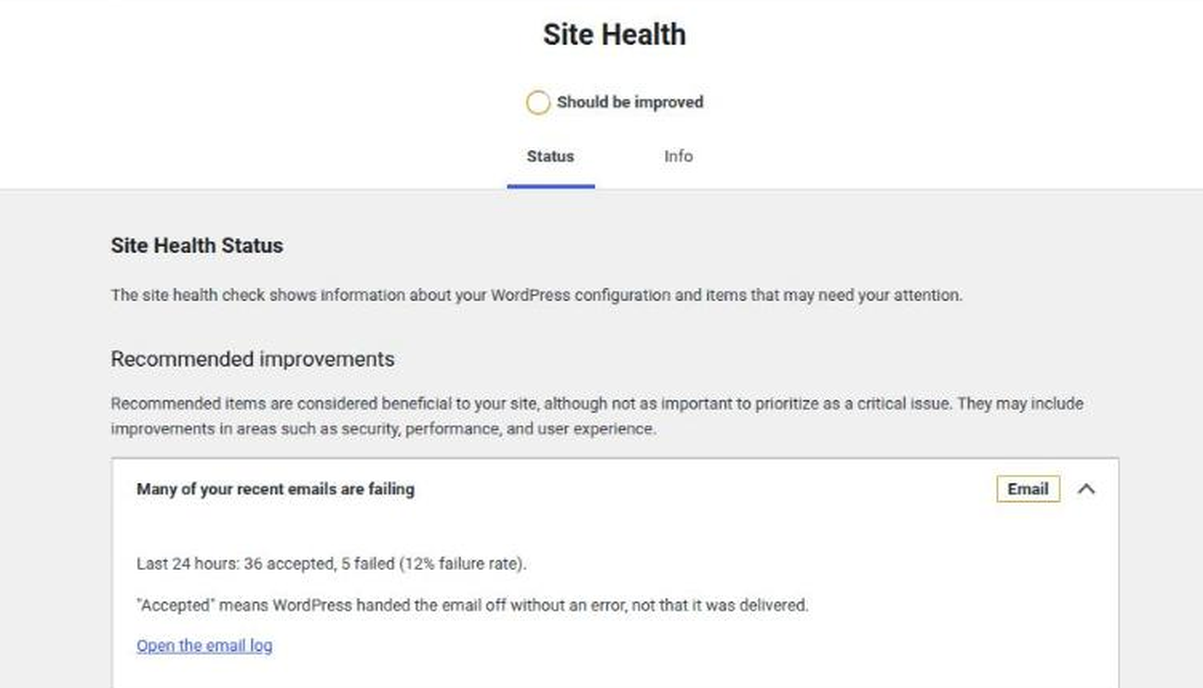
- Failure alerts in wp-admin: an “Email Health” dashboard widget and a Site Health test warn you when many emails fail, without needing email to work.
- Site Health integration: the same checks appear under Tools > Site Health.
Fix
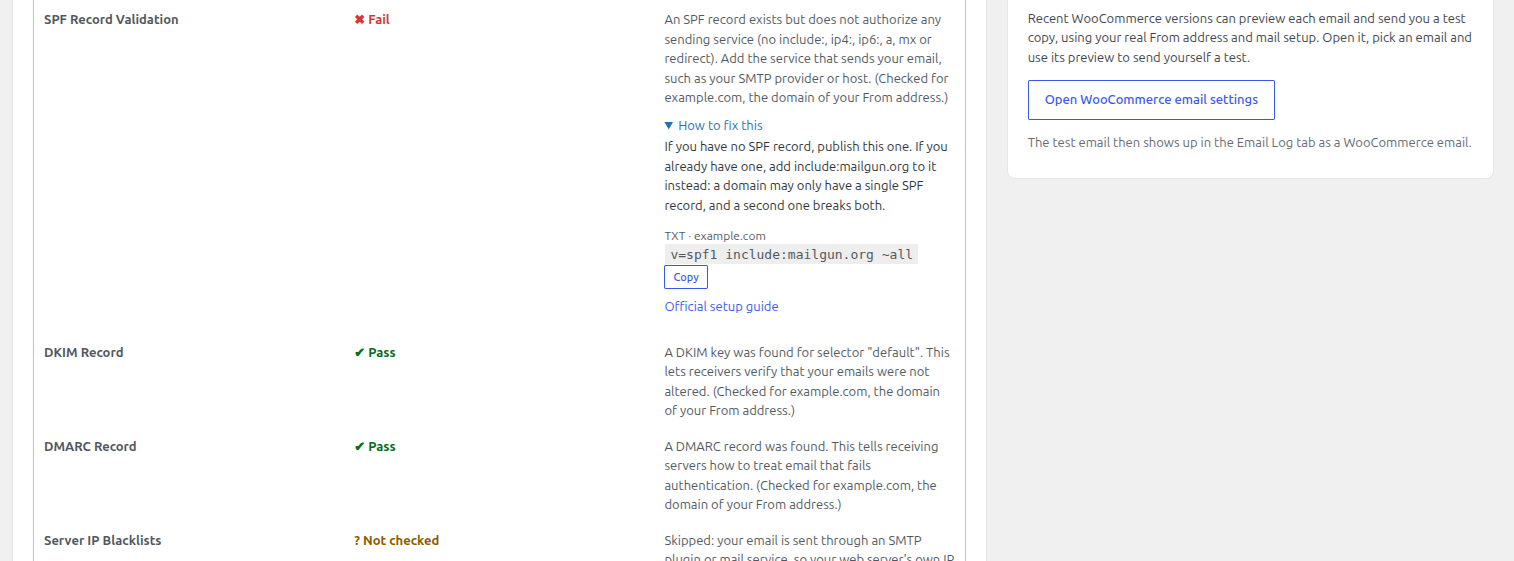
- “How to fix this” panels: failing SPF, DKIM and DMARC checks show a copy-paste DNS record where your provider documents one, and a link to the provider’s official setup guide.
- Detected hosting: the panel names your web host when it recognises it (WP Engine, Kinsta, Pantheon, Flywheel, GoDaddy and WordPress.com from the host’s own settings; SiteGround and Cloudways when the server’s reverse DNS names them) and adds a short note on sending mail and editing DNS there. The note can be hidden if it is not your host.
- DNS hosted at: the panel names the DNS provider of your sending domain when its name servers are recognised (Cloudflare, GoDaddy, Namecheap, Squarespace, Amazon Route 53, Wix, WordPress.com, Hostinger, Bluehost, DigitalOcean), with a note on where records are edited and, for most, a link to the provider’s own guide. When the DNS provider and your web host are the same company, one combined “Hosting and DNS” note is shown.
WP-CLI
wp ehc checkruns all checks (add--format=jsonfor scripts). It exits with status 1 when any check fails. The server IP blacklist and reverse DNS checks need a web request, so from the command line they are skipped unless you set the IP with theecehc_server_ipfilter.wp ehc loglists recent logged emails (--source,--status,--type,--limit), andwp ehc log --statsshows accepted and failed counts for the last 24 hours and 7 days.
For developers
- The
ecehc_checks_completedaction fires after every run of the checks, with the results of each check. Together with theecehc_email_loggedaction and theecehc_checksfilter and others, the hooks and theecehc_run_checks()function are documented with a stability promise indocs/extending.mdin the plugin’s GitHub repository.
Works with
The plugin identifies the provider from the settings of WP Mail SMTP, FluentSMTP and Post SMTP, and gives setup guidance for SendGrid, Mailgun, Brevo, Postmark, Amazon SES, SparkPost, Mailjet, Elastic Email, Google Workspace and Microsoft 365. It also works with any other SMTP plugin, or with none.
WooCommerce is a trademark of Automattic Inc. This plugin is independent and is not affiliated with or endorsed by WooCommerce or Automattic.
External services
The “Server IP Blacklists” check sends DNS queries to the public blacklists DroneBL and PSBL. This happens only when your site does not send email through an SMTP plugin or mail service, and only when you open the plugin’s report or Tools > Site Health. The answer is saved for about 12 hours (about 1 hour after a failed lookup; the Re-check button and a changed IP address also trigger a new lookup). The queries go through your server’s own DNS resolver.
- What is sent: a DNS query for your web server’s public IPv4 address (written in reverse, for example
4.3.2.1.dnsbl.dronebl.org). The lists’ operators can see that address and the address of your DNS resolver. No other data is sent. - DroneBL: https://dronebl.org/ (terms: https://dronebl.org/docs/howtouse)
- PSBL: https://psbl.org/ (usage: https://psbl.org/howto)
Spamhaus is intentionally not queried, because its free service is limited to low-volume non-commercial use. Developers can change the lists with the ecehc_dnsbl_zones filter.
The “Reverse DNS (PTR)” check asks your server’s own DNS resolver for the reverse DNS record of your server’s IP address, and then for the address of up to three host names it returns. This happens under the same conditions as the blacklist check, and nothing is saved by that check. The “Detected hosting” note in the fix panel makes the same reverse DNS lookup of your server’s IP address, regardless of which SMTP plugin you use, but only when a “How to fix this” panel is shown and your host was not already recognised from its own settings. It saves your server’s IP address and the first host name it returns (or an empty result) for about 6 hours, or 10 minutes after a failed lookup (a WordPress transient, removed on uninstall and when you click Re-check). The queries go to ordinary DNS servers, not to a service of ours: whoever runs the reverse DNS zone for your IP (normally your host) and the DNS servers of the returned host name can see the queried address and the address of your DNS resolver. No other data is sent. The “DNS hosted at” note in the same panel asks your server’s own DNS resolver for the name servers (NS records) of the domain of your From address (the site’s domain if there is none), and of its parent domains one at a time if it has none, never the top-level domain; no query is made for public mailbox domains such as gmail.com. It also happens only when a “How to fix this” panel is shown. It saves that domain and up to four name server host names (or an empty result) for about 6 hours, or 10 minutes after a failed lookup (a WordPress transient, removed on uninstall and when you click Re-check). The queries go to ordinary DNS servers, not to a service of ours: the DNS servers for your domain can see the queried name and the address of your DNS resolver. No other data is sent.
Pro waiting list link (outboxhealth.com). The plugin shows one plain text link, “Follow the Pro plan”, to https://outboxhealth.com/waitlist/ in the footer of its own screen and on its row in the Plugins list. The plugin makes no request to that site and sends it no data. outboxhealth.com receives a visit only if you click the link, and is covered by its own privacy policy: https://outboxhealth.com/privacy/. To hide the link, return false from the ecehc_show_pro_link filter.
Guide links (outboxhealth.com). The “How to fix this” panel of a failing or warning SPF, DKIM or DMARC check shows a plain text link, “Plain-language guide (outboxhealth.com)”, to a guide under https://outboxhealth.com/guides/. The plugin makes no request to that site and sends it no data. outboxhealth.com receives a visit only if you click the link, and is covered by its own privacy policy: https://outboxhealth.com/privacy/. To hide these links, return false from the ecehc_show_guide_links filter.