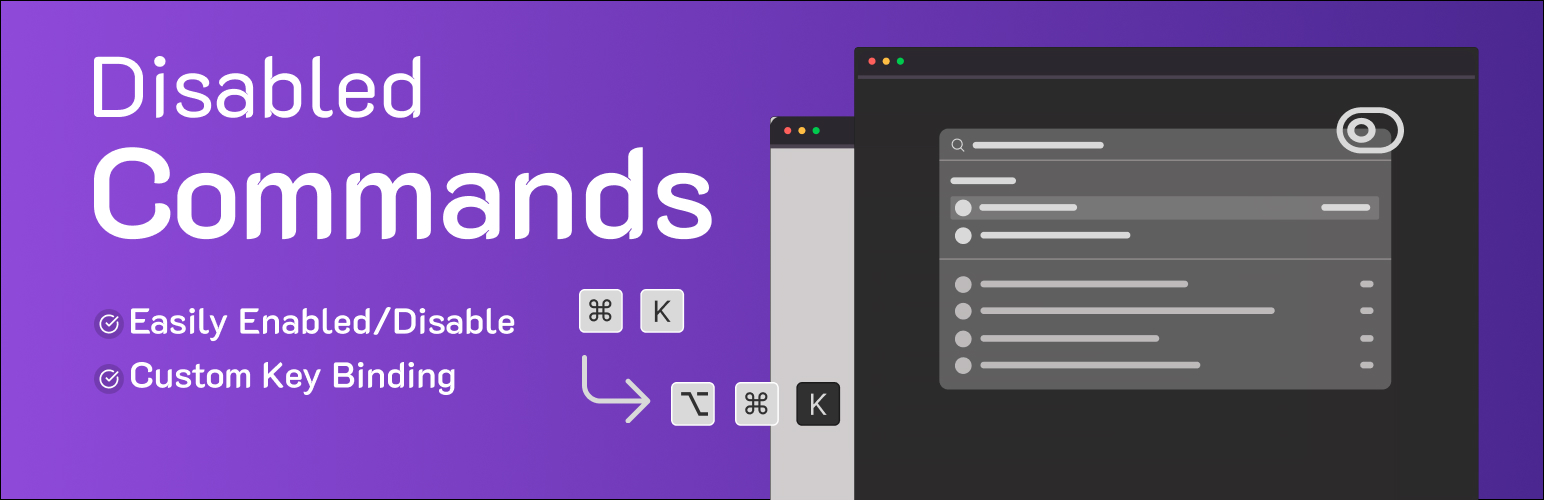
Disable Commands – Custom Key Binding in Command Palette
v1.0.5Kakon Barman · 2026年1月20日 上架
Take control of the WordPress command palette with custom key binding, flexible shortcuts, and a simple option to disable it entirely.
- 正在使用
- 10+
- 评分
- 暂无
- 累计下载
- 750
- 最近更新
- 2026年8月30日
贡献者
 Kakon Barman
截图

Disable Commands – Custom Key Binding gives you control over the WordPress command palette (introduced in WordPress 6.9), the quick command-bar that lets you run commands and move around the dashboard using keyboard shortcuts.
If it is part of your daily admin productivity routine, or if its default shortcuts get in the way, this plugin lets you disable the command palette entirely or set your own key binding so it fits the way you actually work.
This plugin is useful if you need to:
* Resolve keyboard shortcut conflicts with other software or browser extensions.
* Simplify the admin interface and command-bar for yourself or your clients.
* Prevent accidental triggering of it and its commands.
* Customize the default shortcut and key binding to better match your own workflow and navigation habits.
* Keep quick admin search available while adjusting how it behaves.
Features include:
- Disable Command Palette: A toggle to completely disable the
wp-commandsscript, hiding the command-bar and its built-in commands from the dashboard. - Custom Key Binding: Remap the command palette shortcut to any combination of modifier keys (Ctrl/Cmd, Alt, Shift) and a single letter, number, or punctuation key. For example, set
Ctrl + Shift + Pinstead of the defaultCtrl/Cmd + K. - Admin Productivity Controls: Keep the commands and admin search features you rely on, while turning off the shortcuts and navigation triggers you don’t need.
All options for it, its shortcuts, and its key binding are managed from a single, user-friendly settings page, so you can adjust commands and navigation without touching any code.
Whether your goal is smoother navigation, faster admin search, or better admin productivity overall, this plugin puts things firmly under your control.
Configuration
On the plugin’s settings page, you will find two main sections for managing it and its shortcuts:
1. Disable Command Palette
* Option: Check this box to disable the WordPress admin command palette and command-bar (Cmd+K / Ctrl+K), removing its default shortcut from the dashboard.
2. Custom Key Binding
* Override Default Shortcut: Check this box to activate the custom key binding feature.
* Shortcut Combination: Use the checkboxes to select your desired modifier keys (Ctrl, Shift, Alt, Cmd/Meta) and the input field to define a single character key (e.g., ‘k’, ‘p’, ‘/’). The default combination is Ctrl/Cmd + K.
Adjusting these settings gives you fine-grained control over commands, navigation, admin search, and overall admin productivity in the WordPress dashboard.