
Comfortable Admin Page
v3.8.4Ryouji Mineya · 2025年7月2日 上架
A utility plugin to make the WordPress admin screen more comfortable and easier to use. You can hide unnecessary items and add useful features.
- 正在使用
- 80+
- 评分
- 5.0 / 5
- 累计下载
- 2,684
- 最近更新
- 2026年9月7日
贡献者
 Ryouji Mineya
截图


“Comfortable Admin Page” is a plugin that provides a one-stop solution for those “hard-to-reach” settings in the WordPress admin area.
It helps you customize a user-friendly and comfortable admin screen, not only for personal blogs but also for client websites and in-house corporate sites.
With this single plugin, you can perform a wide range of customizations, including the following:
Role-Based Settings
* New Feature: Individually configure admin screen display and functionality for each WordPress user role (e.g., Administrator, Editor, Author). This allows you to provide an optimized admin experience for each user when managing a site with multiple people.
Left Menu
* Individually hide menu items (supports auto-detection of items added by plugins and themes).
* Change menu labels (e.g., change “Media” to “Images”).
* Add custom links to any admin page or external site to the left menu.
* Change the icons for each menu item.
* Adjust the height of separator lines in the menu.
Admin Bar
* Move the admin bar to the bottom of the screen.
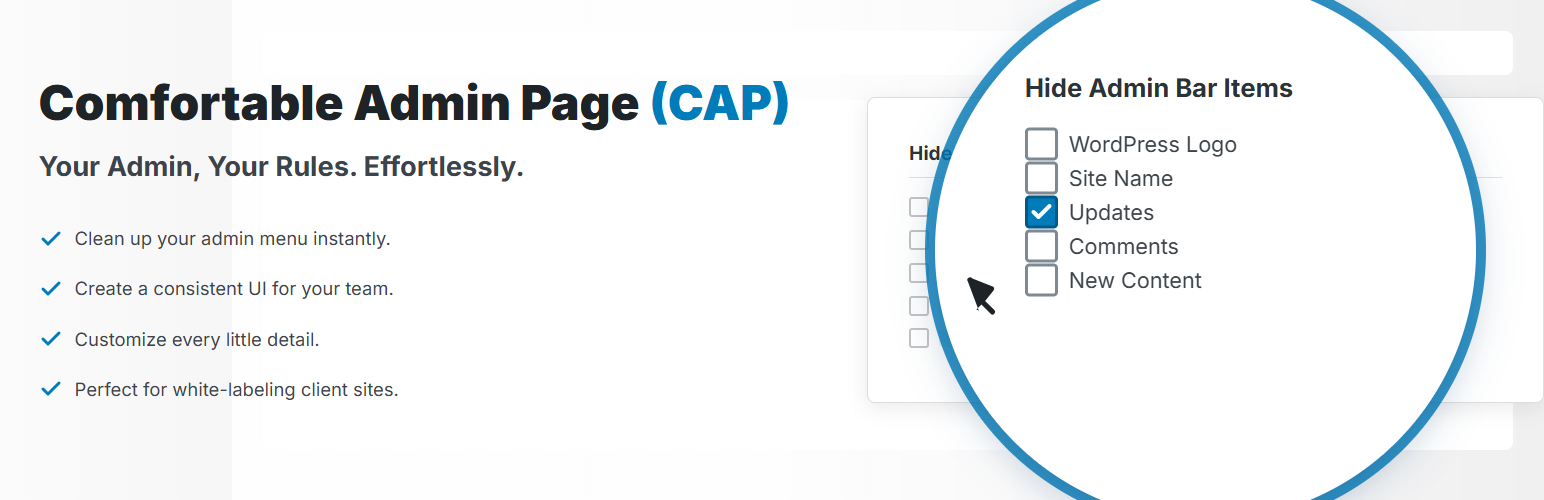
* Individually hide admin bar items (supports auto-detection of items added by plugins).
* Add links to the previous and next posts on the edit screen.
* Change the background and text color of the admin bar.
* Change the login name display format to use either “Display Name” or “Username”.
Dashboard
* Hide unnecessary dashboard widgets (supports auto-detection of items added by plugins).
Post & Page List
* Hide the hover menu items that appear on each row (Edit, Quick Edit, etc.).
* Add filtering functionality by “Tags” or “Author”.
* Add columns for “ID,” “Slug,” “Last Modified Date,” and “Character Count,” and make them sortable.
* Adjust the width of each column in pixels.
* Set custom text and background colors for each post status (Published, Draft, etc.).
Editor Screen
* Individually hide “Embed” blocks in the Block Editor.
* Freely set the autosave interval for posts in minutes.
* Change the tag selection UI from an input format to a checkbox format.
* Limit the number of post revisions or disable them completely.
* Increase the height of the category and tag selection boxes to reduce scrolling.
* Add useful shortcodes (e.g., current year/month/day) and enable them in post titles.
* Add custom CSS for the admin screen.
Images
* Individually stop the generation of specific image sizes (thumbnail, medium, etc.) upon upload.
* Add a filtering feature by user in the Media Library.
* Add columns like “ID,” “Slug,” and “File Size” to the Media Library and make them sortable.
Widgets
* Disable the block-based widget editor and revert to the classic widgets.
* Disable unnecessary default classic widgets.
* Enable shortcodes in the Custom HTML widget.
Users
* Add “ID” and “Display Name” columns to the user list screen.
* Hide high-risk items from bulk actions and hover menus.
* Hide the “Change role to…” dropdown menu.
Login Screen
* Change the WordPress logo on the login screen to a custom image and URL.
* Change the background color.
* Hide unnecessary links (e.g., “Back to site,” language switcher).
* Specify redirect URLs for after login and logout.
Admin Screen Settings
* Hide the “Help” and “Screen Options” tabs at the top of the admin screen.
* Hide the admin footer text (e.g., “Thank you for creating with WordPress.”).
* Individually disable update notifications for WordPress core, themes, and plugins.
* Individually disable or adjust core WordPress features, such as disabling emoji scripts, hiding version information, etc.
Quick Settings
* Load preset configurations like “Recommended Settings” to apply them in bulk.
* Copy the settings of one user role to another role (or to all roles).
Reset
* Export (backup) and import (restore) all settings of this plugin.
* Reset all settings to their initial state.
For detailed information and usage instructions, please visit the official website.