

Checkoutline – Checkout Field Editor for WooCommerce
v1.0.2Extendiment · 2026年10月28日 上架
Add your own checkout fields to the Checkout block and the classic checkout, and rename, require or hide WooCommerce's address fields. No code.
- 正在使用
- 10 以下
- 评分
- 暂无
- 累计下载
- 158
- 最近更新
- 2026年10月28日
贡献者
 Extendiment
截图

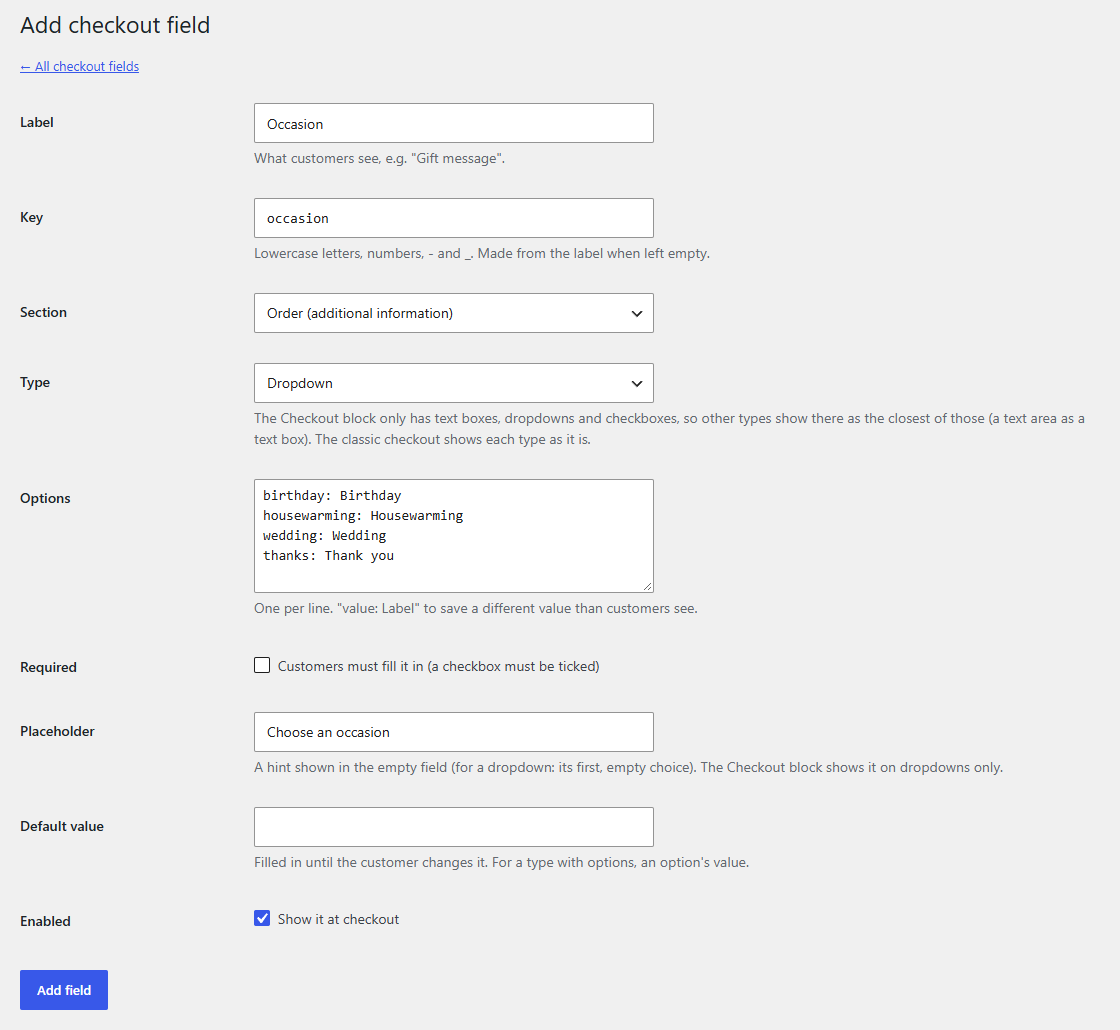
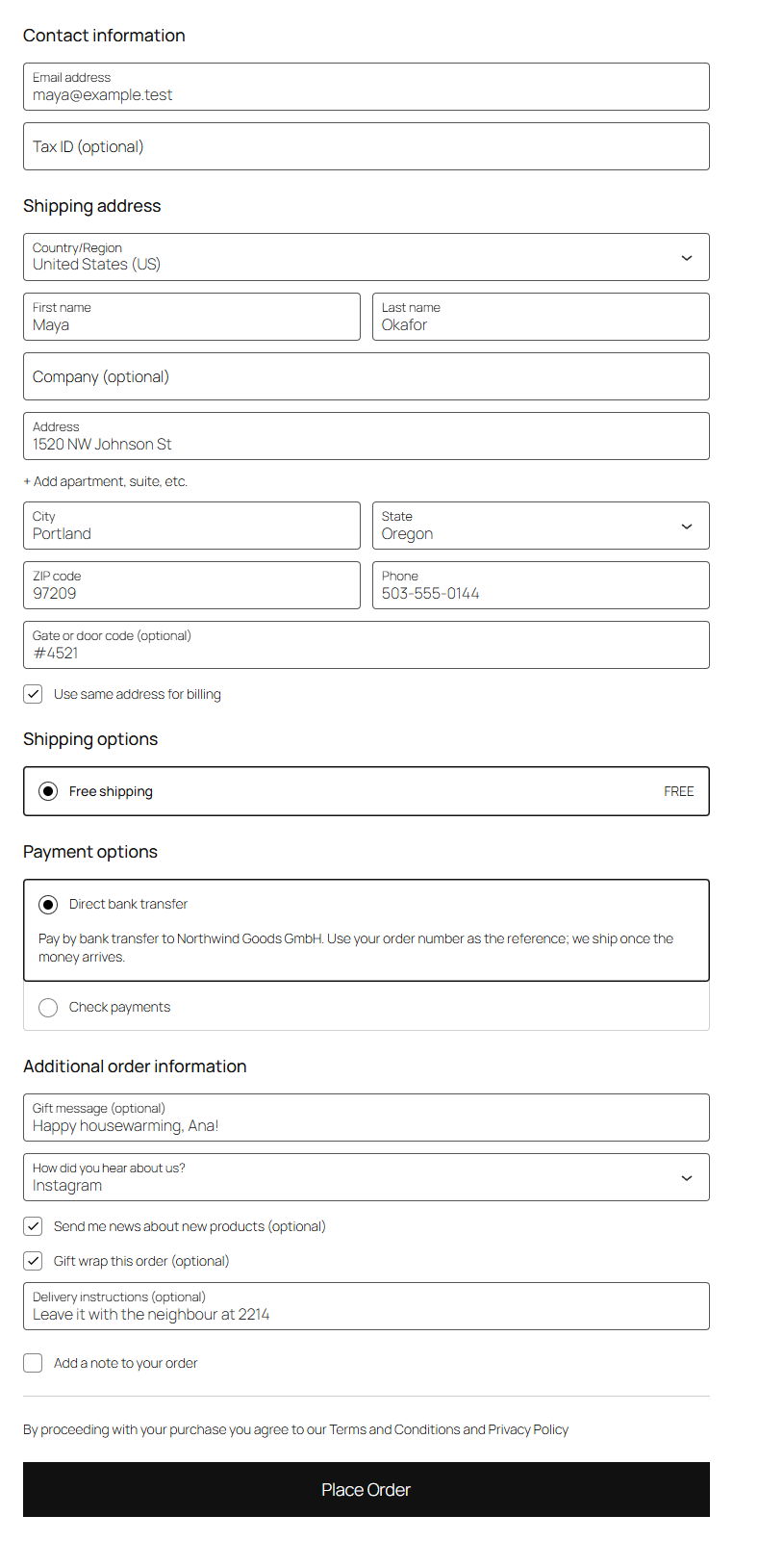
Ask customers for what your store needs: a gift message, a VAT number, a gate code, how they heard about you. Checkoutline adds a WooCommerce Checkout Fields page where you add, order and switch fields on and off. No code.
Built on WooCommerce’s own checkout fields
- In the Checkout block, your fields are WooCommerce’s own additional checkout fields: WooCommerce shows them, checks required ones, saves them on the order and the customer, and lists them on the order screen, the order confirmation, My Account and its emails.
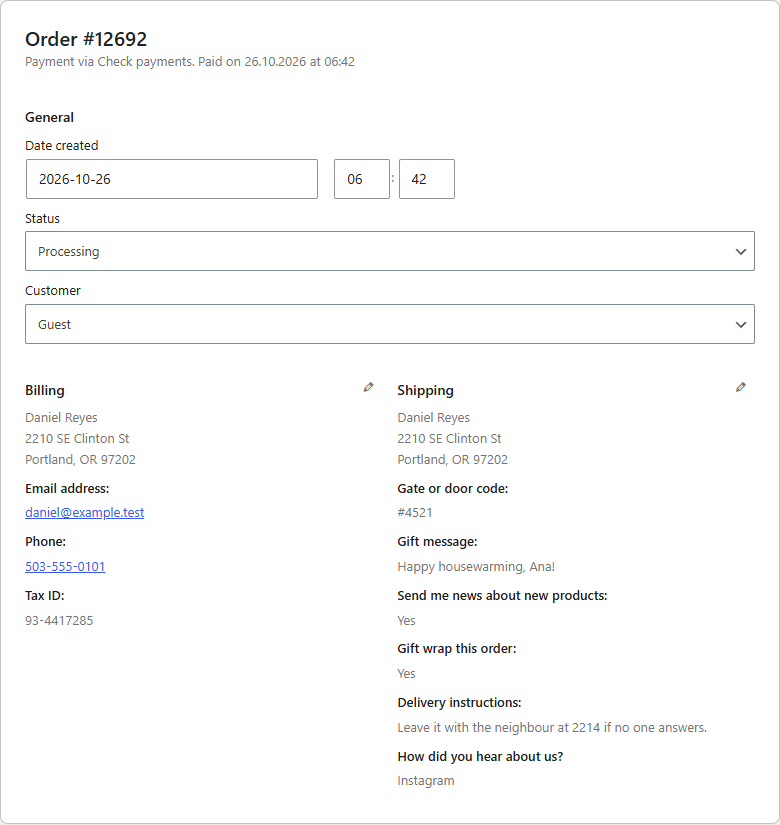
- The classic checkout gets the same fields and saves them in the same place. WooCommerce itself only lists these fields on Checkout block orders, so Checkoutline lists them on classic checkout orders too: on the order screen (editable), the order confirmation, My Account and order emails. An order reads the same whichever checkout placed it.
Your fields
- Text, text area, dropdown and checkbox fields.
- In the contact information, on the addresses (billing and shipping), or with the order.
- Required or optional, enabled or switched off, in the order you drag them to.
- A placeholder and a default value: a dropdown that starts on the usual choice, a checkbox that starts ticked.
WooCommerce’s fields
- Rename the first name, last name, company, address, city, state, postcode and phone fields. Your label replaces the one WooCommerce uses for each country.
- Make any of them optional, required or hidden, in both checkouts and My Account’s address forms.
For developers
Checkoutline is built to be extended. Other plugins can register more field types (checkoutline_field_types), keep settings of their own on a field, change a field in either checkout (checkoutline_block_field, checkoutline_classic_field), check answers (checkoutline_value_problem), decide when a field shows, format answers on orders, and add settings to a field’s screen. checkoutline_loaded fires once Checkoutline has loaded. The hooks are documented in the code and on extendiment.com.
Checkoutline Pro
The separate Checkoutline Pro add-on adds radio button, date, number, email and phone fields; fields that only show when they apply (products or categories in the cart, local pickup or delivery, shipping methods, countries, or another field’s answer); and a format and maximum length the answer must match, with your own error message. Everything described above works without it. See extendiment.com/plugins/checkoutline.