

Burnpedia Scheduler – Visual Posts from Your Content
v1.0.48Tico · 2026年8月13日 上架
Pinterest scheduler: each post, page or product you publish becomes a draft Pin (image, title, link) you approve, then it goes to your board.
- 正在使用
- 20+
- 评分
- 暂无
- 累计下载
- 2,085
- 最近更新
- 2026年11月23日
贡献者
 Tico
截图

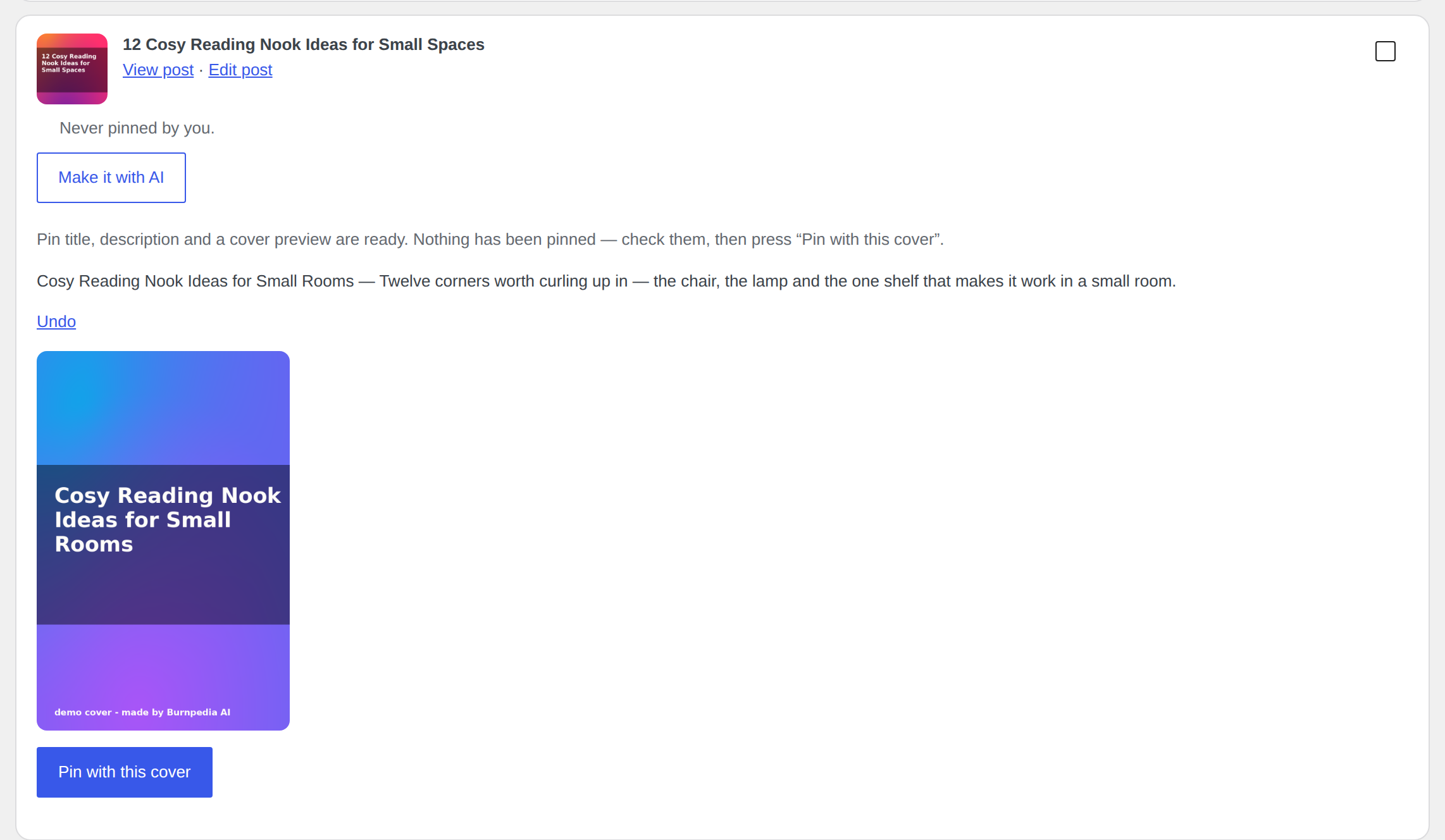
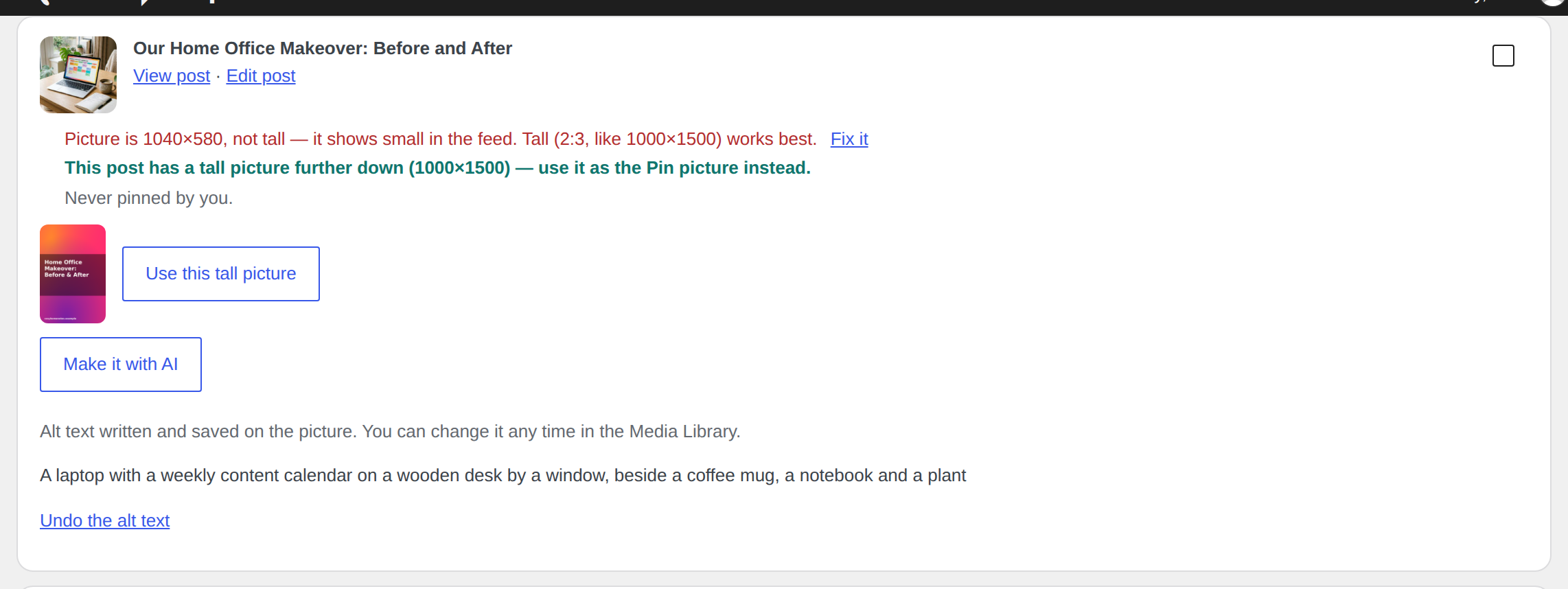

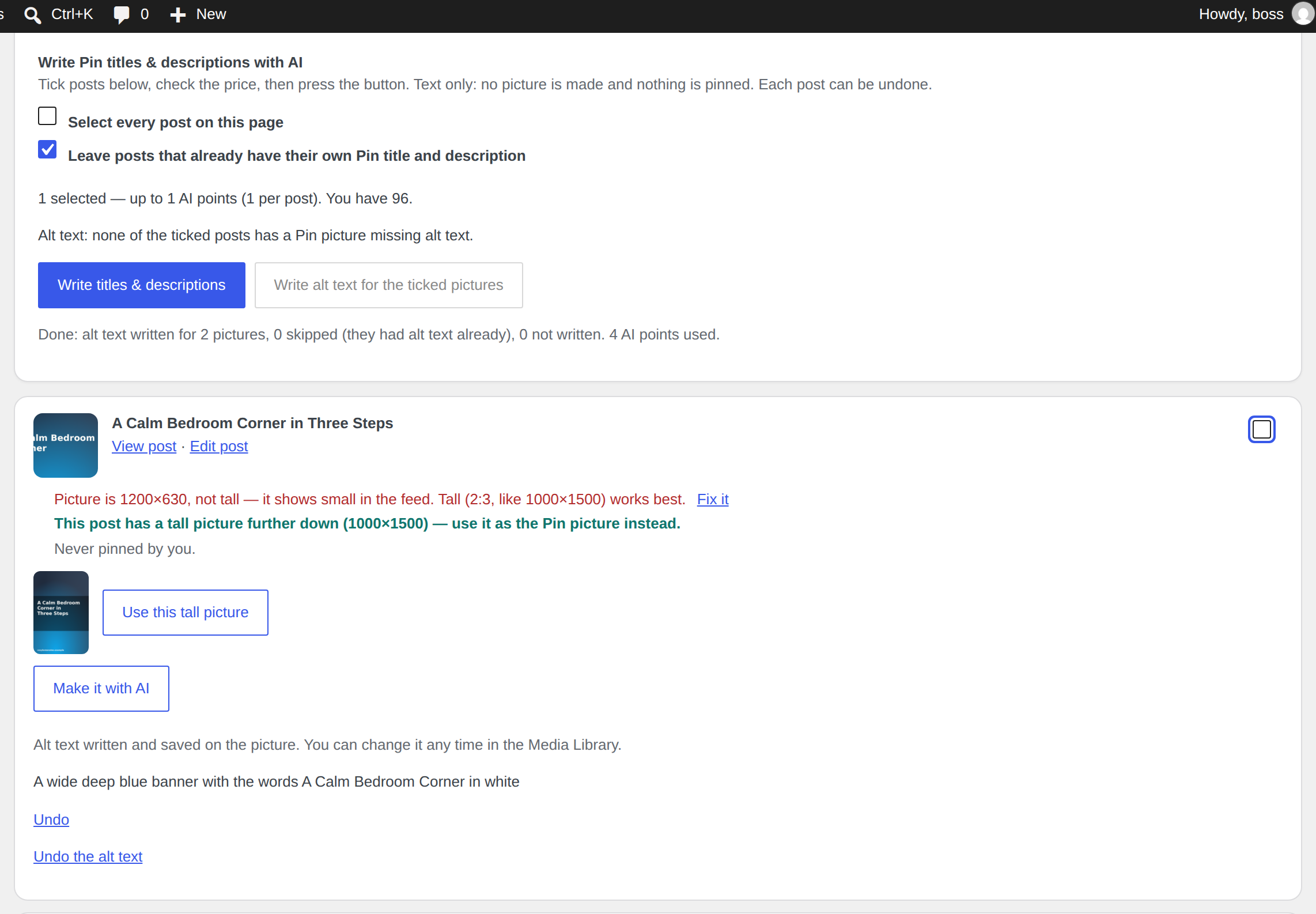

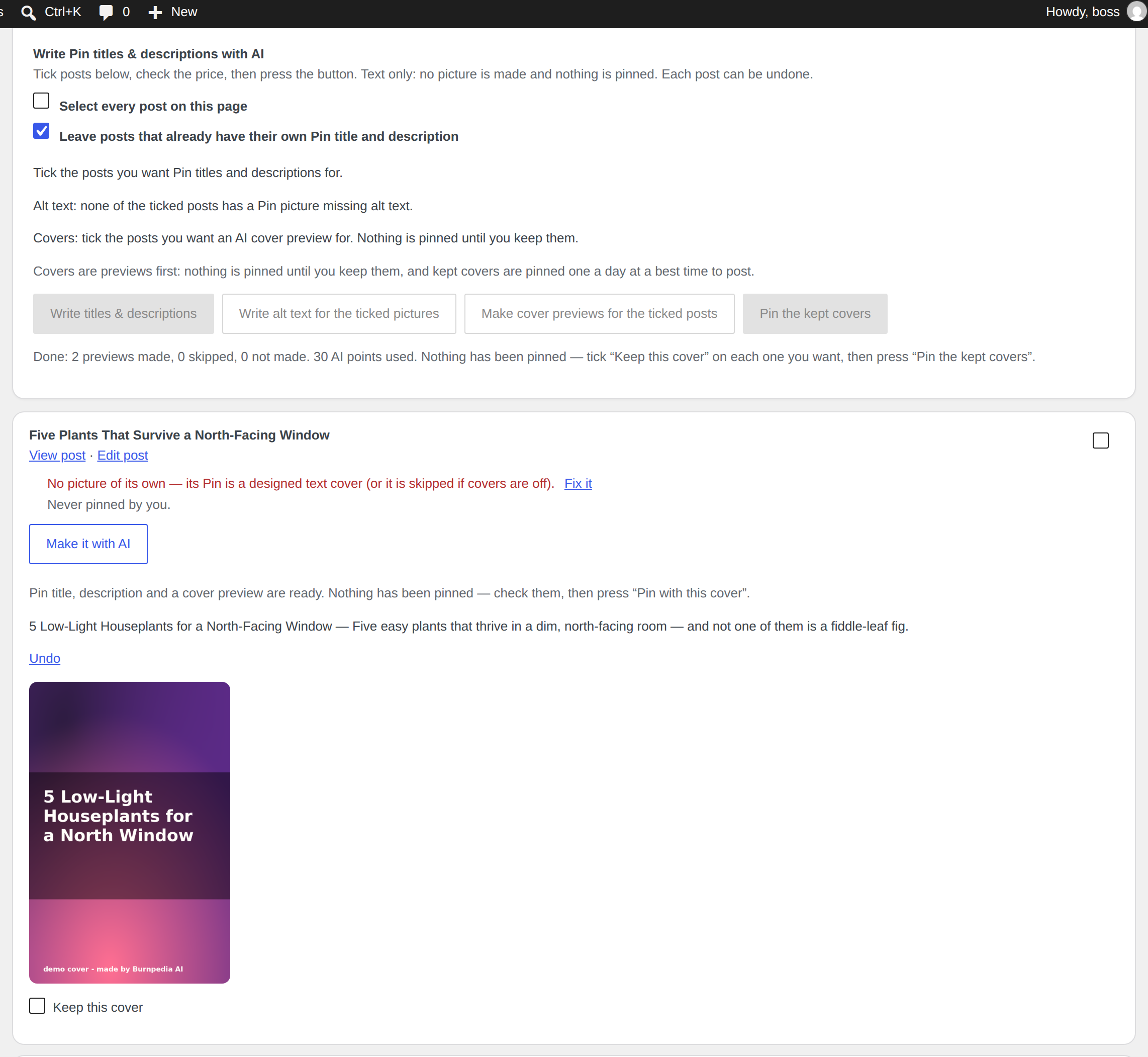

Burnpedia Scheduler is not affiliated with, endorsed by or sponsored by Pinterest, Inc. Pinterest is their trademark, named here only to say where the plugin posts.
This plugin is Pinterest automation for WordPress: it makes Pinterest Pins from the content you already publish. It connects your site to your Burnpedia account: each post you publish becomes a draft Pin from its image, title and link; you approve it with one tick, and Burnpedia publishes it to your board on a schedule.
How Burnpedia Scheduler is different
It is built for Pinterest alone:
- Up to six Pins from one post, each from a different picture in it, a day apart.
- Your older posts too, spread over the days ahead, not in one burst.
- A free Pinterest check-up of your posts (up to 5,000 a scan), each one listed with a link to fix it.
- A plain reason for every post it skips, in the Activity log.
- Every Pin is one you chose, and its screen says why.
- Pins designed from your photos, a number free each month, no AI.
What it does
- Drafts a Pin when a post is published, for you to approve in Burnpedia — or only for posts you tick.
- Pins posts, pages, WooCommerce products and any other public post type you switch on.
- Makes up to six Pins from one post, each using a different photograph, a day apart.
- Designs Pins from your photos, on publish and on Create Pins.
- Adds UTM tags (
utm_source=pinterest…) so Pinterest traffic shows in Google Analytics. - Bulk-pins the posts you published before installing, spread over safe best-time slots.
- Runs a free Pinterest check-up — a Pinterest SEO check — of every published post, up to 5,000: no big, tall image, a title too long, a description too short, no alt text, never pinned — each with a link to fix it.
- Counts the posts ready for Pinterest and re-checks them by itself every week — inside WordPress, nothing sent.
- With AI credit (optional), writes Pin titles, descriptions and cover images, one post or many, price shown first.
- Writes alt text with AI for every picture a post’s Pins use.
- Reports impressions, saves and link clicks for this site’s Pins — the site total on every plan, per post on paid plans.
- Keeps an Activity log per post, including the posts it skipped and why.
- Connects one WordPress site on a free Burnpedia account; more sites need a paid plan.
Works on the free plan
Nothing here is locked by the plugin: no trial, no time limit, nothing held back until you pay. A free Burnpedia account connects one WordPress site and one Pinterest account, and publishes up to 3 Pins a day; the whole publishing side works on it.
Paid plans add more WordPress sites, the per-post breakdown, unlimited designed Pins and a higher daily allowance. AI words, covers and alt text use AI credit: some daily on paid plans, or a one-time bundle, no plan needed. See burnpedia.app/pricing.
External services
This plugin is a client for Burnpedia, a Pinterest scheduling service at https://burnpedia.app. The plugin cannot work without it: Burnpedia holds the Pinterest connection. A free Burnpedia account connects one WordPress site. A site already connected to another free Burnpedia account is not connected again (one free site per person), and a second site on a free account needs a paid plan (see burnpedia.app/pricing). Burnpedia keeps the address of each site you connect with your account, for that limit.
Nothing is sent until you take one of the steps below. With no key saved, a request leaves only after you press a button for it — the one-press connection below, or a bug report — open More plugins, or switch on the install count. Nothing is sent on activation.
Connecting this site in one press (optional). On the Connection screen you can press Connect this site to Burnpedia. When you press it:
- Your browser opens
https://burnpedia.app/connect/wordpress, carrying the address of this site and its title, and which plugin and version asked. It also carries a random one-time request ID and a fingerprint of a secret your browser never sees. - While you approve it there, this site asks
POST https://burnpedia.app/api/site-connect/claimat least three seconds apart, at most 100 times each time the Connection screen is opened while the request is live, and once each time you press I have approved it. Each ask sends that request ID and the secret, and names the plugin and its version in its headers; it does not carry your site’s address, not even in its User-Agent header. Once you approve, the answer is an API key, saved and never shown in your browser. - The request expires after fifteen minutes and its key can be collected only once. If you press Cancel, or the request expires, the asking stops and no key is created.
Once a key is saved, the plugin contacts https://burnpedia.app/api/v1 in these situations:
- When you open the plugin’s settings screen or press “Check connection” — a
GET /api/v1/merequest for your plan, its Pinterest accounts and allowances left (in a Pro trial, the days left and a checkout link). Sent: your API key. Other screens reuse it for five minutes. - When you press “Load my boards” — a
GET /api/v1/boardsrequest. Sent: your API key and the Pinterest account you picked (account), if any. - Whenever a Pin is sent (a post published with “Draft a Pin when a post is published” on, “Pin this post now”, “Send a test Pin”, “Run it now”, Pin older posts, held-back posts, retries) — a
POST /api/v1/pinsrequest. Sent: your API key, the Pin title, the Pin description, the post’s public permalink, the URL of the post’s image and that image’s alt text from your Media Library (if any), the board name or id, the Pinterest account you picked (account, if any), and the time the Pin should be published. When a person chose the Pin (“Pin this post now”, “Send a test Pin”, a ticked post, a kept cover), it also sendspicked: true; without it, Burnpedia keeps the Pin as a draft for your OK. With “Design each Pin from the post’s photo” on, a photo Pin also sendsdesign: true(never on Pin older posts or a chosen picture). With no image and “design a cover from its title” on, no image URL is sent; a flag asks Burnpedia to design the cover from the title, or, with “let Burnpedia generate one with AI” also on, a generated photograph behind it (it spends AI points; if it fails, the free designed cover instead). Nothing extra about your site is transmitted. - When you open the “Pins from this site” tab —
GET /api/v1/pinsrequests (the list and its counts). Sent: your API key and this site’s address, so Burnpedia returns only this site’s Pins. - When you open the “Pins from this site” tab, or the posts list in WordPress — a
GET /api/v1/analytics/siterequest. Sent: your API key and this site’s address. It returns the numbers Burnpedia already recorded; it does not ask Pinterest anything. -
When you press “Make a preview” under “Try an AI cover” in the post editor — a
POST /api/v1/coversrequest. Sent: your API key, the Pin title, the post’s public permalink, and a flag asking for an AI photograph. It uses AI points (cost and balance shown first) and creates no Pin; the preview is shown straight from burnpedia.app, and the picture is pinned only if you press “Pin with this cover” (item 3). -
When you press “Scan all posts” on the Pinterest check-up tab —
POST /api/v1/pinned-statusrequests, up to 500 addresses each. Sent: your API key and the public addresses (permalinks) of your published posts that this plugin has not pinned yet. It returns whether each address was ever pinned by your Burnpedia account or is on your connected Pinterest account. Every other check-up result — picture size, alt text, title length, description — is worked out inside WordPress and is not sent anywhere. - When you press “Make it with AI” on a post in the Pinterest check-up — a
POST /api/v1/copyrequest, then item 6’sPOST /api/v1/coversrequest. Sent to/copy: your API key, the post’s title, its public permalink, and its excerpt (or opening words). It returns a Pin title and description and uses AI points (price shown first). “Write titles & descriptions” sends the same/copyrequest once per ticked post, without the cover; posts with their own words are skipped and nothing is sent for them. “Make cover previews for the ticked posts” sends both requests per ticked post; kept covers go out through item 3, one a day. - When you press “Write alt text with AI” (or “Write alt text for the ticked pictures”) in the check-up — a
POST /api/v1/alt-textrequest per picture. Sent: your API key, the public address of a picture that post’s Pins use, and the post’s title. Burnpedia fetches it and returns one sentence describing it, saved as alt text. It uses AI points. Nothing is sent for a picture that already has alt text. - On the Create Pins page —
/api/v1/pin-setsrequests with your API key. Opening it sends this site’s address. Make my Pins sends a post’s permalink, title, excerpt (or first heading or opening words), this site’s name and up to six photo addresses; Burnpedia draws Pins from them (no AI) and keeps them 30 days, shown straight from burnpedia.app. Schedule, Cancel and Delete send the ticked Pins (Schedule: also the board and account).
An AI request Burnpedia cannot complete is not charged.
The tall-picture choice, the readiness score, the “scan again” reminder and the weekly re-check of your posts all run inside WordPress and send nothing.
The Buy AI credit buttons are ordinary links to https://burnpedia.app/buy-credit, carrying the chosen bundle and, like every link to Burnpedia, this plugin’s name and version; the plugin itself sends nothing when you click one. Each also names its screen (utm_content); Design a Pin and Pin it again with a new picture add the post’s title, permalink and from.
Every request to /api/v1 carries headers naming the plugin and its version; a Pin or Make my Pins request also carries a random one-time key against duplicates. Only under a yes given since 1.0.46 to the install count below, each also says whether this site has used Pin older posts, and under which version of the words (see that paragraph).
Except the opt-in install count below (and the two headers it adds to these requests), no visitor data, no analytics, no usage statistics and no content beyond the fields named in this section are transmitted, and the plugin has no telemetry of its own: it never reports your traffic, your other plugins, or anything about your visitors. Your site’s address is sent in items 3 to 10 above (as this site’s address, a post’s permalink or a picture’s address), in the Design a Pin and Pin it again with a new picture links, on the one-press connection screen if you use it, in a bug report if its box is ticked, and in the User-Agent of WordPress’s own More plugins and More Details requests (and the Referer of their pictures).
Burnpedia’s terms and privacy policy:
- Terms of service: https://burnpedia.app/terms
- Privacy policy: https://burnpedia.app/privacy
Burnpedia’s servers, not your site, contact Pinterest, which downloads your image from your own site: it must be publicly reachable.
The install count (optional, off by default). Switch it on under
Burnpedia Connection and this site sends a short report:
POST https://burnpedia.app/api/plugin-insights— once when you switch it on,
then at most once a week while an administrator is using wp-admin, once if you
deactivate the plugin, and once if you delete it. Sends exactly nine things: a
random ID generated on this site, which plugin and which version, which of
those four events it is, your WordPress version, your PHP version, your site
language, whether this is a multisite network, and whether an API key is saved
(true or false — never the key). Receives: nothing your site uses.- One more answer, only while the count is on and an API key is saved: this
site’s requests to/api/v1carry a header saying whether you have used Pin
older posts (usedorunused, never which posts or how many) and one with the
version of the words its yes was given under, so its tip email goes only to
sites that have not. Switch the count off and the headers stop; Burnpedia forgets the answer the next time this site talks to it.
A yes given before version 1.0.46 covers the count alone: this site’s requests to /api/v1 say nothing about Pin older posts until you choose Yes again on the Connection tab.
No install-count report carries your website address, not even in the
User-Agent header: the plugin sends its own. Switch the setting off and the ID is deleted, so counting
stops and a later change of mind cannot be joined to it. Nothing about any reader
or logged-in user is in it.
Report a bug and More plugins (only when you use them). Pressing Send report on Burnpedia Report a bug sends POST https://burnpedia.app/api/plugin-bug-report: your description, an optional reply email, the plugin, WordPress and PHP versions, theme, language, whether it is multisite and whether a key is saved (never the key) — and your site’s address only if you tick “Include this site’s address” (it starts unticked). Opening Burnpedia More plugins, or a plugin’s More Details (WordPress’s own details window, only when you click it), asks WordPress.org (https://api.wordpress.org/plugins/info/) about our plugins through WordPress’s own plugins_api(), as Plugins Add New does, sending your admin language and WordPress version; its User-Agent names this site and the WordPress version. Your browser loads their pictures from WordPress.org.