

Multiple File Upload for Contact Form 7
v1.1.0hell0bunny · 2026年7月30日 上架
Drag-and-drop multiple file uploads for Contact Form 7, with per-form storage, custom folders, and clickable email links.
- 正在使用
- 30+
- 评分
- 暂无
- 累计下载
- 541
- 最近更新
- 2026年8月20日
贡献者
 hell0bunny
截图
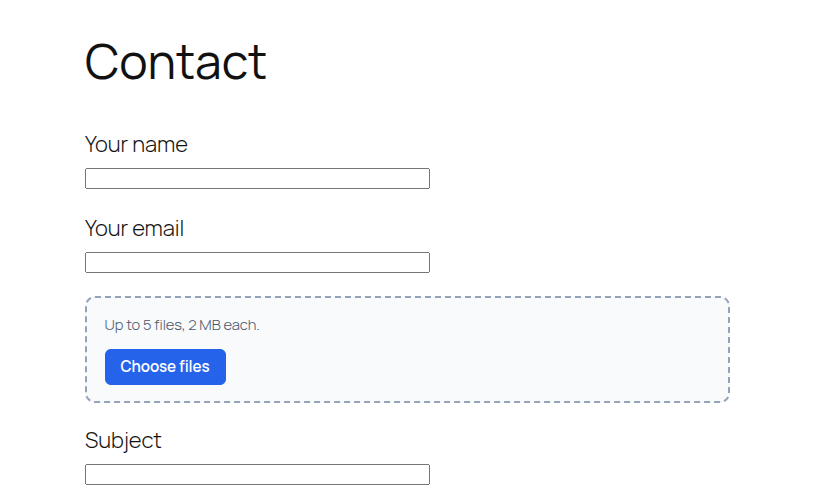
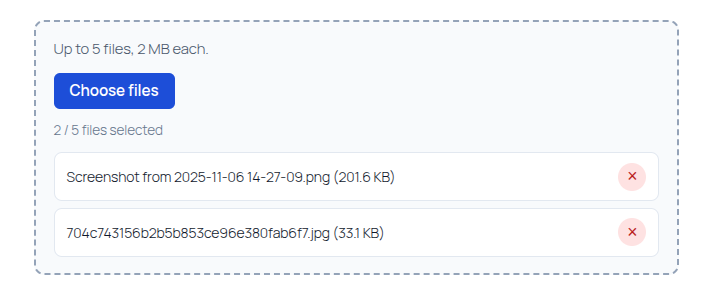

Give any Contact Form 7 form a clean multiple-file field. Visitors drag files in or click to browse. You control the button text, file types, size limits, and where each form stores uploads.
Upload that feels easy
- Drag and drop, or click the browse button
- Several files in one field — no extra
[file]tags - Custom button label (default: Choose files) and CSS class
- Optional or required:
[hbwa_mfile]/[hbwa_mfile*] - Limits you set: file types, size per file, and max number of files
Save files your way — per form
Each form has its own Multi-file Upload tab. Turn saving on only where you need it.
- Media library — add uploads to WordPress Media
- Folder under wp-content — keep files in a path you choose, such as
uploads/invoices
Folders that stay organized
When you save under wp-content, pick how subfolders are created:
- By year
- By year / month (same idea as the WordPress media library)
- By year / month / day
- By logged-in user
- By user / year
- By form name (slug, for example
contact-form-1) - Custom pattern, such as
{year}/{form_slug}
Name saved files with tokens like {filename}, {date}, {time}, and {random}. The original extension is always kept.
Email that is ready to open
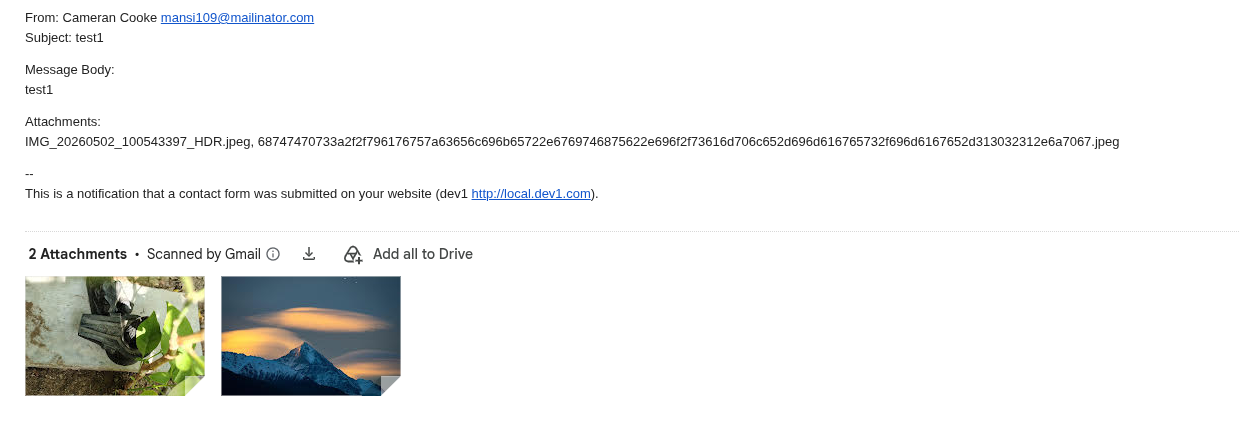
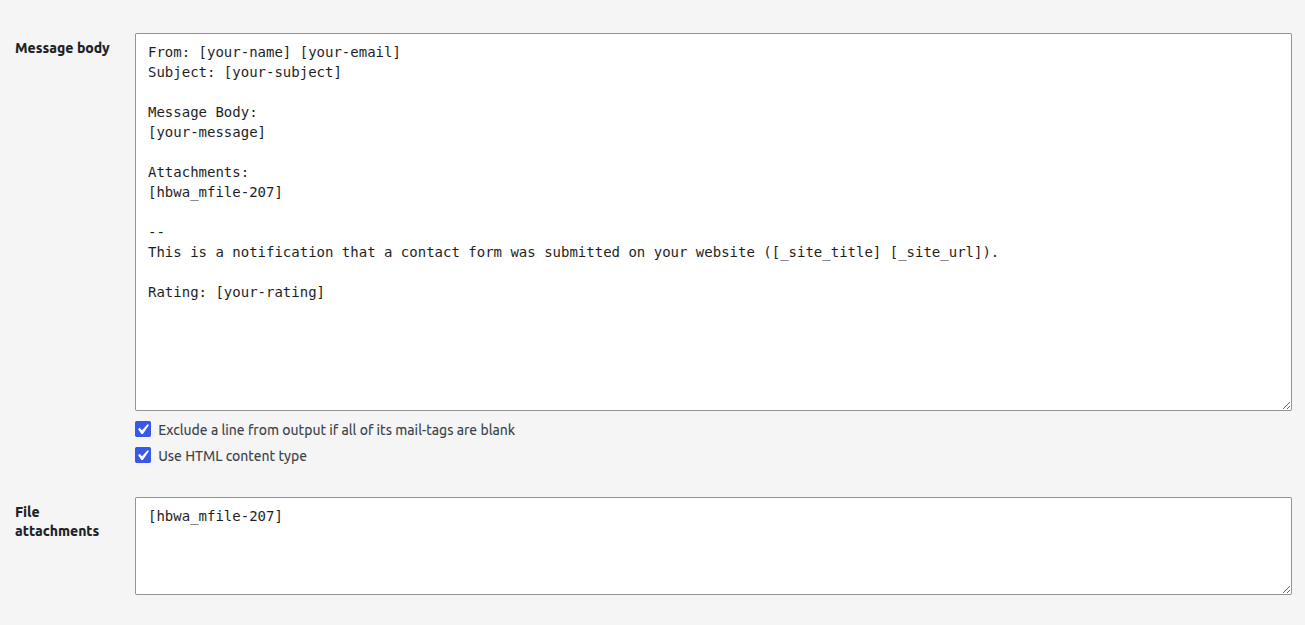
- Attach files in the Mail tab with the matching mail-tag, for example
[attachments] - Put the same tag in the message body
- When saving is on, that tag becomes a link to open each file instead of a plain name
Built for Contact Form 7
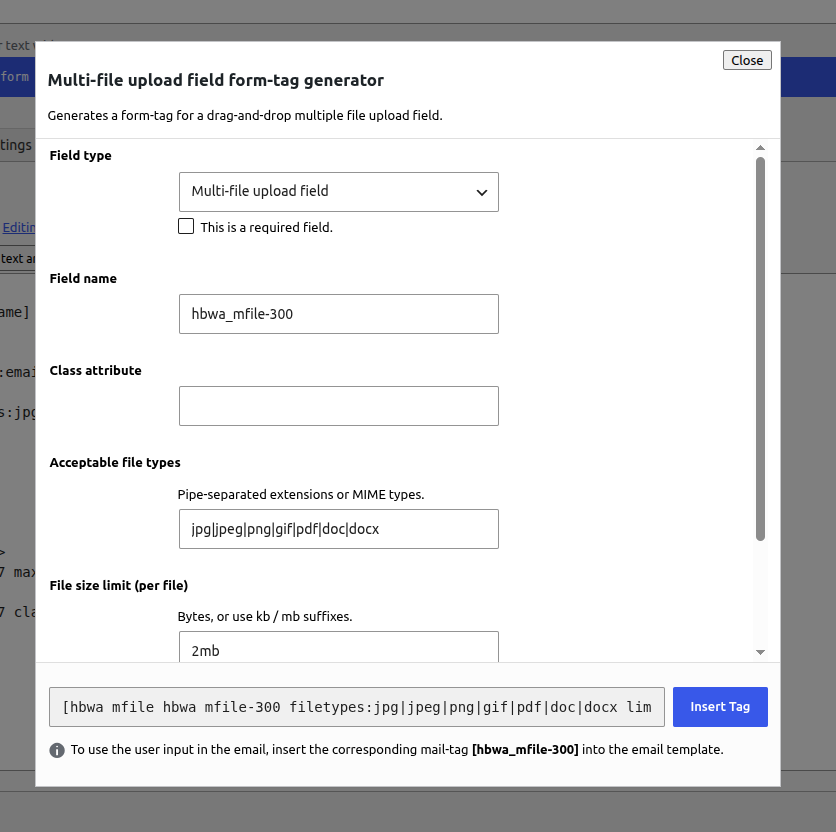
- multi-file button in the form-tag generator
- Works with Mail and Mail (2)
- Settings apply to that form only — other forms stay unchanged
Requirements
- Contact Form 7 must be installed and active
How to use the shortcode
- Edit a Contact Form 7 form.
- Click the multi-file button in the form-tag generator.
- Set the field name, button label, CSS class, file types, size limit, and max files, then insert the tag.
- In the Mail tab, add the same field name under File attachments (for example
[attachments]). - Optionally add the same mail-tag in the message body.
- Open the Multi-file Upload tab if you want to keep copies: enable Save uploaded files, then choose Media library or a folder under wp-content.
Basic shortcode examples
Optional field:
[hbwa_mfile attachments]
Required field:
[hbwa_mfile* attachments]
Custom button label and class:
[hbwa_mfile* attachments class:my-upload-btn "Select files"]
With options:
[hbwa_mfile* attachments filetypes:jpg|jpeg|png|pdf|doc|docx limit:2mb maxfiles:5 "Choose file"]
Shortcode options
- Quoted value — browse button label (default: Choose files)
class:— CSS class added to the file input and the browse buttonfiletypes:— pipe-separated extensions (example:jpg|jpeg|png|pdf)limit:— max size per file (example:2mb,500kb, or bytes)maxfiles:— maximum number of files allowed in one submission
Save files (per form)
On the form’s Multi-file Upload tab:
- Enable Save uploaded files.
- Choose one destination:
- Media library
- Folder under wp-content — base path relative to
wp-content(for exampleuploads/invoices), then organize subfolders by year, month, user, form name slug, or a custom pattern
- Optional File name pattern (default
{filename}). The original extension is always kept.
When saving is enabled, the mail-tag in the message body outputs links to open each file.
Uploaded files are sent as real email attachments when Contact Form 7 file uploading is enabled for that mail template. Make sure your hosting PHP upload limits (upload_max_filesize, post_max_size) allow the sizes you configure.
Guidelines
- Always put the matching mail-tag in File attachments if you want files attached to the email.
- Use
[hbwa_mfile*]when at least one file is required. - Keep
maxfiles:andlimit:realistic for your server and mailbox size limits. - Restrict
filetypes:to what you actually need (for example images and PDFs only). - This field does not replace CF7’s native
[file]tag — use[hbwa_mfile]when you need multiple files and drag-and-drop.
Author: hell0bunny