

Brain 2FA
v1.3.0Braintum · 2026年10月16日 上架
Add two-factor authentication and passwordless passkey sign-in to WordPress accounts.
- 正在使用
- 10 以下
- 评分
- 暂无
- 累计下载
- 434
- 最近更新
- 2026年10月30日
需要 WordPress 6.4+已测试到 7.1.5PHP 8.1+
贡献者
 Braintum
截图
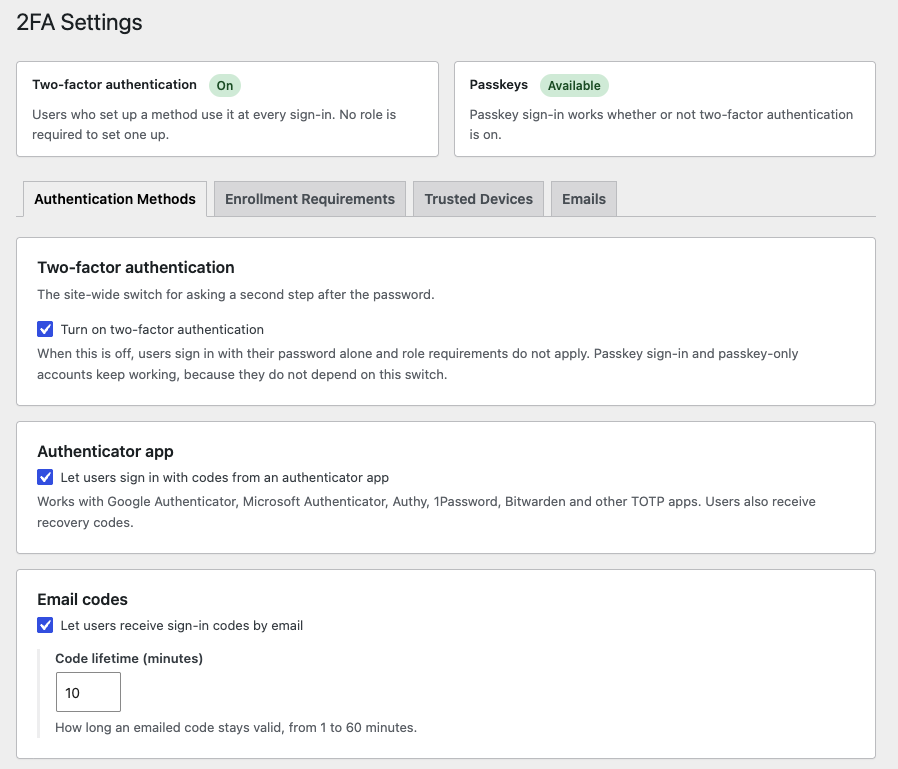
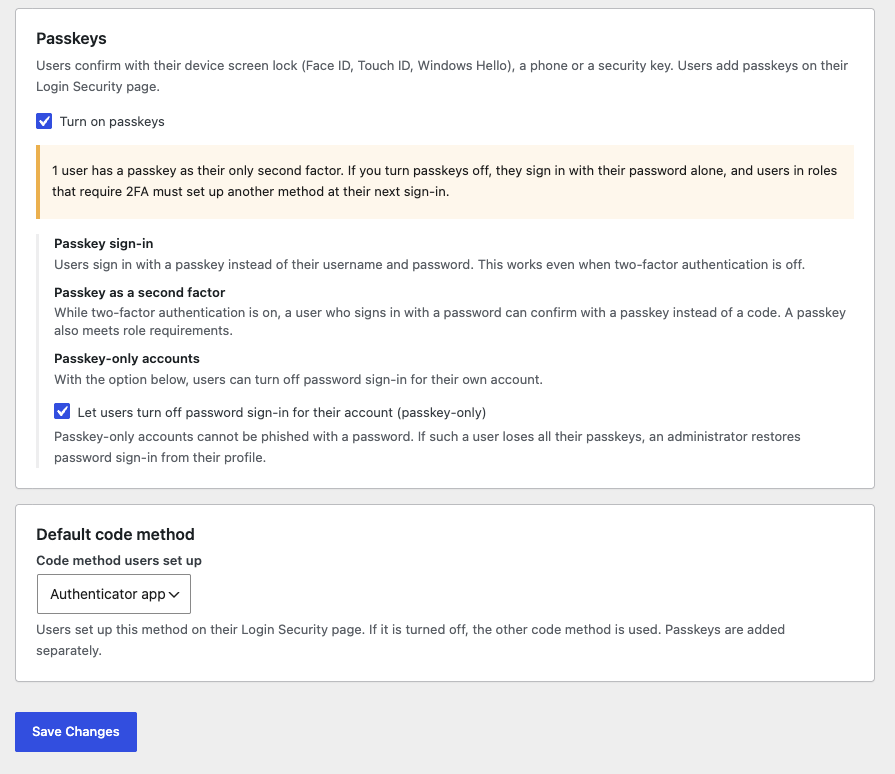
Brain 2FA protects WordPress accounts with a second authentication factor. After entering their password, users confirm their identity with a six-digit code from an authenticator app or from their email inbox. Users can also sign in without a password using a passkey.
Codes are generated and passkeys are verified on your own server. Brain 2FA does not send any data to third-party services.
Features
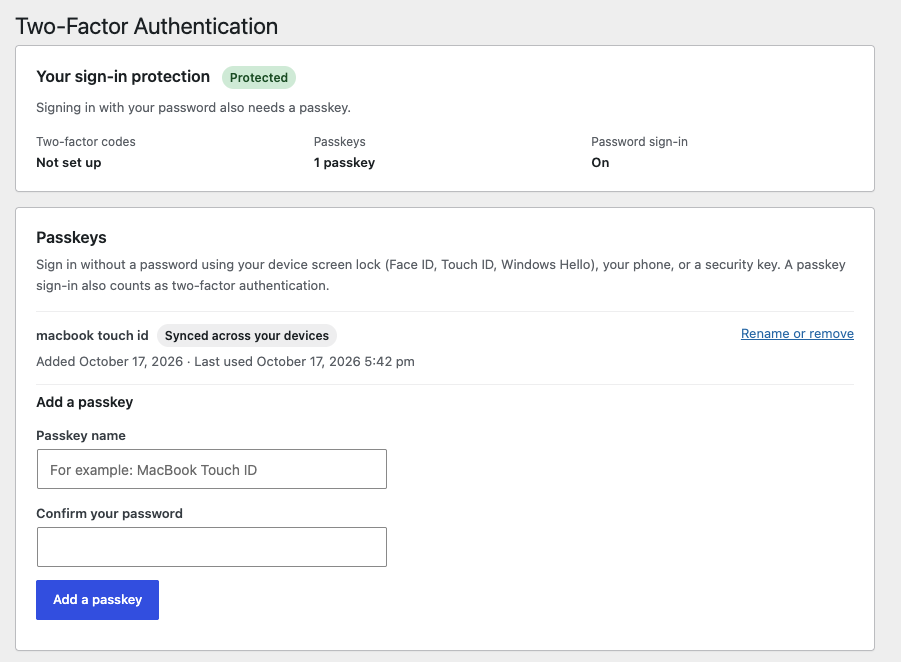
- Passkeys: Sign in without a password using Face ID, Touch ID, Windows Hello, a phone or a security key. Passkeys are offered right in the username field, and a passkey sign-in counts as two-factor authentication. A passkey can also be the second step after a password, counts toward required two-factor setup, and users can optionally turn off password sign-in entirely. Requires HTTPS; turn it on under Brain 2FA > Settings.
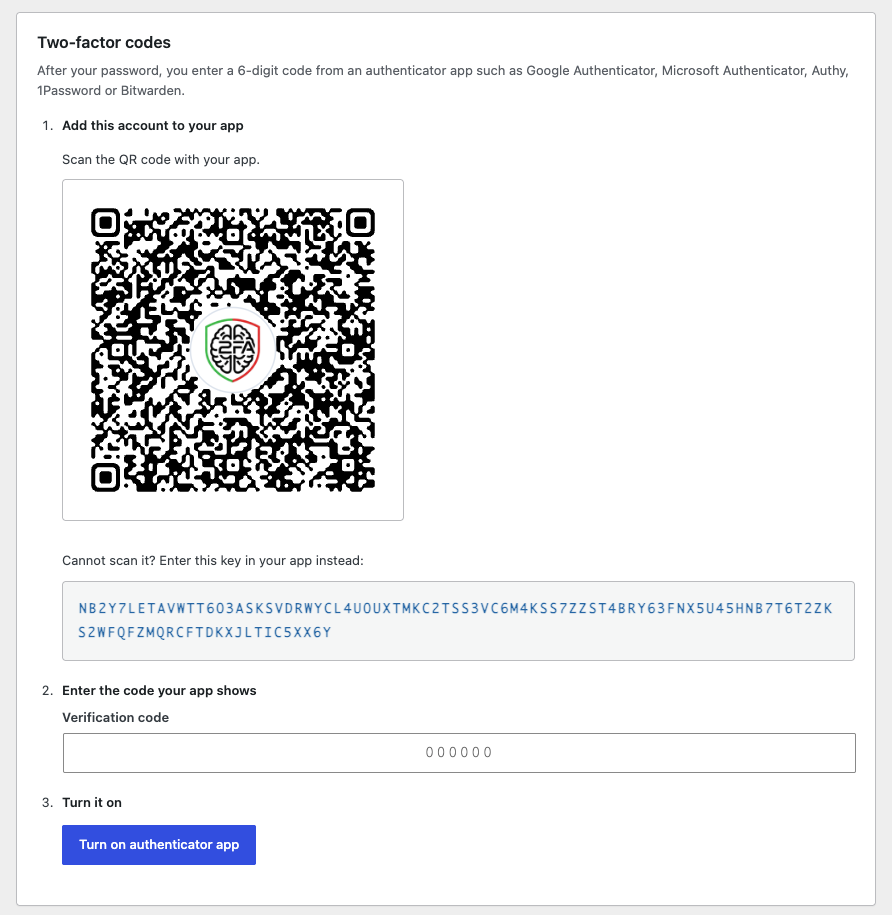
- Authenticator apps (TOTP): Works with Google Authenticator, Microsoft Authenticator, Authy, 1Password, Bitwarden and any other TOTP-compatible app. Users set it up by scanning a QR code or entering the secret key manually. One-time recovery codes cover a lost phone, and users are warned in WordPress and on their WooCommerce account dashboard when only a few are left.
- Email verification codes: Sends a one-time code to the account email address, with a configurable expiry time.
- Recovery codes: TOTP users receive one-time recovery codes they can download and regenerate in case they lose their phone.
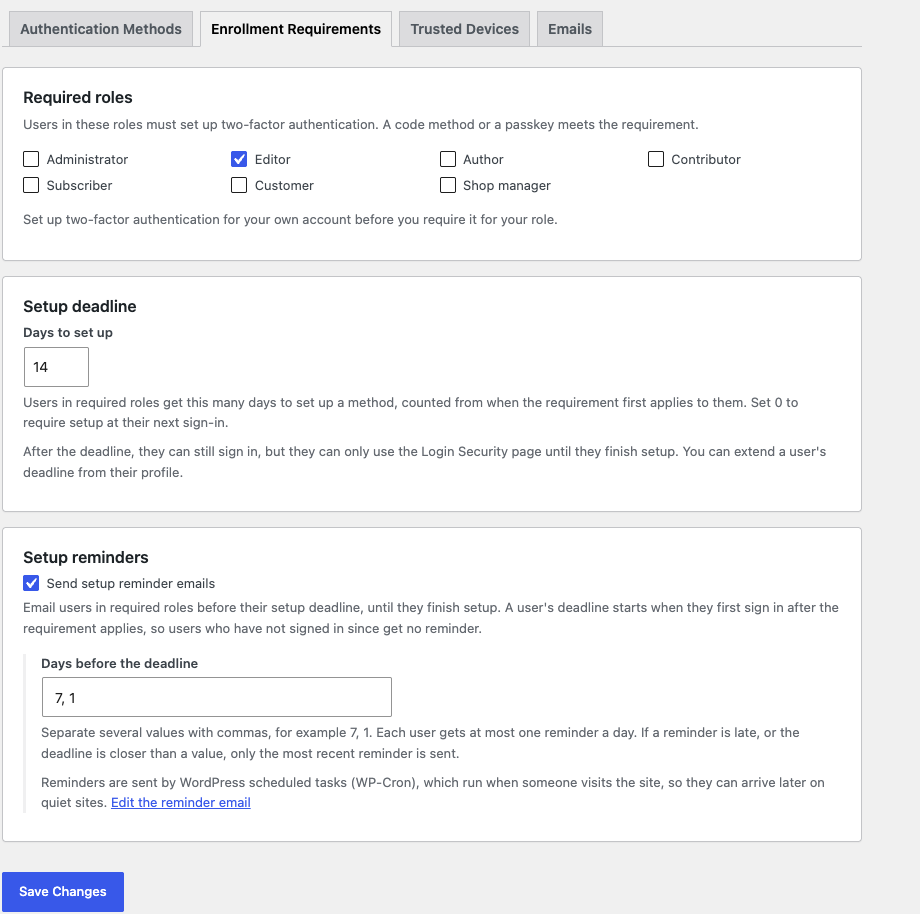
- Role-based enforcement: Require two-factor authentication for selected user roles, such as Administrator, Editor or Shop manager.
- Setup grace period: Give users in required roles a set number of days to enable 2FA. After the deadline, they can sign in but only reach the setup page until 2FA is enabled. Administrators can see deadlines in the Users list and extend them from a user’s profile.
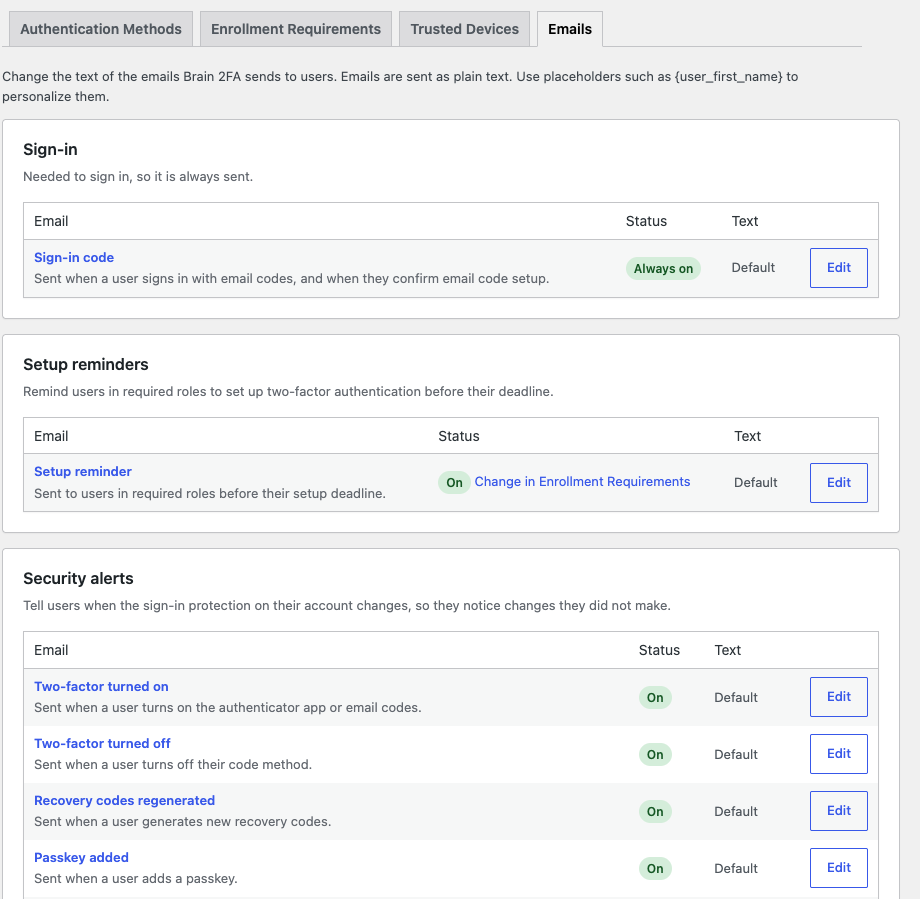
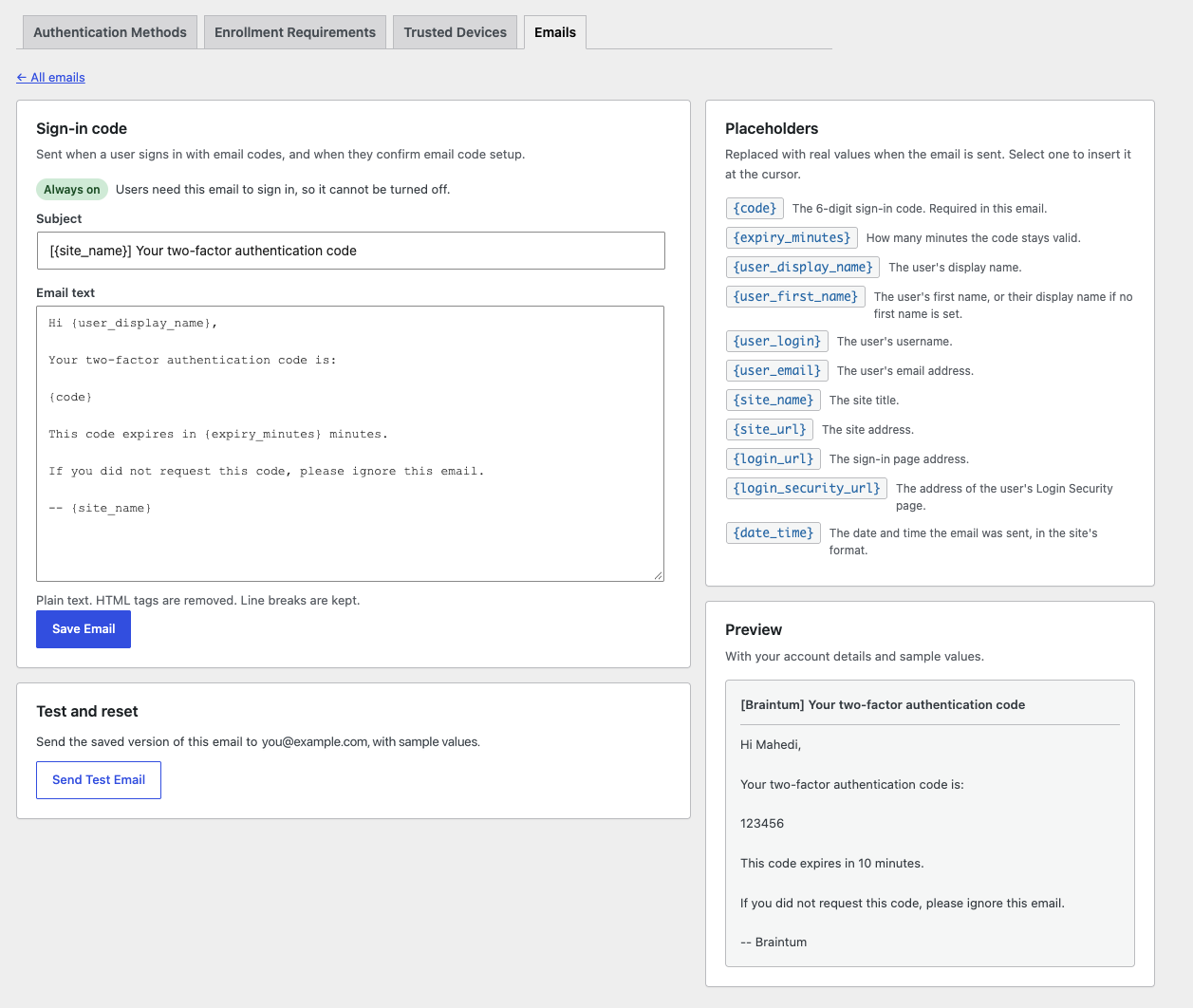
- Editable emails: Change the subject and text of every email the plugin sends, from the sign-in code to setup reminders and security alerts, under Brain 2FA > Settings > Emails. Personalize them with placeholders such as
{user_display_name},{site_name}and{date_time}, preview them as you type, send yourself a test, and reset any email to its default. You can also turn off individual alerts and set the sender name and address. - Setup reminders: Optionally email users in required roles before their setup deadline, 7 and 1 days ahead by default. Each user gets at most one reminder a day, and late reminders never pile up.
- Enrollment overview: See at a glance how many users are protected, still have to set up two-factor authentication, or missed their deadline, for all roles or one role. Every number opens the matching filtered Users list, and the Users list can be filtered by 2FA status.
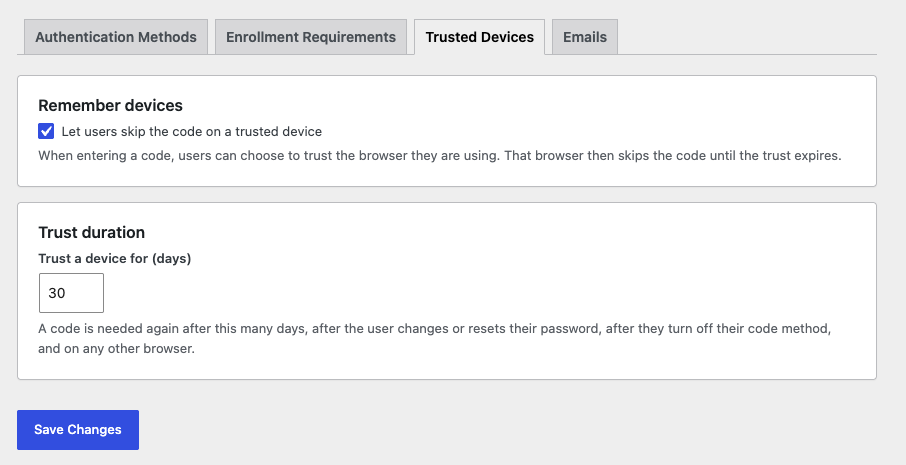
- Trusted devices: Users can optionally skip the code on devices they trust, using expiring, password-hashed tokens. They see each trusted browser, when it was last used and when it expires on their Login Security page, and can forget one or all of them.
- Consistent enforcement: The 2FA policy applies to every sign-in, including direct submissions of the login form, not only the JavaScript-assisted flow. The credential check before the code step is rate limited per IP address.
- WooCommerce support: Works with the default WordPress login form and the WooCommerce My Account login form. Customers manage all their sign-in protection in a Login Security tab in My Account (passkeys, authenticator app or email codes, recovery codes, trusted devices and password sign-in), without visiting the WordPress dashboard.
- Works without JavaScript: If the login script cannot run, a verification code field is shown on the login form instead.
- Translation ready: All user-facing text can be translated.
Support
Need help? Visit Braintum Support.
Development
The development source code and build tools for Brain 2FA are publicly available at:
https://github.com/Braintum/brain-2fa
The JavaScript files in assets/js/ are generated from the source files in src/js/.