

Block Designer – Create Custom Blocks for Gutenberg Editor
v1.10.1Helmut Wandl · 2022年7月15日 上架
Create and design custom blocks for the WordPress Gutenberg Block Editor without any line of code.
- 正在使用
- 100+
- 评分
- 5.0 / 5
- 累计下载
- 7,559
- 最近更新
- 2025年12月3日
贡献者
 Helmut Wandl
截图
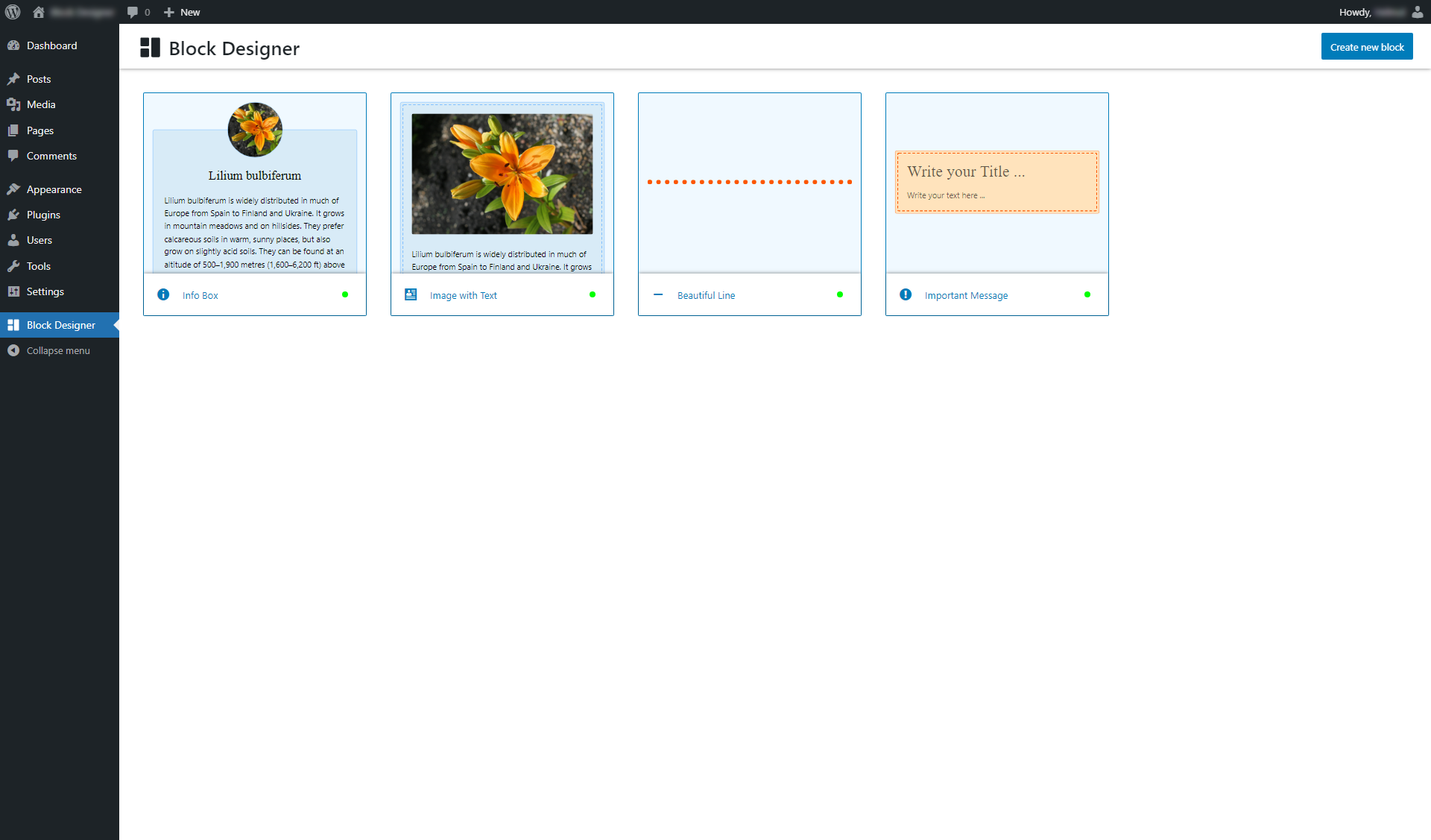
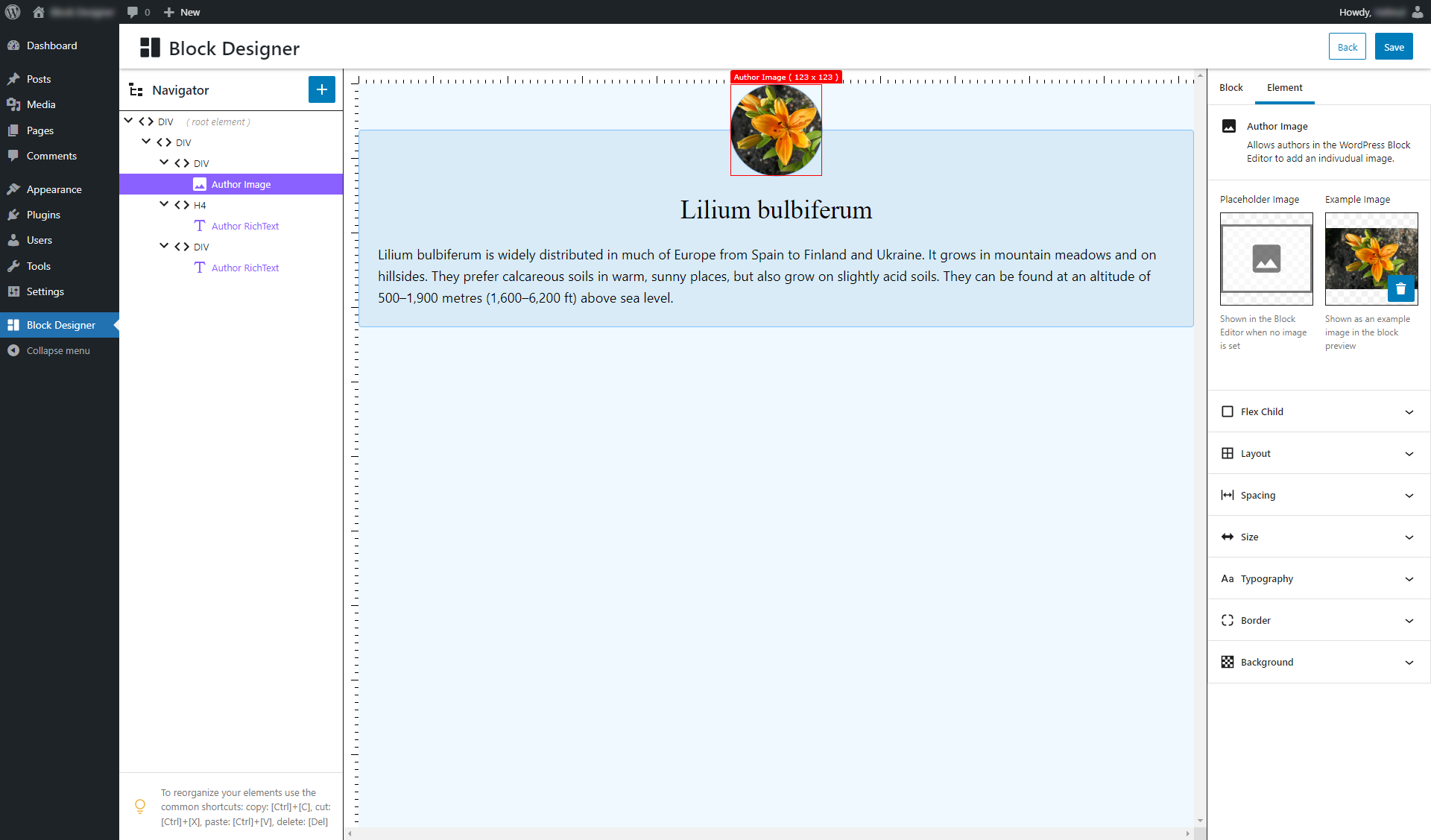
Design your own custom blocks for the WordPress Gutenberg Block Editor without any line of code.
✔ fastest way to create your block for Gutenberg
✔ Incredibly easy and intuitive to use
✔ Your custom blocks are completely WYSIWYG (no form)
—
Tutorial (create an address block for Gutenberg):
—
Live Preview
Test the latest version here:
> > > open LIVE PREVIEW < < <
—
Supported Elements
- HTML Element
- Icon
- Static Text
- Author Image
- Author Link
- Author RichText
- Inner Blocks
Supported Styles
- Display (block, flex, inline-block, inline, none)
- Flex (direction, reverse, align, justify, gap, wrap)
- Flex Child (shrink, grow, align self)
- Spacing (margin, padding)
- Size (width, height, min-width, min-height, max-width, max-height)
- Overflow (visible, hidden, scroll, auto)
- Typography (font-weight, font-style, font-size, line-height, color, text-align, text-decoration)
- Border (radius, style, width, color)
- Background (color, linear-gradient, radial-gradient)
- Effects (box-shadow)
How it works
-
Design your block
First you design your block in the Block Designer with different HTML elements and styles.
You can define areas where authors can insert images and text in the WordPress Block Editor.
After you designed your block, you only need to enable and save it.
-
Use your block
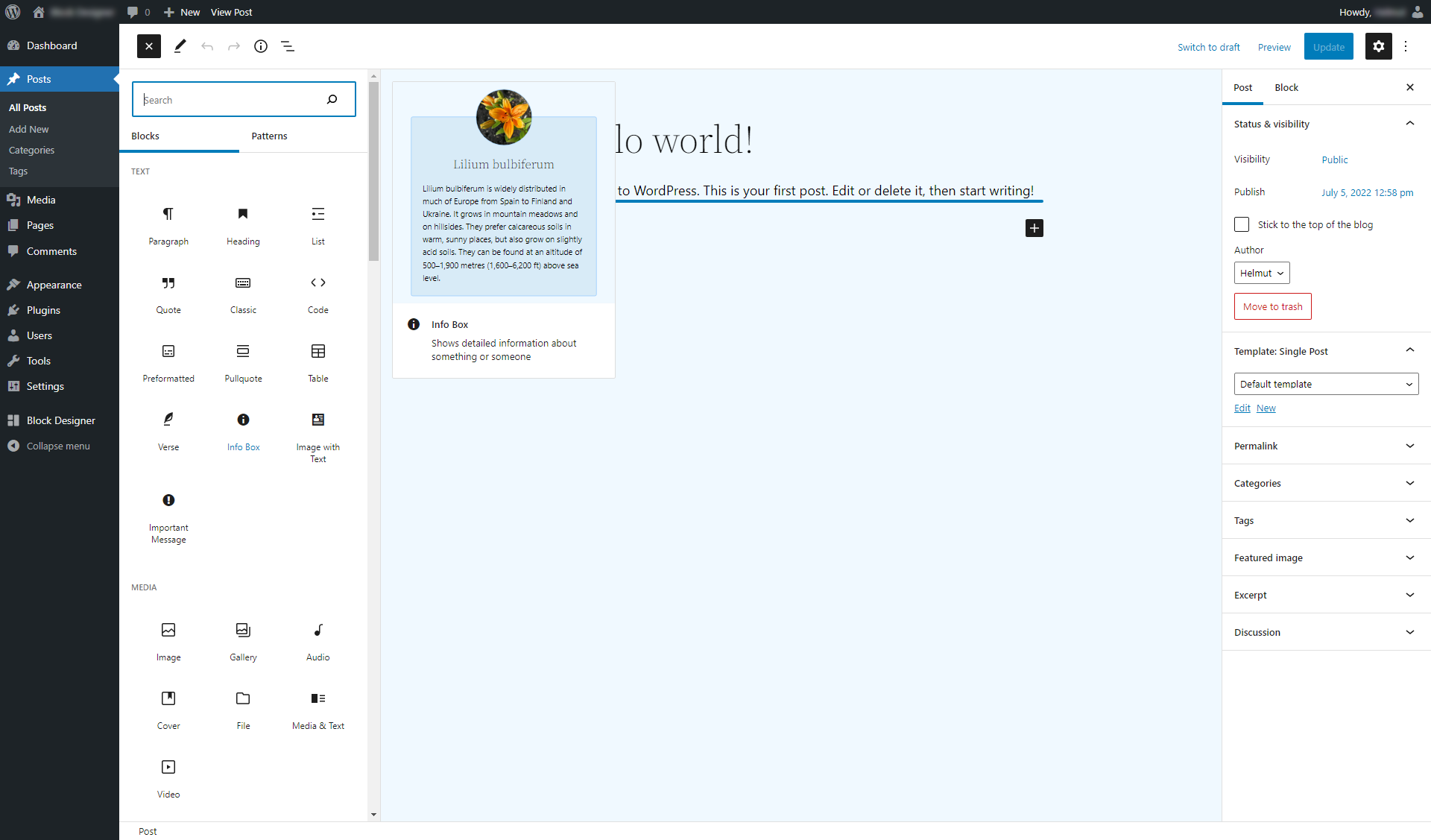
If you enabled and saved your block, you will find your block in the Inserter panel of the WordPress Block Editor.
Just insert it as you know it from ordinary blocks.
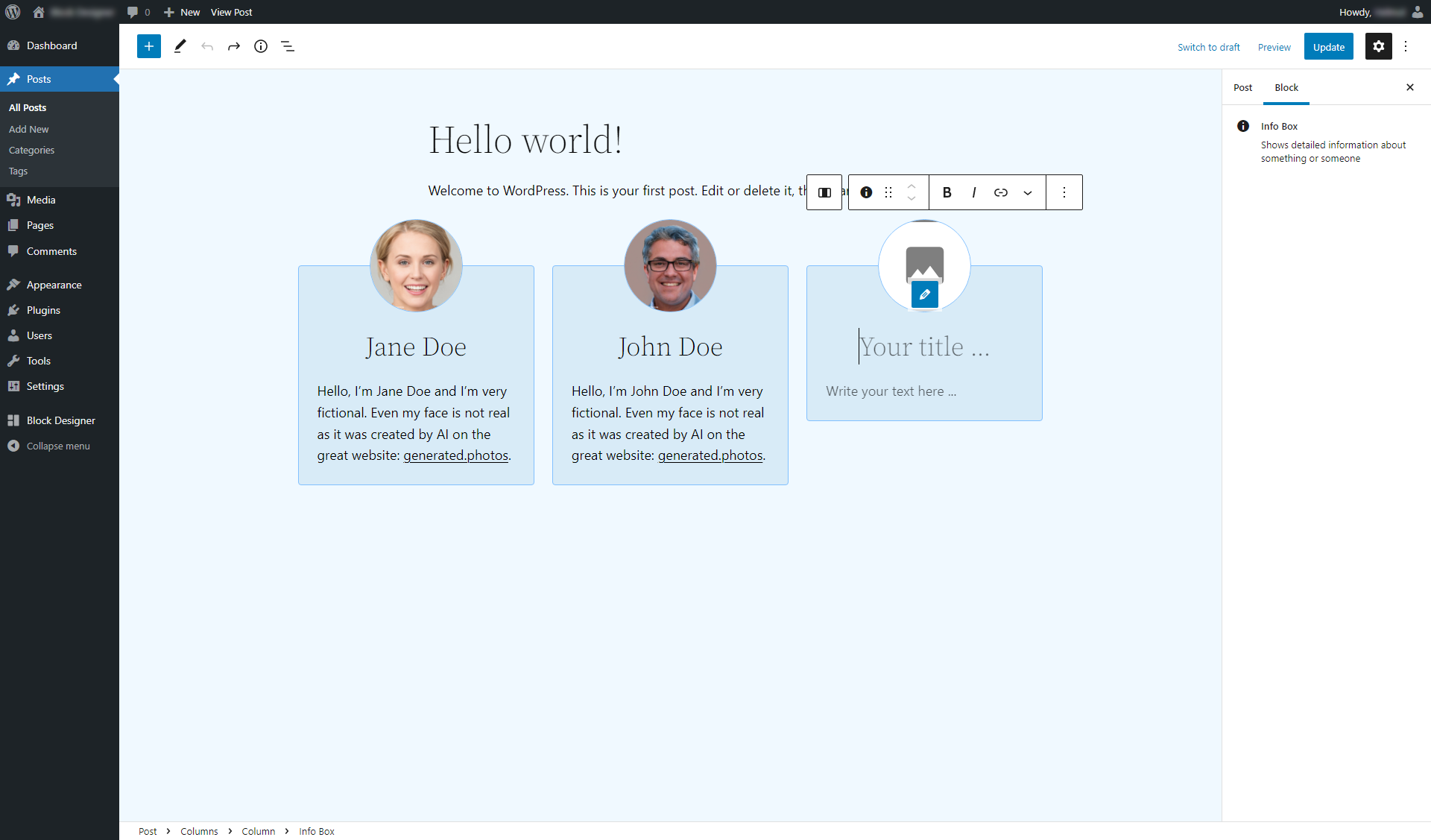
If you have defined areas for author input, you can add your content now.
Save your page/post and enjoy your result on your site 😉
More from the same author
Click here: wppeak.com