
Axle Read-Only Mode
v3.1.0Aryan Jasala · 2026年10月30日 上架
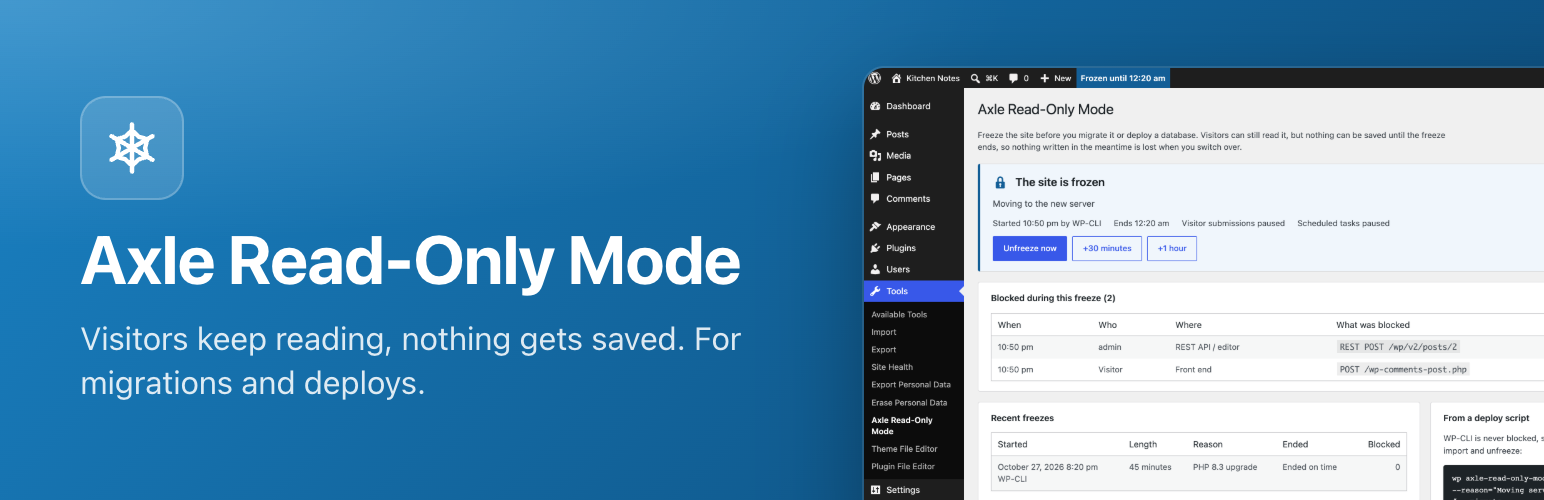
Read-only mode for migrations and deploys. Visitors still see the site; nothing can be saved, so no edits, orders or comments get lost.
- 正在使用
- 10 以下
- 评分
- 暂无
- 累计下载
- 394
- 最近更新
- 2026年11月12日
贡献者
 Aryan Jasala
截图


When you move a site to a new server, or replace the live database with one from staging, anything saved on the old copy during the move is lost: a post an editor was finishing, a comment, a form entry, a WooCommerce order.
Maintenance mode hides the whole site from visitors. Axle Read-Only Mode keeps the site online but makes it read-only:
- Editors can open and read everything in wp-admin, but cannot save. The block editor disables Save and Publish and shows why. People who already have the editor open are locked within a minute, through the WordPress heartbeat, and unlocked again when the freeze ends.
- Admin actions that change data are refused: saving settings, uploading media, installing or updating plugins, trashing posts. Automatic updates are paused.
- The REST API and XML-RPC refuse anything that writes, with HTTP status 423. Reading still works.
- Visitor submissions (optional, on by default): comments, sign-ups, contact forms, checkouts and any other form post get a “back soon” page with HTTP 503 and a Retry-After header, which search engines understand.
- Scheduled tasks (optional, on by default) are held back and run when the freeze ends.
Logging in always works, so an admin can always unfreeze.
Free and open source under the GPL. No pro version, no upsells, no ads in wp-admin, no tracking. And it stays that way.
Part of Axle by AryanX, a family of free plugins for running WordPress sites safely.
Check before you freeze
The freeze screen has a “Before you freeze” card that shows what a freeze would interrupt right now, for the length, start and scope you picked, and updates as you change them:
- People editing: who has a post open in the editor, which post, and how long ago.
- Scheduled posts due inside the freeze. With scheduled tasks held, they publish when the freeze ends, not on time.
- WooCommerce orders waiting for payment, created recently. Only when WooCommerce is active.
- Scheduled tasks due inside the freeze that would be held.
It informs and never blocks. If anyone else is editing, the freeze button asks first and says how many people. The admin bar freeze stays one click, and the notice afterwards says how many people were editing. Other plugins can add their own items with the axle_read_only_mode_checks filter. wp axle-read-only-mode check and the check-freeze ability give the same answer to scripts and AI agents.
Freeze part of the site
A freeze has a scope:
- Everything (the default): nothing can be saved.
- Content only: posts, pages, media, comments, terms, menus, orders and form entries cannot be saved. Settings, plugins, themes and updates keep working, so a deploy can go on during a content migration or a launch-day content lock.
- Settings and code only: options, plugins, themes, updates and user accounts cannot be changed. Editors, commenters and customers keep working, so a code deploy or a content migration cannot drift from its configuration.
The admin screens, REST API, XML-RPC, block editor, abilities, visitor submissions, scheduled tasks and the allow-list all follow the scope. The scope shows in the status badge, the notice on every screen, the admin bar, the blocked list, the history, the emails and WP-CLI (--scope=content or --scope=code). Anything the plugin cannot recognise as settings or code counts as content, and the axle_read_only_mode_request_area filter fixes a screen it sorts wrongly.
See what was blocked
Every blocked attempt is listed: who tried, when, and what (a post save, an upload, a REST request, a contact form). After the move you know exactly which edits to redo on the new server. The last ten freezes are kept too, with how many attempts each one blocked.
Freeze safely
- Pick an end time and the freeze ends by itself. A deploy script that fails halfway cannot leave the site frozen for days.
- Running late? Add 30 minutes or an hour from the freeze screen or the admin bar. A live countdown shows the time left.
- Schedule a freeze for later, for example the start of a maintenance window.
- Tick “Let me keep editing” to exempt yourself.
- Write your own message for visitors, for example “We are moving servers. Back by 3 pm.”
- Freeze for an hour straight from the admin bar (under the site name), and unfreeze from the admin bar or the notice on every screen.
Keep what must keep working
A payment webhook, one form, a REST route, an AJAX action or one person may need to keep working during a freeze. Tools > Read-Only Mode > Settings has a “Keep these working while frozen” card for them, so you do not need code:
- REST API routes, one prefix per line, such as
/wc/v3/webhooks. - Front-end paths or query arguments, such as
/checkout/order-payor?wc-api=. - Ajax actions, one per line.
- Users who may keep editing, on top of the “Let me keep editing” tick.
Each entry is checked when you save it, and each one says what it matches. When WooCommerce, Stripe for WooCommerce or Gravity Forms is active, you also get common entries with an Add button. Nothing is ever added without a click. Requests the list lets through show up in the blocked list, marked as allowed, so you can see it working. The existing filters still run after the settings, so code can say yes or no.
Multisite
Freeze the whole network, or chosen sites, from Network Admin > Settings > Read-Only Mode. A network freeze applies on every site it covers and cannot be lifted from a site, which shows “frozen by the network” in its notice and admin bar. Each site admin can still freeze their own site from Tools. Each site logs what it blocked, and the network screen lists it per site and across the network. Network-activate the plugin so a network freeze reaches every site. WP-CLI takes --network, --sites and the global --url.
Email when a freeze starts or ends
Off by default. Choose who gets it (the admin email if you leave it empty) and when: a freeze starts, someone ends it, it ends by itself at its end time, it is extended, or a scheduled freeze starts. The email says who, why and until when, and for an end, how many attempts were blocked with a link to the list. It uses wp_mail(), and the same event never sends more than one email a minute.
Site Health
Tools > Site Health has a read-only mode test. It is good when the site is not frozen, recommended while a freeze with an end time is running, and critical when a freeze ran 30 minutes past its end time, a freeze with no end time has lasted more than 6 hours, or wp-config.php forces the freeze. The Info tab lists the state, end time, allow-list counts and email settings.
From a deploy script
wp axle-read-only-mode on --minutes=30 --reason="Moving servers"
wp axle-read-only-mode off
wp axle-read-only-mode status
wp axle-read-only-mode extend 30
wp axle-read-only-mode log
wp axle-read-only-mode on --network (a whole multisite network)
wp axle-read-only-mode allow rest /wc/v3/webhooks
wp axle-read-only-mode notify --enable
wp axle-read-only-mode health
WP-CLI itself is never blocked, so your scripts can keep importing and replacing data. Use --no-visitors or --no-cron to leave those running.
Or freeze from wp-config.php while files are being swapped:
define( 'AXLE_READ_ONLY_MODE', true );
define( 'AXLE_READ_ONLY_MODE_REASON', 'Moving servers' );
Try it before you install. try.axlewp.com/axle-read-only-mode opens a private WordPress in your browser with this plugin and some demo content.