

Auvrenth Text-to-Speech Reader
v1.1.0Auvrenth Studio · 2026年11月1日 上架
Let visitors listen to your posts with one click. Free, no API key, no audio files.
- 正在使用
- 10 以下
- 评分
- 暂无
- 累计下载
- 543
- 最近更新
- 2026年11月20日
贡献者
 Auvrenth Studio
截图
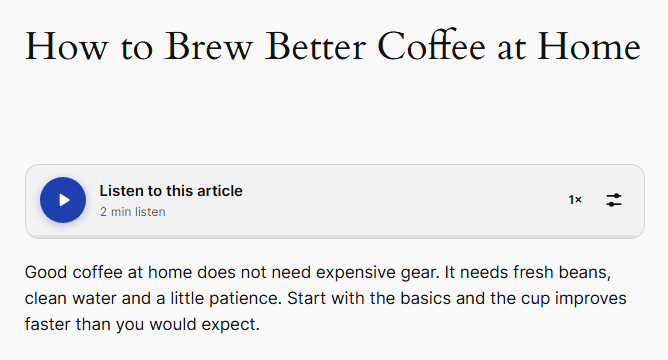


Auvrenth Text-to-Speech Reader adds a listen button to your posts and pages. Visitors press play and the article is read aloud by the voices already built into their browser.
It needs no account, no API key and no monthly cost, and it stores no audio files on your server. The speech is made on the visitor’s own device, so nothing is sent to an outside service.
Want a natural voice that sounds the same for everyone? Activate an AI voice add-on (ElevenLabs, OpenAI, Google Cloud or Azure) under Auvrenth Reader Add-ons and use its voices with your own API key.
For visitors
- Play, pause and stop. Stopping keeps the visitor’s place: the button turns into Resume and carries on from the word where reading stopped, where the voice reports its position.
- Skip to the previous or next sentence, or click the progress bar to jump ahead.
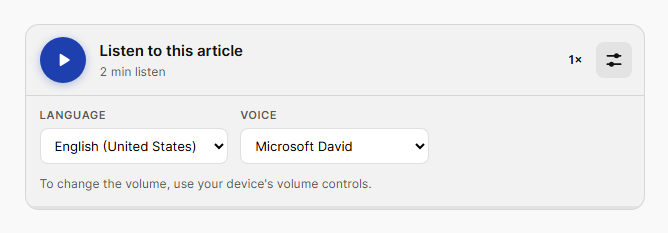
- Reading speed control, and a language and voice switcher whose choice is remembered.
- The sentence being read is highlighted in the article, and the page scrolls along with it. Scrolling by hand pauses the following for a few seconds.
- A mini player stays at the bottom of the screen when the player scrolls out of view while listening.
- Keyboard friendly: the left and right arrow keys skip sentences while the player has focus, and every button has a tooltip and a screen reader label.
- Remembers where a visitor stopped and offers “Continue where you stopped” on their next visit.
- Sleep timer (5 to 60 minutes, or end of article), a “Jump to section” list of the article’s headings, and volume and pitch sliders.
- Select any passage in the article and press the small “Listen” button to hear just that part.
For site owners
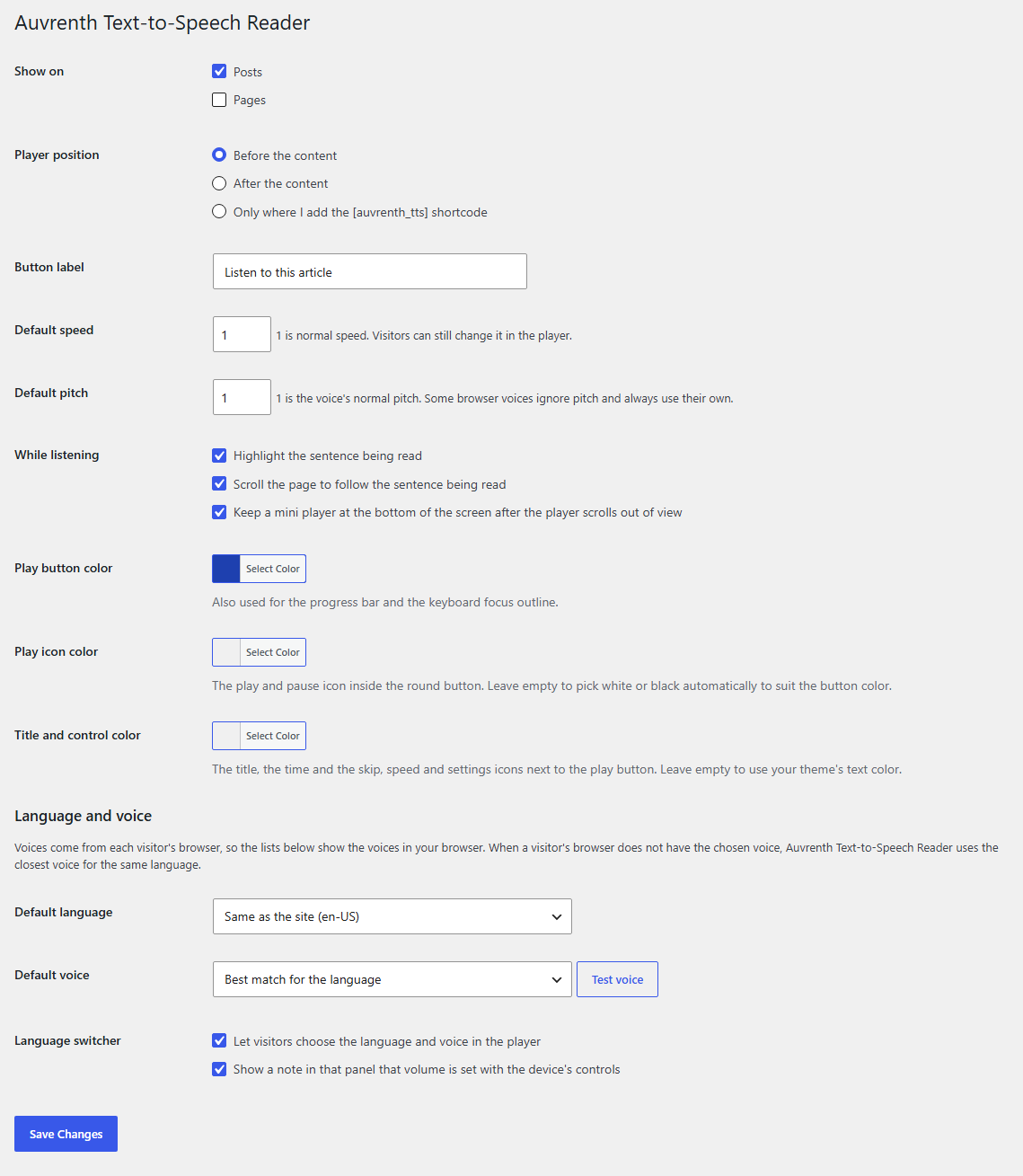
- Choose the post types, and show the player before or after the content.
- Set a default language, voice, speed and pitch, and test them right from the settings screen.
- Uses a voice that matches your site language when the browser has one.
- Turn sentence highlighting, page scrolling, the mini player and the language switcher on or off.
- Match your site with the play button color, the play icon color and the title and control color.
- Hide the player on single posts, or place it anywhere with the Auvrenth Player block or the
[auvrenth_tts]shortcode. - Change what is read aloud with the
auvrenth_tts_textfilter. - Product short descriptions are read before the long description.
AI voice add-ons (built in, each off until you activate it)
- Hosted MP3 audio from ElevenLabs, from OpenAI, or from any OpenAI-compatible speech service, with your own API key.
- Pick an ElevenLabs voice and model from your account, tune stability, similarity, style and speaker boost, and see how many characters you have used this billing period.
- The audio is made in the background when a post is published or its text changes, or only when you tick “Make audio” in the editor box.
- Long posts are sent in pieces, and after an edit only the pieces whose text changed are sent again, so you only pay for what changed.
- Visitors get a “Download MP3” link in the player.
The player only appears in browsers that support speech synthesis, which covers all current versions of Chrome, Edge, Safari and Firefox. Sentence highlighting needs a browser with the CSS Custom Highlight API: current Chrome, Edge and Safari, and Firefox 140 or later. Everything else works without it.
Auvrenth Player block and shortcode
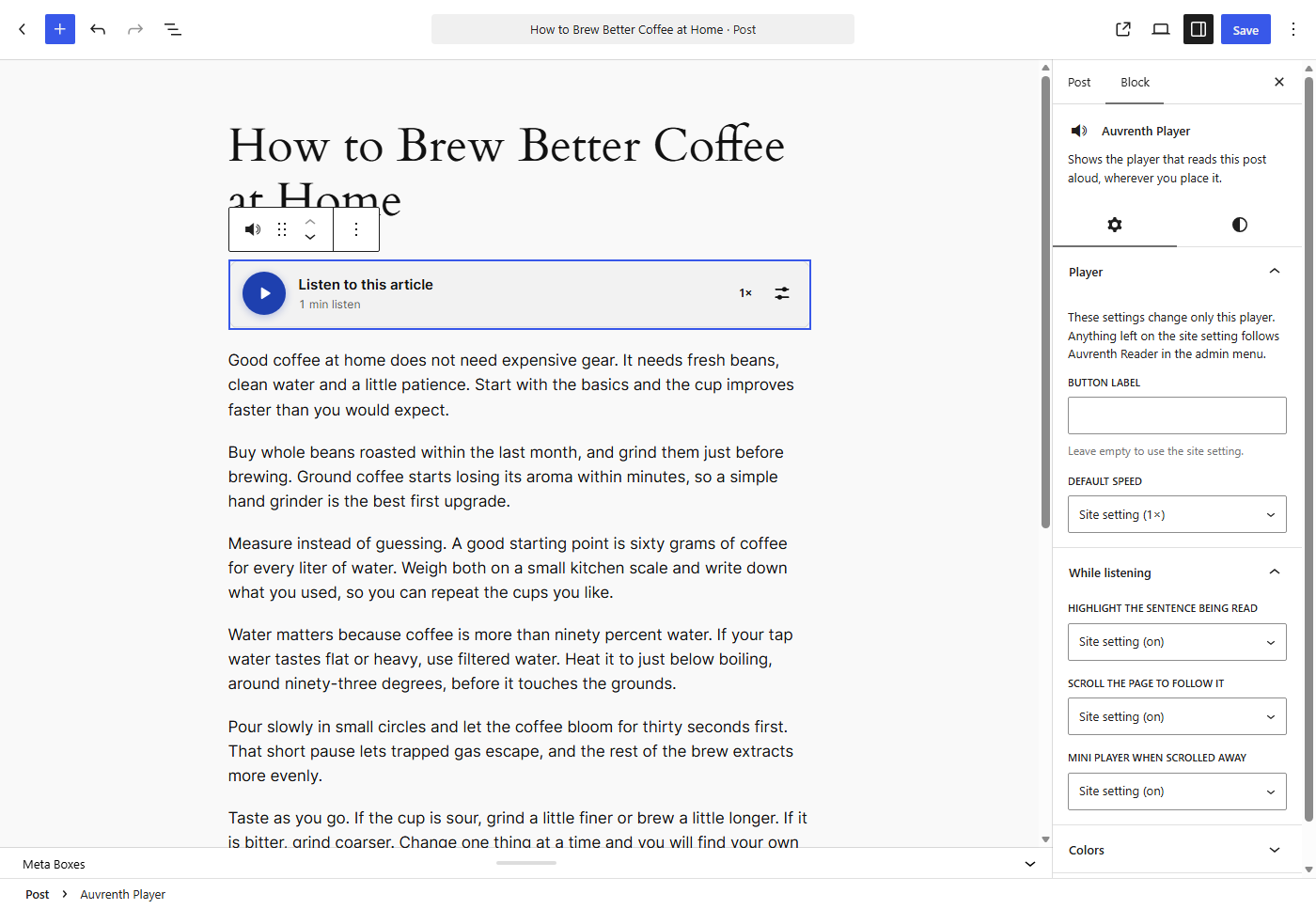
Add the Auvrenth Player block (in the block inserter under Media, or search for “Auvrenth”), or [auvrenth_tts] in a post, page or Shortcode block, to show the player exactly where you want it. It reads the post it is placed in.
- The editor shows the player as visitors will see it, and the block sidebar changes that one player only: the button label, default speed, sentence highlighting, page scrolling, the mini player, and the play button, play icon and text colors. Anything left on “site setting” follows the settings screen.
- The block also has the usual margin and HTML anchor settings.
- Works on any post type, even ones not ticked under “Show on” in the settings.
- When a post contains the block or the shortcode, the automatic player is skipped there, so the player never shows twice.
- Set “Player position” to “Only where I add the [auvrenth_tts] shortcode” to turn off automatic placement everywhere and use the block or shortcode only.
- The block and shortcode show nothing when the player is hidden for that post in the editor, or when the post is password protected.
External services
This plugin connects to an outside speech service only when you activate one of the AI voice add-ons and choose it as the audio source under Auvrenth Reader AI voices. Until then, nothing is sent anywhere.
ElevenLabs
Used when the audio source is ElevenLabs, to turn post text into speech.
- When a post is published or updated (or when you tick “Make audio”), the post’s title and text are sent with your API key to
api.elevenlabs.ioto make the MP3. - When you open the AI voices screen, your API key is sent to list your voices and models and show the characters used this billing period.
ElevenLabs Terms of Service and Privacy Policy.
OpenAI or an OpenAI-compatible service
Used when the audio source is an OpenAI-compatible speech service. When a post is published or updated (or when you tick “Make audio”), the post’s title and text are sent with your API key to the service address you enter (by default api.openai.com) to make the MP3.
OpenAI Terms of Use and Privacy Policy. If you enter another service’s address, that service’s own terms apply.
Google Cloud Text-to-Speech
Used when the audio source is Google. When a post is published or updated (or when you tick “Make audio”), the post’s title and text are sent with your API key to texttospeech.googleapis.com to make the MP3.
Google Cloud Terms of Service and Privacy Notice.
Microsoft Azure Speech
Used when the audio source is Azure. When a post is published or updated (or when you tick “Make audio”), the post’s title and text are sent with your subscription key to {region}.tts.speech.microsoft.com to make the MP3.
Microsoft Terms of Use and Privacy Statement.