
Aouwal Static Site Export – Static Site Generator
v1.12.0Abdul Aouwal · 2026年10月17日 上架
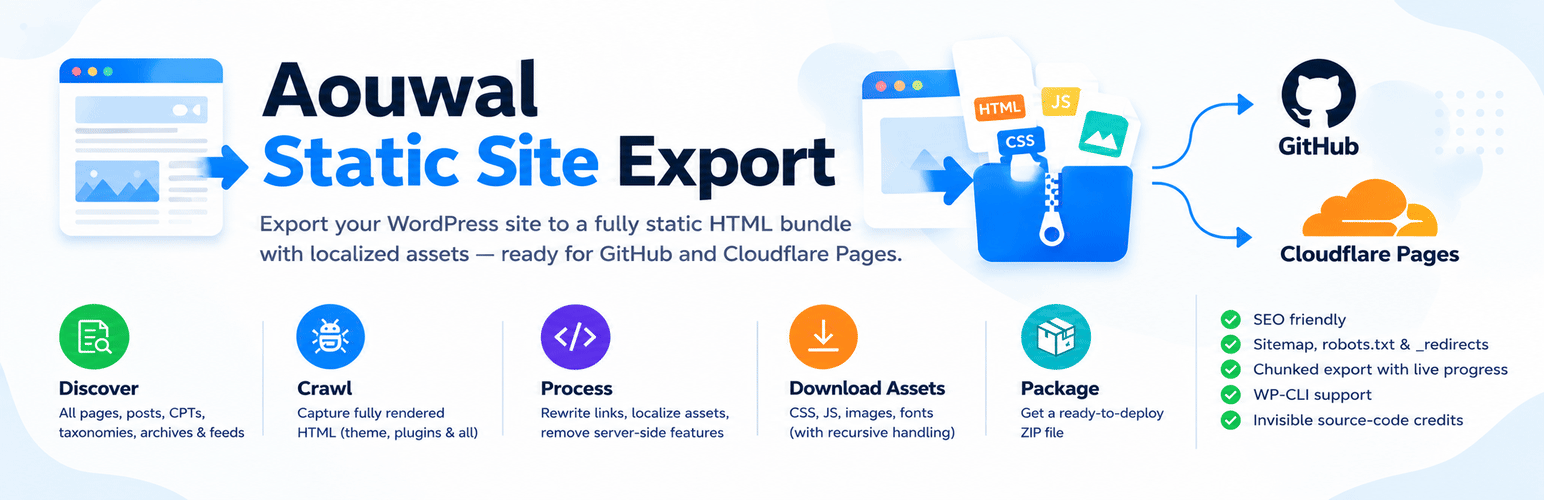
Turn WordPress into a fast static HTML site. Export pages, CSS, JS, images, fonts and sitemap.xml for Cloudflare Pages, GitHub Pages or Netlify.
- 正在使用
- 10 以下
- 评分
- 5.0 / 5
- 累计下载
- 1,172
- 最近更新
- 2026年11月24日
贡献者
 Abdul Aouwal
截图
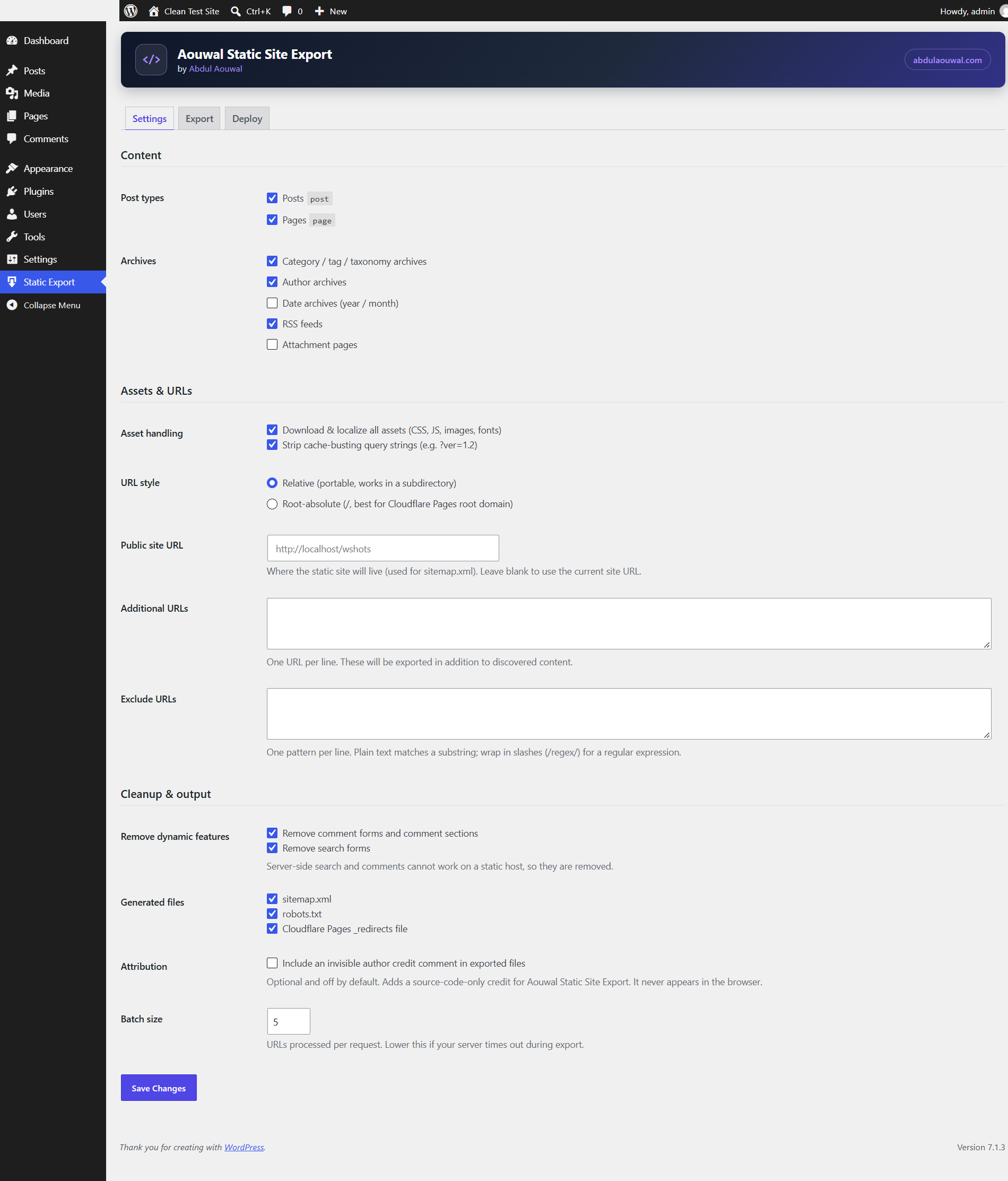
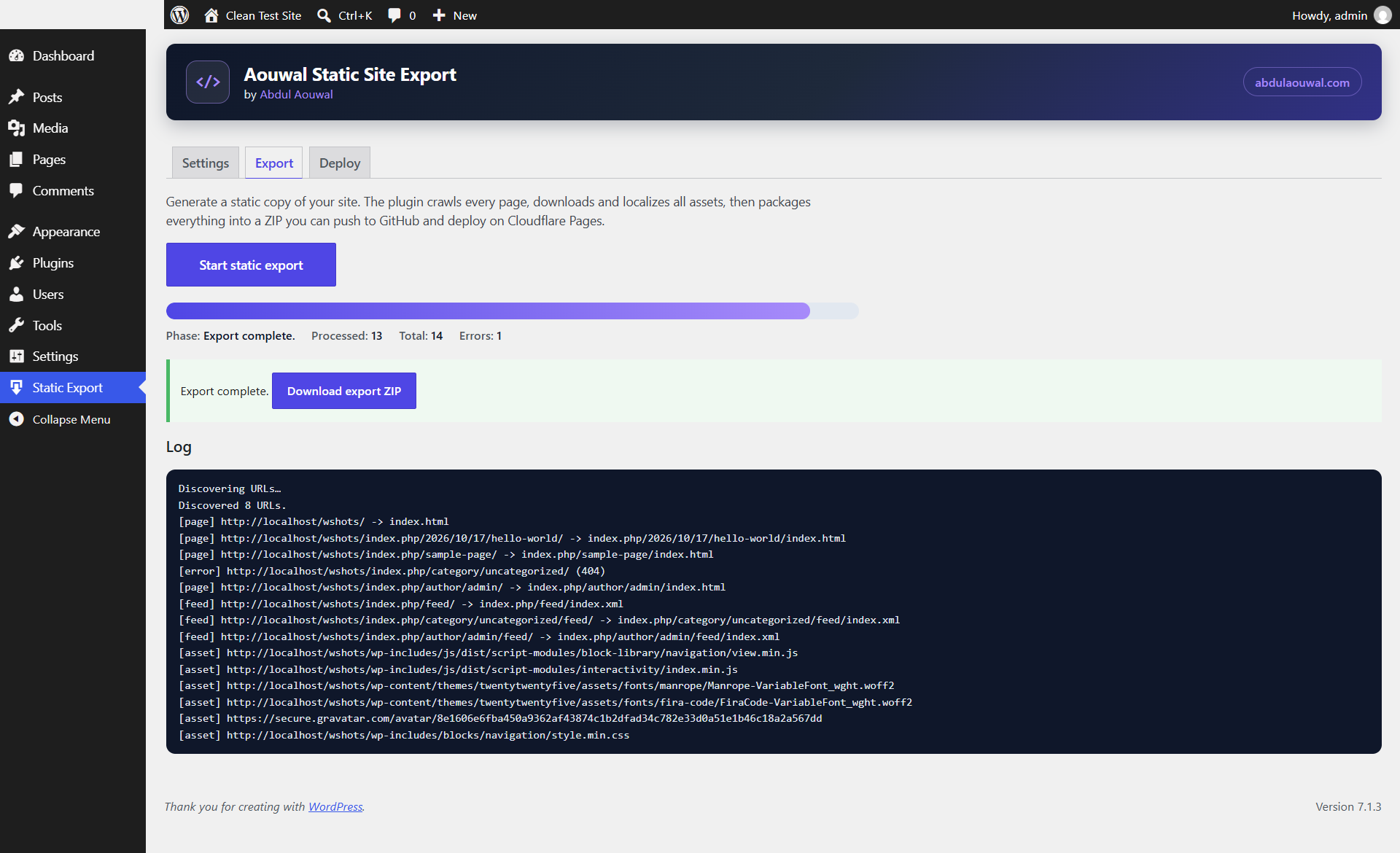
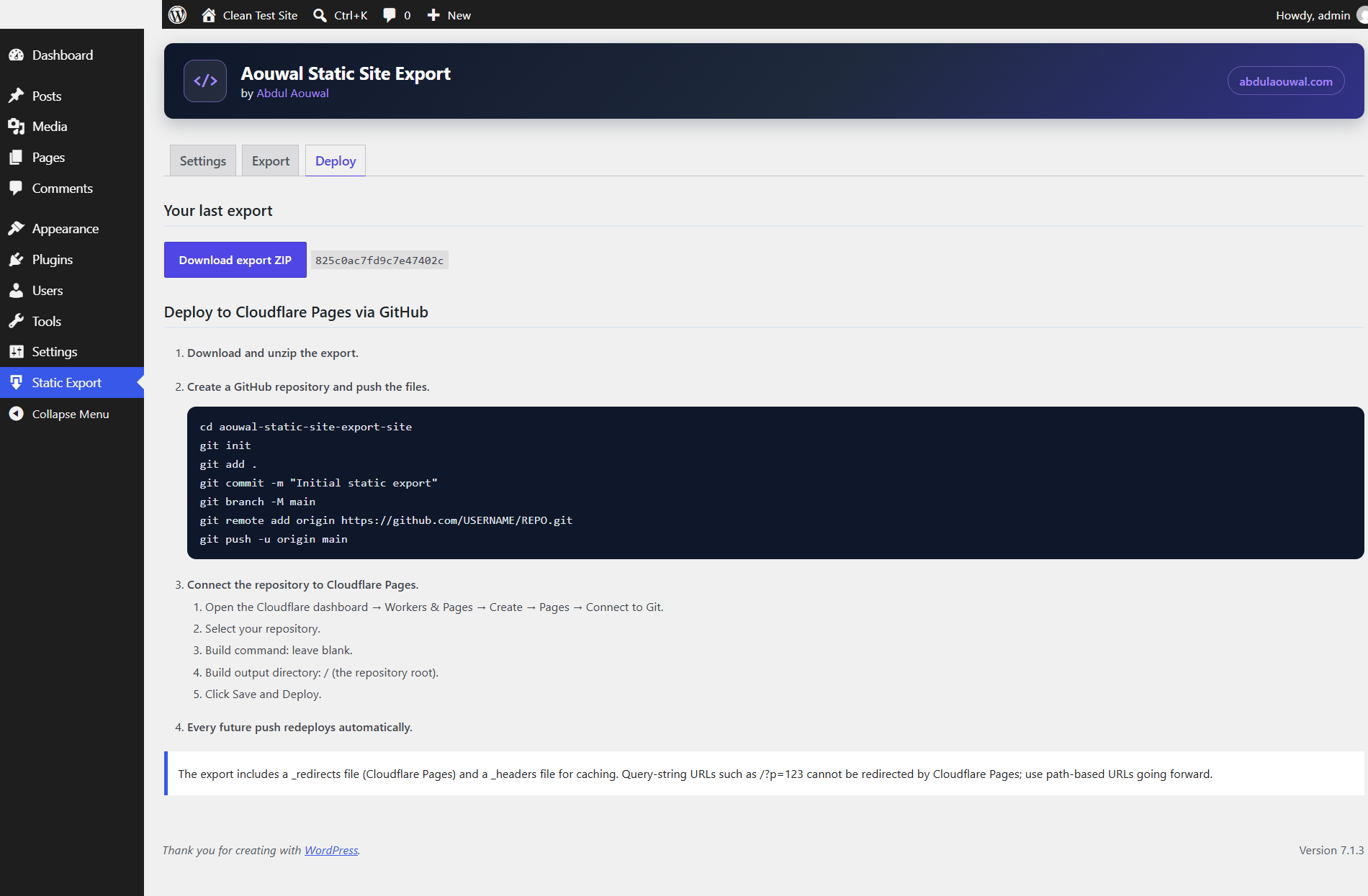
Aouwal Static Site Export is a WordPress Static Site Generator that converts dynamic WordPress websites into static HTML websites. Export complete websites including CSS, JavaScript, images, fonts, sitemap.xml and robots.txt for deployment on Cloudflare Pages, GitHub Pages, Netlify or any static web server.
The export is a plain folder of HTML files and assets. You can commit it to GitHub and deploy it on Cloudflare Pages, or host it on any static host or CDN. No WordPress, PHP or database is needed to serve it.
Author: Abdul Aouwal, Technical SEO Consultant.
Export WordPress to static HTML
The plugin turns your published WordPress pages into plain static HTML files. It works in six steps:
- It discovers every public URL on your site.
- It requests each URL through the WordPress HTTP API and keeps the fully rendered HTML.
- It downloads and localizes every asset, including recursive CSS
url()and@importreferences. - It rewrites internal links to portable relative or root-absolute URLs, keeping
<picture>,<source>,<track>,<template>and custom-element markup intact. - It removes server-side features that cannot run on a static host.
- It packages everything into one ZIP file you can download.
You can export:
- Posts, pages and custom post types.
- Category, tag and custom taxonomy archives, author archives and date archives, including page 2 and later.
- RSS feeds (
feed/index.xml), removable with one checkbox. - A
404.htmlpage (theme template or a built-in page), plussitemap.xmlandrobots.txt. - Cloudflare Pages
_redirectsand_headersfiles, both on by default.
WordPress static site generator features
- Chunked export with a live progress log, so large sites do not hit PHP timeouts.
- Every page is fetched as WordPress renders it, so theme templates, shortcodes and plugin output are included.
- Images, CSS, JavaScript and fonts are downloaded and localized, including
srcsetand<picture>sources. - Internal links become relative or root-absolute URLs, so the static site works on any domain and in any subfolder.
- HTML5 markup stays valid:
<picture>,<source>,<video>,<track>,<template>and custom elements survive the export. - The Maximum asset size setting (25 MB by default) skips oversized files instead of exhausting memory.
- Every write is checked. Pages or assets that cannot be written are reported in the log instead of being marked as done.
- The crawler fetches only public URLs. Every redirect hop and both A and AAAA records are validated.
- Network controls for awkward hosting: request timeout, delay between requests, custom crawl origin, TLS verification modes and optional HTTP Basic Auth.
- Optional path rewrite: move /wp-content/uploads/ to a shorter folder such as /uploads/ or /media/ in the export. Off by default; changes URLs only and does not remove other WordPress fingerprints.
- Pause, resume and cancel controls, so a long export can be stopped without losing progress and a wrong export can be aborted and cleaned up.
- Optional changed-only export: reuse the last export and re-export only pages, archives and assets that changed. Full export stays the default.
- Optional direct deployment to GitHub: push the finished export to a branch with one commit per run. Off by default, token-only, no OAuth app.
- Optional direct deployment to Cloudflare Pages: upload only changed files to a Pages project with an API token. Off by default.
- Optional direct deployment to Netlify: file-digest deploy, only missing hashes uploaded, atomic replacement of the site. Off by default.
- Optional WP-CLI command:
wp aouwal-static-export run. - Optional, invisible author credit. It is off by default and can be enabled in Settings.
Deploy to Cloudflare Pages
Cloudflare Pages is the fastest path to a live static site. The export already includes the _redirects and _headers files Cloudflare Pages expects, and the Deploy tab walks you through creating a GitHub repository and connecting it to Cloudflare Pages. Once the repository is connected, every push redeploys the site automatically.
Export to GitHub Pages
The same export folder works on GitHub Pages. Commit the exported files to a repository, enable Pages for the branch or folder you pushed, and GitHub serves the static HTML. Relative links work as they are, so no extra configuration is needed.
Netlify, Jamstack and any static host
The output is a plain folder of HTML files and assets, which makes it a good fit for any Jamstack workflow. Upload it to Netlify (which also reads _redirects and _headers), Amazon S3, Vercel, a CDN, or any static hosting account. No WordPress, PHP or database is needed to serve it.
Automate exports with WP-CLI and cron
Aouwal Static Site Export writes a ZIP and a local folder. It does not schedule exports, so use cron or your host’s scheduler for hands-off runs. The WP-CLI command can also place the result exactly where a deploy script expects it.
-
Run the export with machine-readable output and a stable ZIP path:
wp aouwal-static-site-export run –batch=10 –format=json –zip=/var/www/builds/site.zip > /tmp/export.json
The JSON object contains job_id, mode, counts (done, error, skipped, total), output_dir, zip, bytes, duration, started, finished and any deployment results. Only JSON goes to stdout; progress and log lines go to stderr.
-
Unzip that stable path into the repository your host watches:
unzip -o /var/www/builds/site.zip -d /var/www/static-repo
Or skip the unzip step with --output-dir=/var/www/static-repo --force, which copies the finished site tree into the target folder.
-
Commit and push the updated files:
cd /var/www/static-repo && git add -A && git commit -m “Static export” && git push
-
Cloudflare Pages, Netlify and Vercel redeploy on every push, so the new static site is live a few minutes after the cron job runs.
Exit codes are stable:
0— export completed without failed items.1— completed with failed items, or cancelled.2— could not start: another export is running, an invalid flag or path, or the PHP zip extension is missing.
Two cron runs cannot overlap: the exporter takes a lock and the second process exits 2 with the running job ID. A lock is released when the export finishes, pauses or is cancelled, and a stale lock is ignored after 20 minutes without progress.
--format=json and `--porcelain` are aliases. `--output-dir` and `--zip` accept absolute paths and are checked before the crawl starts. The ZIP keeps the site structure (`path/index.html`), so unzip it as a folder, not as a flat file list.
Pause, resume or cancel an export
The Export screen has three controls next to the Start button, so a long crawl no longer has to be left running or killed by closing the tab.
- Pause stops the export at the end of the current batch. Every page and asset already exported stays on disk, and the queue keeps its place.
- Resume continues from the next pending URL and finishes the export with the pages written before the pause still in place.
- Cancel stops the export and deletes the partial output folder and any ZIP, so a failed or wrong export leaves nothing behind. The log keeps a line naming the last URL that was processed.
Pausing and cancelling take effect between batches, which is one request. A batch that is already running finishes first, so a cancel can take a few seconds to report back on a slow host. Nothing is lost in the meantime: the next request repeats the cleanup.
The state is stored on the server, so reloading the screen shows a paused export with its Resume and Cancel buttons. The loop never restarts on its own, because two open tabs would both drive the same queue.
WP-CLI has the same controls for a crawl started from the command line:
wp aouwal-static-export status
wp aouwal-static-export cancel
wp aouwal-static-export resume --batch=10

status prints the phase, the processed and pending counts and the last URL, which is handy in a cron log. `cancel` exits with 1 so a script stops before pushing a partial build.
Changed-only export for large sites
By default every export re-crawls every page and re-downloads every asset. Settings > Export mode adds a second mode for sites where that takes too long.
- Full export is the default and the previous behavior: every URL is fetched and rewritten on every run.
- Changed-only export starts from the last export, copies its files into the new output folder, and then re-exports only what changed.
What a changed-only run re-exports:
- A post or page whose
post_modifiedtime changed, plus every taxonomy, author and date archive that contains it, plus the homepage, the posts page and their pagination. - Assets whose
ETagorLast-Modifiedresponse header no longer matches the stored value. The plugin sends a conditional request (If-None-Match/If-Modified-Since) and keeps the copied file when the server answers 304 Not Modified. - Feeds, additional URLs, the sitemap, robots.txt,
_redirects,_headersand 404.html are always rebuilt.
Unchanged pages are not even requested: their stored fingerprint matches, so the copied file is kept as is.
The mode falls back to a full export on its own when the previous files cannot be trusted: a different plugin or WordPress version, a different theme, a different permalink structure or site URL, or any setting that changes the output (post types, archive toggles, URL style, uploads path, stripping options, credit). It also falls back when the previous output folder is missing, or when copying it fails.
Files for content that was deleted are removed from the new export, and the log names how many were dropped. A URL that failed keeps its old file and is retried on the next run.
Run it once from the command line without changing the saved setting:
wp aouwal-static-export run --changed-only --batch=10
wp aouwal-static-export run --full
Data stored: one row per page and asset in a custom table ({prefix}aouwal_export_state) holding the URL hash, fingerprint, ETag, Last-Modified, size and the last export that confirmed it. The table is removed when the plugin is uninstalled.
Deploy from WordPress to GitHub and Cloudflare Pages
The Deploy tab pushes a finished export to GitHub, Cloudflare Pages or Netlify without downloading, unzipping and pushing by hand. Each target is off by default and hidden until enabled, and each has its own Test connection, Deploy automatically option and Deploy button. “Deploy all enabled” runs every enabled target. Tokens are stored encrypted, never shown again, and a failed deployment keeps the local ZIP so it can be retried.
GitHub
GitHub needs the repository owner, repository name, branch, optional folder and a personal access token with contents write access.
Only changed files are uploaded, one commit is created per run, and a missing branch is created from the default branch. Removing files that are no longer in the export is opt-in. For a first deployment of thousands of files, run wp aouwal-static-site-export deploy from the command line to avoid a web request timeout.
wp aouwal-static-export deploy
Cloudflare Pages
The Cloudflare target uploads the export to a Pages project with the direct upload API. Use it when the Pages project is not connected to a Git repository. If the project already builds from a GitHub repository, use the GitHub target and let Pages rebuild from the new commit.
Cloudflare Pages needs the 32-character account ID, the project name (not the .pages.dev hostname) and an API token with Pages Edit access.
Only missing file hashes are uploaded, and _headers and _redirects are included. Leave the branch blank for production, or enter a branch for a preview deployment.
Limits: Cloudflare Pages accepts up to 20,000 files per deployment and 25 MB per file. The plugin stops with a clear message before uploading when the export exceeds either limit.
Optional cache purge: set the 32-character zone ID and tick “Purge the zone cache after every Cloudflare deployment”. The API token then also needs Zone > Cache Purge permission. A purge runs only after a successful deployment, so a removed file stops being served from the edge cache.
Pages keeps every deployment as a preview, so removing content from the export does not delete the previous deployment; the new deployment simply no longer serves it.
Test connection reads the project before anything is uploaded.
Netlify
The Netlify target uses the file digest API. It needs the Project ID (also called Site ID) and a personal access token from Applications > Personal access tokens.
Every file is a SHA1 entry in the manifest. Netlify returns the hashes it lacks, only those are uploaded, and the deploy replaces the previous file set atomically. The token is encrypted and never logged. Test connection reads the site first; a failed deploy keeps the local ZIP.
Why use a static WordPress website
A static website is faster and safer: no PHP and no database, just small HTML files served from a CDN. There is much less to attack: no login page, no plugin endpoints and no database on the public server. Keep WordPress for writing, and export a fresh copy when content changes.
What the export cleans up
- Removes comment forms, comment sections, “Leave a comment” links and comment feeds (on by default). Leftover theme wrappers such as
comments-area,comment-respondandcomment-listare removed too, across classic and block themes. - Removes search forms (on by default).
- Strips WordPress version tags.
- Strips staging “noindex” robots meta so the exported site stays indexable.
Not suitable for
A static site has no PHP and no database, so features that need a server stop working after the export:
- E-commerce stores. Cart, checkout, payment and order confirmation need WooCommerce and a database.
- Membership sites and sites that require user logins. A static host has no sessions, accounts or password reset.
- Real-time data, such as live stock levels, prices, dashboards or feeds that change by the minute.
- Heavy AJAX functionality, including live search, AJAX filtering, infinite scroll endpoints and form submissions.
- Built-in forms, site search, comments and “add to cart” buttons. They need a server to receive and store the result.
If you need those features, keep the dynamic WordPress site, or replace them with third-party services before you go static: a hosted form service, a static search service, and a hosted checkout. Static export works best for content sites such as blogs, documentation, portfolios, marketing pages and company websites.