

PublishPress Blocks – Block Controls, Block Visibility, Block Permissions
v3.7.8PublishPress · 2017年12月27日 上架
PublishPress Blocks is the complete solution for the WordPress block editor. Control block permissions, styles, conditional visibility and usage.
- 正在使用
- 2 万+
- 评分
- 4.7 / 5
- 累计下载
- 192 万
- 最近更新
- 2026年11月17日
 PublishPress
 Steve Burge
 htmgarcia
 Olawale Adesina
截图
PublishPress Blocks has everything you need to build professional websites with the WordPress block editor. This plugin has complete set of management tools for blocks. You can control which users can add which blocks to posts. You can manage conditional block visibility, including user roles, date, time, device, screen size, and day of the week. Plus you can set default CSS styles, find all your blocks, manage your reusable blocks, and much more.
Powerful block editor features in PublishPress Blocks
- Block Controls: You can set conditional block visibility, including user role, date, time, device, day of the week, and more.
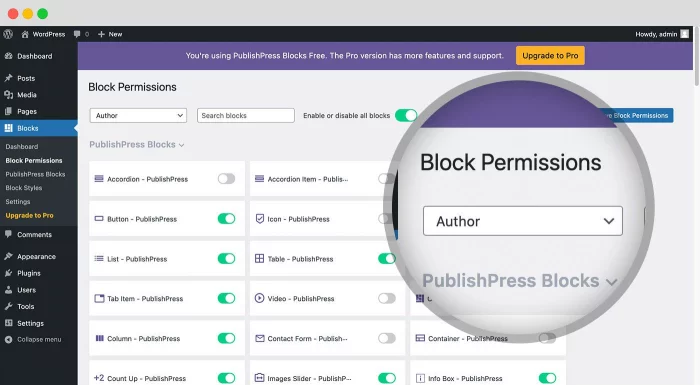
- Block Permissions: You can control who can use each block, including default WordPress blocks.
- Block Styles: You can add your own CSS styles for your blocks. Anyone editing posts can quickly add the styles to blocks.
- Block Usage: You can scan the posts on your website to find where your blocks are used.
- Reusable Blocks: You get easy access to manage and edit all the reusable blocks on your site.
- Auto-Insert Blocks: Automatically insert blocks into any location in your posts.
- Extra Blocks: There are over a dozen extra blocks including accordions, tabs, and sliders.
PublishPress Blocks Pro
Upgrade to Blocks Pro
This plugin is the free version of PublishPress Blocks. The Pro version comes with faster support and all the features you need to super-charge the WordPress block editor. Click here to purchase the best premium WordPress blocks plugin now!
Block Controls: Control Block Visibility on Your Site’s Frontend
With Block Controls, you can schedule when blocks are shown, and also add user role restrictions. You can show blocks based on device type, browser, operating system, cookies, user data, and much more.
Click here to read how to use block controls.
There are over a dozen different kinds of block visibility control available:
- Schedule: schedule when to start showing and/or stop showing a block.
- User roles: choose which users can see your blocks.
- Device Width: show and hide blocks on specific device sizes.
- Device Type: Select what type of device this block will be visible on.
- Browser: Choose which browsers can see this block.
- Operating System: Choose which operating systems can see this block.
- Cookie: Show or hide the block based on cookie values.
- User Meta: Show or hide block based on user meta values.
- Post Meta: Show or hide block based on post meta values.
- Query String: Show or hide block based on URL query parameters.
- Capabilities: Show or hide block based on user capabilities.
- Term Archives: Choose on which taxonomies and terms archive pages your blocks can be displayed.
- Pages: Choose in which pages this block can be displayed.
Block Permissions: Control Who Use Each Block
PublishPress Blocks allows you to enable or disable Gutenberg blocks for user roles. For example, you can disable the “Classic” block if you don’t want users to rely on the old WordPress editor. Using the PublishPress Blocks plugin, you can allow some user roles to use the Gutenberg blocks that you choose. You can select which blocks in the Blocks list will be available to each role.
Click here to see how to control who can use each block.
Block Styles: Custom Design for Your Blocks
You can create custom styles for blocks and make them available to end users. Name the style, and let the content editors use it when they need it. There’s an easy-to-use tool for creating styles, or you can bring your own CSS.
Click here to see how to create block styles.
Block Usage: Find Your Blocks
The Block Usage feature allows you to search for and find any usage of blocks on your site. Find your blocks quickly. Using this screen, you can scan all the content on your site and find where each block is located.
Click here for more on the Block Usage Screen.
Reusable Blocks: Build a Block Once and Use it Everywhere
When you are using PublishPress Blocks, a submenu for Reusable Blocks is enabled by default. This submenu allows you to reach the “Reusable blocks” page screen that is normally difficult to find in WordPress. Reusable blocks are an incredibly useful feature in the Gutenberg block editor. They allow you to create content once and use it multiple times inside different posts and pages.
Click here for more on the Reusable Blocks Screen.
Auto-Insert Blocks
The Auto-Insert Blocks feature allows you to automatically insert reusable blocks into posts. You can choose to insert your blocks according position, categories, tags, and other criteria. This ideal for adding promotional banners, newsletter sign-ups, or anything that needs to be shown multiple times in your posts.
Click here for more on Auto-Insert Blocks.
Extra Blocks: Over a Dozen Extra Gutenberg Blocks
PublishPress Blocks has everything you need to build professional websites with WordPress. Here’s an introduction to the blocks available with the PublishPress Blocks plugin:
- Accordion block: You can create a PublishPress Accordion block when you need to display a lot of content in a small area. Your site visitors will be able to click on accordion bars that slide out to reveal content.
- Button block: The PublishPress Button block is based on the default Button block in Gutenberg. This improved version of the button block has tons of extra features including advanced styling such as hover, margin, border, padding, shadows and more.
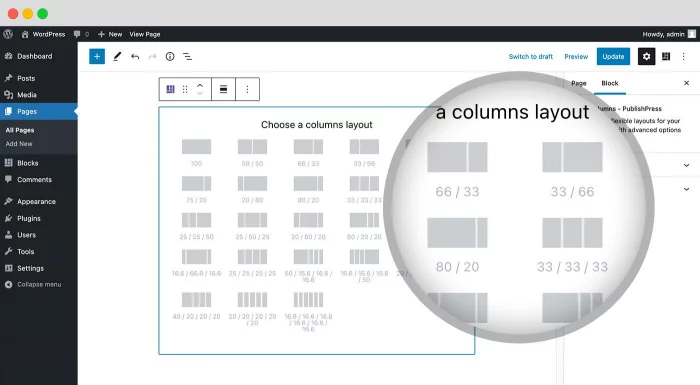
- Columns Manager block: The PublishPress Columns block is based on the default Columns block in Gutenberg. This new version of the block has many extra features including extra layout options, padding, margins and much more.
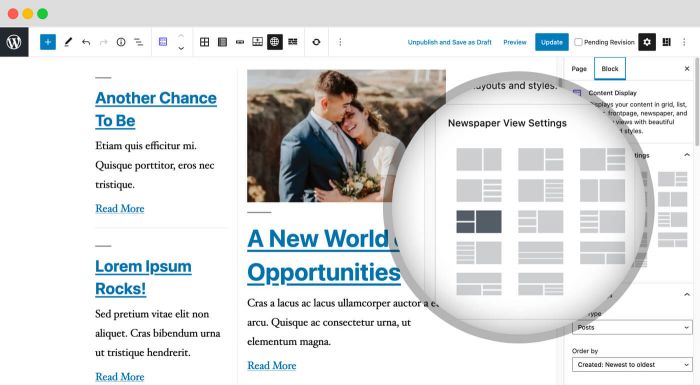
- Content Display block: PublishPress Blocks has a block to display your latest posts. Several views are available including Grid, List, Slider, Frontpage, Newspaper and Masonry. Some views have its own layouts and settings
- Count Up block: The PublishPress Count Up block is perfect for showcasing a number in Gutenberg. You can use it to show how many clients you have, how much money you have raised, how many cups of coffee you’ve served, or anything else.
- Icon block: The PublishPress Icon block allows you to add icons to WordPress content. This block uses Google’s Material Design icons. You can customize the style, size, color, link, margin, padding, background, border and more.
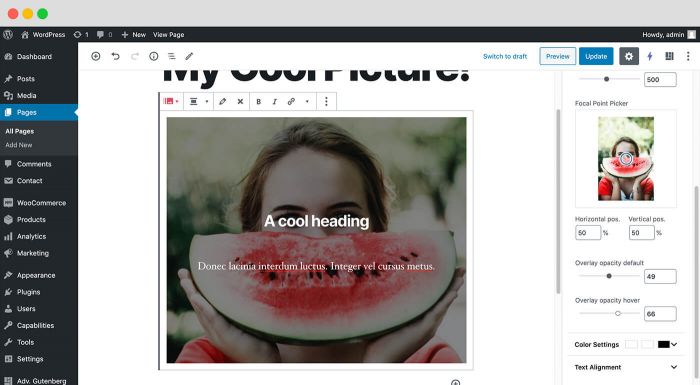
- Image block: The PublishPress Image block is based on the default Image block in Gutenberg. This improved version of the block has tons of extra features including focal points, overlays, custom text and more.
- Images Slider block: If you want to show multiple images in a slider / slideshow, then the PublishPress Images Slider Block is a great option. This Gutenberg block has advanced features including overlays, auto height, text, color and alignment options.
- Table block: The PublishPress Table block is based on the default Table block in Gutenberg. This improved version of the block has tons of extra table features including advanced styling such as margin, padding, alignment, colors and more.
- Tabs block: You can create a PublishPress Tabs block when you need to display a lot of content in a small area. The tabs are mobile-friendly, can be horizontal or vertical, and can be customized with your colors and design.
And there are also special blocks and features available in PublishPress Blocks Pro:
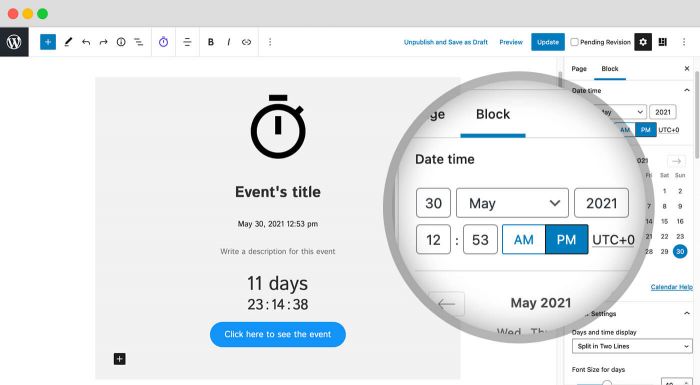
- Countdown block: With the PublishPress Countdown blocks, you can create a highly customizable countdown to an event. This block is available in PublishPress Blocks Pro.
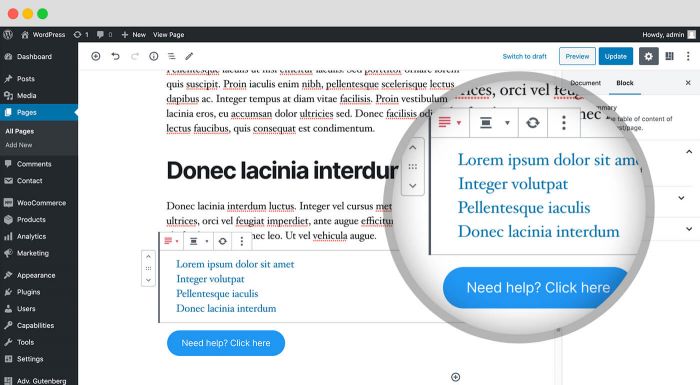
- Feature List block: With the Pro version of the PublishPress Blocks plugin, you can create an Features List block when you need to show a list of all the items available with a product or service.
- Pricing Table block: With the Pro version of the PublishPress Blocks plugin, you can create a Pricing Table block when you need to show people the purchase or subscription options on your site.
PublishPress Blocks features the best content block in WordPress. You can use the “Content Display” block to create blog layouts, lists of posts by a specific author, or even complete newspaper frontpages. This block allows you to show posts, pages and other content types in many beautiful layouts. These layout options are Grid, Frontpage, List, Newspaper, Masonry, and Slider. You also have dozens of different ways to customize your content. You can filter your content by author, category or tag. You can add many types of data to your layouts including posted date, updated date, images, authors, excerpts, intro text, comments and more.
Join PublishPress and get the Pro plugins
The Pro versions of the PublishPress plugins are well worth your investment. The Pro versions have extra features and faster support. Click here to join PublishPress.
Join PublishPress and you’ll get access to these Pro plugins:
- PublishPress Authors Pro allows you to add multiple authors and guest authors to WordPress posts.
- PublishPress Blocks Pro has everything you need to build professional websites with the WordPress block editor.
- PublishPress Capabilities Pro is the plugin to manage your WordPress user roles, permissions, and capabilities.
- PublishPress Checklists Pro enables you to define tasks that must be completed before content is published.
- PublishPress Future Pro allows you to schedule changes to WordPress Posts.
- PublishPress Permissions Pro is the plugin for advanced WordPress permissions.
- PublishPress Planner Pro is the plugin for managing and scheduling WordPress content.
- PublishPress Revisions Pro allows you to update your published pages with teamwork and precision.
- PublishPress Series Pro enables you to group content together into a series.
- PublishPress Shortlinks Pro allows you to create custom URLs for your posts and external links.
- PublishPress Statuses Pro enables you to create additional publishing steps for your posts.
Together, these plugins are a suite of powerful publishing tools for WordPress. If you need to create a professional workflow in WordPress, with moderation, revisions, permissions and more… then you should try PublishPress.
Bug Reports
Bug reports for PublishPress Blocks are welcome in our repository on GitHub. Please note that GitHub is not a support forum, and that issues that aren’t properly qualified as bugs will be closed.